Notifications tab
Note
To open the Notifications tab, you need administration rights for the company.
In the Notifications tab, you can see which users of the company receive email notifications about anomalies and mitigations. You can also add additional recipients that are not users of the application.
The tab is divided into the following areas:
Notifications area
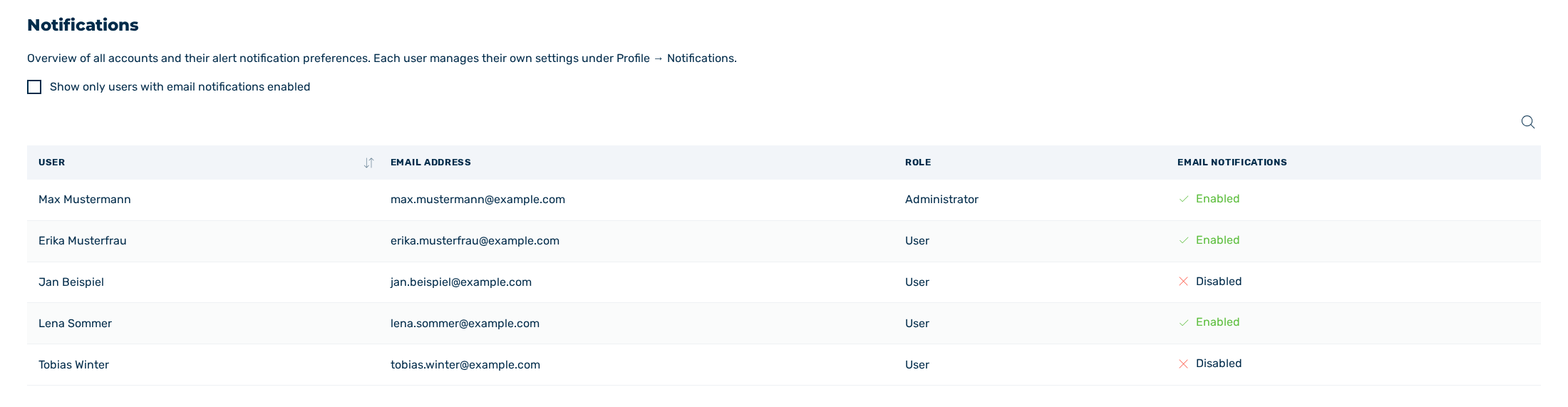
Notifications area
The Notifications area contains an overview of all accounts and their alert notification preferences. Each user manages their own settings under Profile → Notifications (see Notifications tab).
The following information is available:
| Name | Definition |
|---|---|
| User | The name of the user. |
| Email address | The email address of the user. |
| Role | The role of the user in the company. |
| Email notifications | Indicates whether the user receives email notifications. The following values are available:
|
The following options are available:
| Name | Definition |
|---|---|
| Show only users with email notifications enabled | The checkbox hides all users without email notifications enabled.NoteIf the checkbox is selected, a badge next to it shows the number of users with email notifications enabled. |
Note
If no user matches the selected filter, the area displays the text No users match the current filter.
Additional contacts area
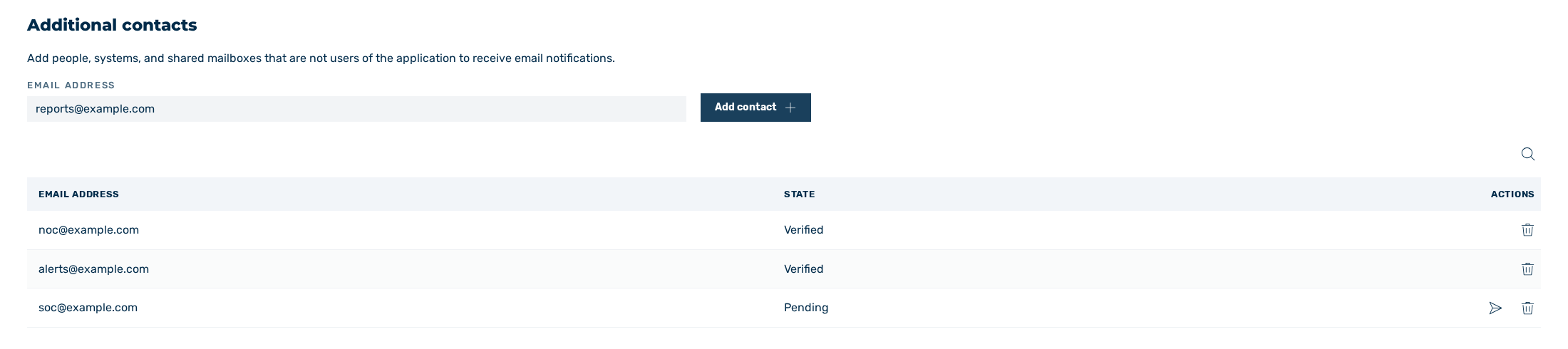
Additional contacts area
In the Additional contacts area, you add people, systems, and shared mailboxes that are not users of the application to receive email notifications.
Proceed as follows to add an additional contact:
- ► Enter the email address of the contact in the field under Email address.
- ► Click on the Add contact button.
- ➔ The contact is added to the list and a verification email is sent. The contact remains in the Pending state until it is confirmed.
The following information is available:
| Name | Definition |
|---|---|
| Email address | The email address of the contact. |
| State | The state of the contact. The following values are available:
|
| Actions | The available actions for the contact. |
The following options are available:
| Name | Definition |
|---|---|
| Resend verification email | The icon sends a new verification email to the contact.NoteThe icon is only displayed for contacts in the Pending state. |
| Remove contact | The icon opens the Remove contact dialog for deleting the selected contact. |
Note
If no additional contacts have been added yet, the area displays the text No additional contacts yet.