Changing the role of a user
Note
To add a group, you need root group admin rights or subgroup admin rights for the group under which the new group is to be created.
Proceed as follows to change the role of a user within a group:
- ► Open the Group Management view, see Section Group Management.
- ► Navigate to the Account of the group area.
- ► Select the user whose role you want to change.
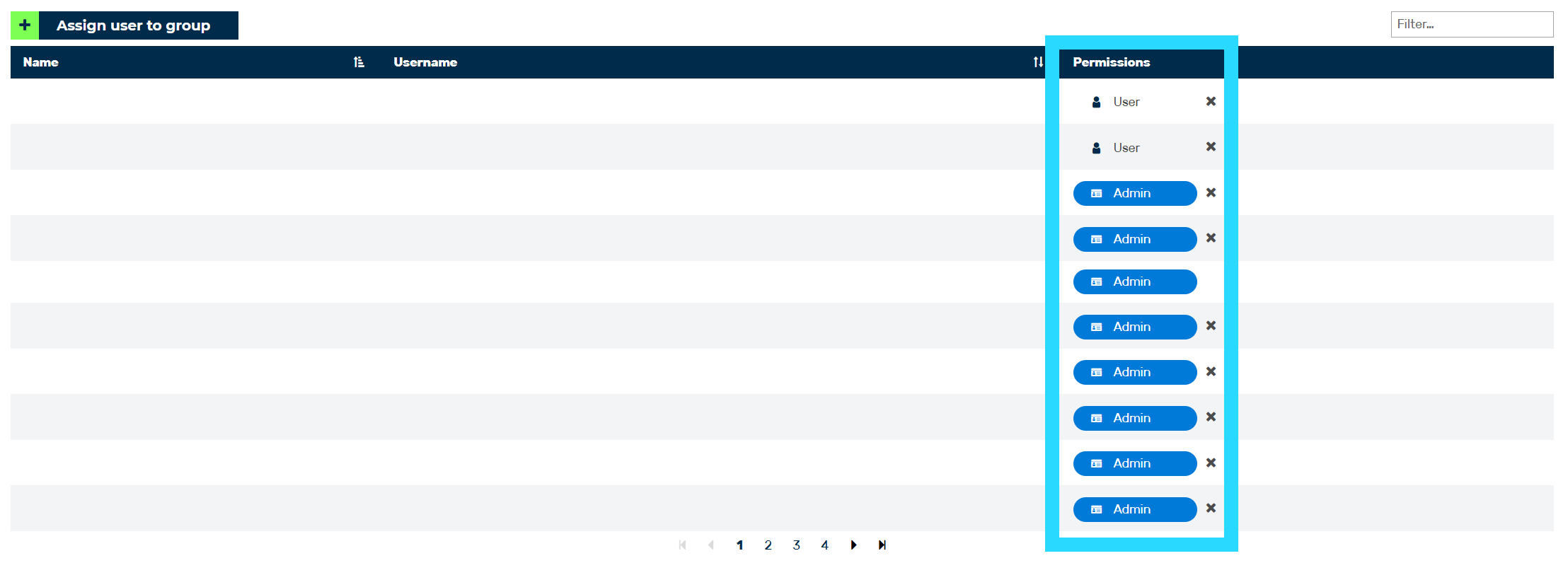
Changing role
-
► In the Permissions column, click one of the following buttons:
- ▷ To revoke a user's admin rights for the group, click on the button.
- ▷ To assign admin rights to the user for the group, click on the User button.
-
➔ Depending on the action you select, the button changes to show the name of the current role.