Add contact
Note
To add, edit, and delete contacts, you need admin rights.
Proceed as follows to add a contact:
- ► Open the Admin Settings view, see Section Admin Settings.
- ► Click on the Contacts & Communication tab.
- ↳ The Contacts & Communication tab opens with the Contact list tab already open.

Contacts & Communication tab
- ► Click on the Add entry button.
- ↳ The Add entry dialog opens.
Depending on the type of contact, you have the following options:
Add Myra App users as contacts
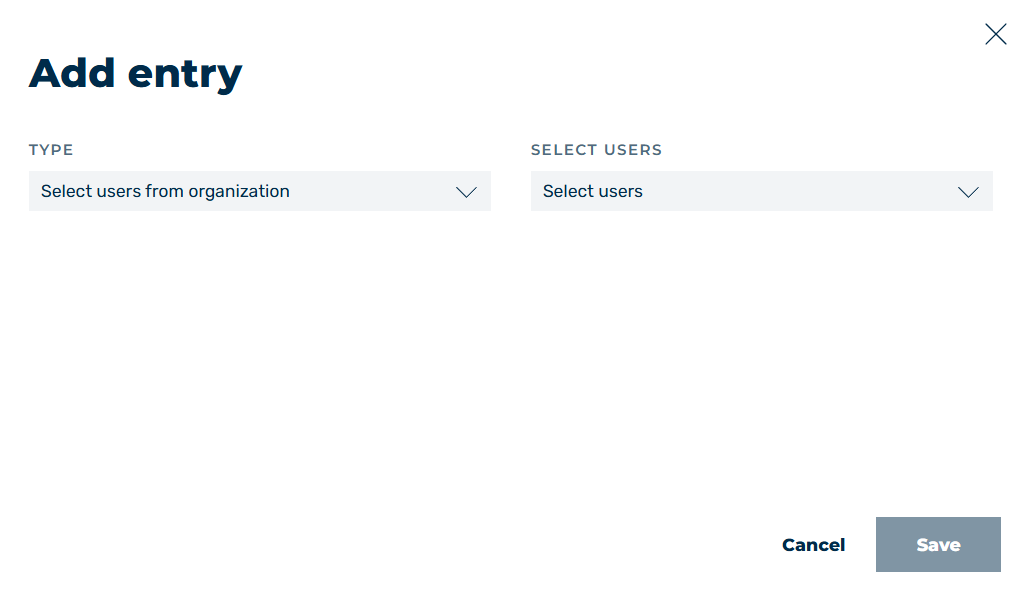
Add Myra App users
- ► Open the drop-down list under TYPE.
- ► Select Select users from organization.
- ↳ The available options in the dialog change, and the SELECT USERS appears.
- ► Open the drop-down list under SELECT USERS.
-
► Do one of the following options:
- ▷ Enter an email address of the user in the search field and click on the drop-down menu to the left of the search result.
- ▷ Select one or more users from the drop-down list by clicking on the checkbox to the left of their name.
- ▷ Select all available users by clicking All users.
-
↳ The drop-down list shows the number of selected users.
Add non Myra App users as contacts
Note
By default, Create new contact is already selected in the drop-down list under TYPE.
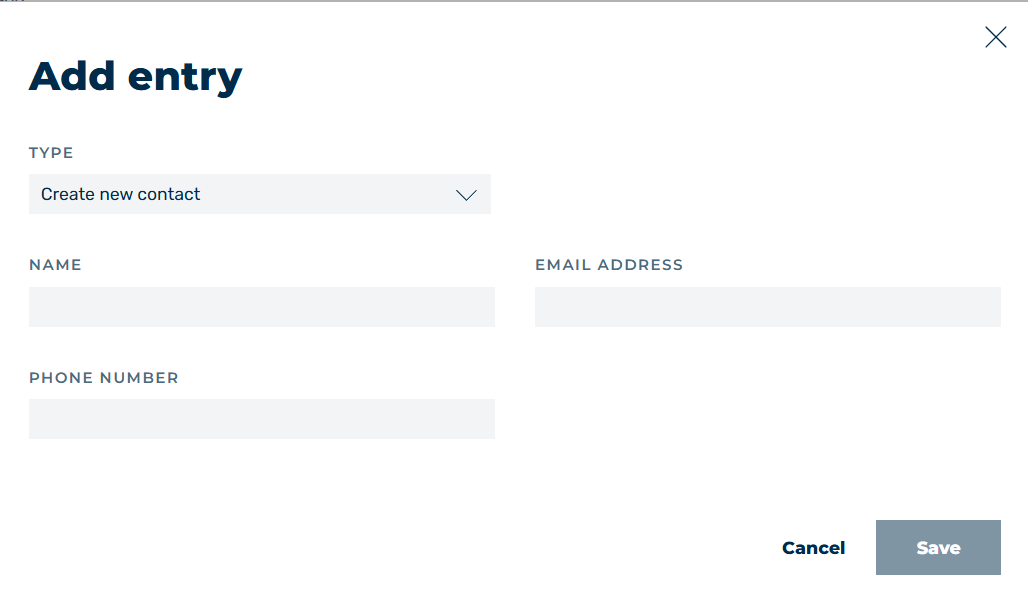
Add non Myra App users
- ► In the text field under NAME enter the name of the contact.
- ► In the text field under EMAIL ADDRESS enter the email address at which the contact can be reached.
- ► If necessary enter the phone number where the contact can be reached in the text field under PHONE NUMBER.
Once all fields have been filled in, you can create the new entry.
- ► Click on the Save button.
- ➔ The dialog closes, and the new contacts appear in the contact list.
Note
When you add a new contact, only the contact itself—without any assignments—is created in the communication matrix.
To designate the contact as a technical contact or escalation contact, and to enable SSL/TLS notifications for the contact, you must assign the appropriate values to the contact in the communication matrix. See Section Customize the communication matrix.