Cache settings
Note
The cache rules do not take effect until you enable caching in the subdomain settings. Open the Subdomain settings view using Subdomain settings for <domain name> → Settings → Performance and set the value under Cache to Yes.
Note
The cache settings do not allow objects to be cached that have a No-Cache rule in the header, such as Cache-Control: (no-store|no-cache|private) or Cache-Control: max-age=0.
Cache Settings view
In the Cache Settings view, you can view, add, edit, and delete the paths whose content should be cached by Myra.
Proceed as follows to open the Cache Settings view:
- ► Click on the Domains tab in the left navigation bar.
- ↳ The Domains view opens.
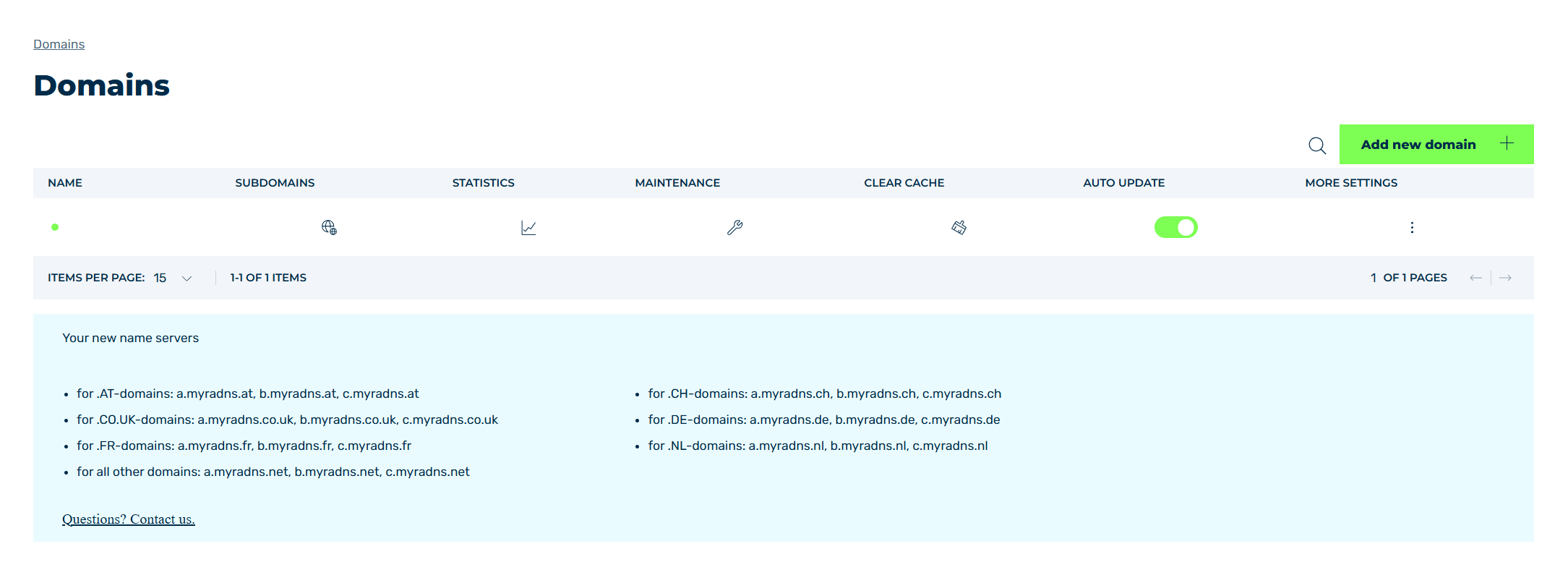
Domains view
- ► Click on the
 icon in the SUBDOMAINS column.
 - ↳ The Subdomain settings for <domain name> view opens.
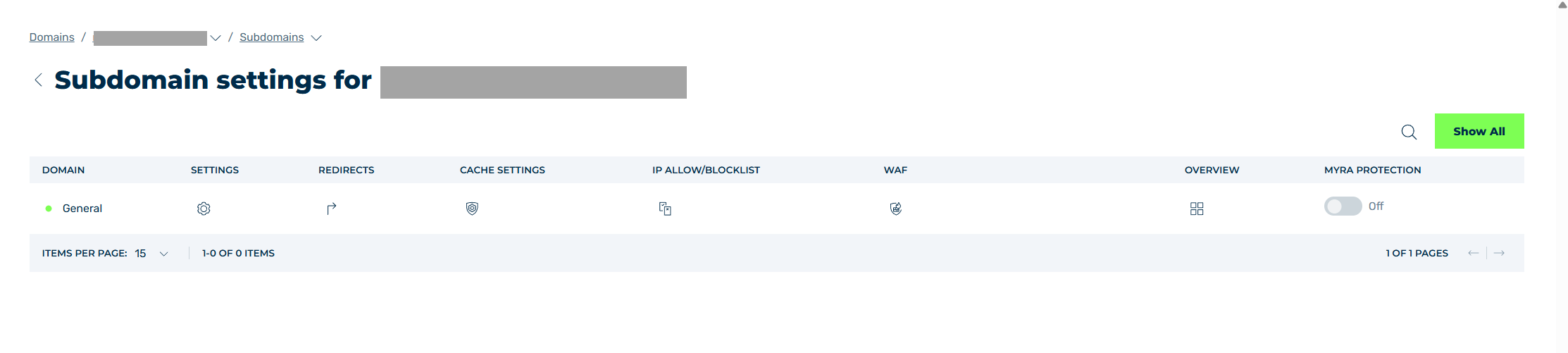
Subdomain settings view
- ► Click on the
 icon in the Cache Settings column.
 - ➔ The Cache Settings view opens.
The Add cache rule button opens the Add cache rule dialog for adding a new cache rule (see Section Add Cache Rule / Edit Cache Rule dialog).
The table of cache rules provides an overview of all objects that were cached for a subdomain and allows you to edit and delete them.
The following information is available:
| Name | Definition |
|---|---|
| SELECT TYPE | The part of the path that is cached. The following options are available:
.jpgvalue under Path match. |
| PATH | One or more paths that are cached. You can use regular expressions to map different paths.NoteOnly elements that deliver one of the following response codes are cached: 200 – Request was successful 300 – The requested resource exists in multiple variants 301 – A permanent redirect of a requested resource to a new URL 302 – A temporary redirectNoteThe hierarchy of the cache settings is as follows: Specific settings take precedence over general settings. Cache settings for individual subdomains take precedence over the general settings for all subdomains.Example /images/static/ takes priority over /images/ and can have different cache settings than the /images/ parent folder. |
| Time to live | The time period in seconds during which files are kept in the cache. During this time, no request must be made to the origin server for the affected files. |
| TIME TO LIVE (HTTP 404) | The time period in seconds during which files with an origin response HTTP code 404 are kept in the cache. |
| Enforce time to live | Indicates whether the validity period of the cached object (Cache-Control: max-age) in the backend is enabled to enforce the validity period, regardless of the response sent by the customer infrastructure.NoteWhen ENFORCE TIME TO LIVE option from Myra is enabled, the lifetime of cache entries in the browser is controlled by the value specified in the TIME TO LIVE field. The following cases are possible: If your infrastructure does not provide a Cache-Control header, Myra sets the Cache-Control header with the max-age value itself and passes it on to the client. The value of max-age corresponds to the value defined in the TIME TO LIVE field. If your infrastructure already provides a value for max-age, Myra will override it with the value stored in the TIME TO LIVE field.NoteEnabling ENFORCE TIME TO LIVE only takes effect if a value other than 0 is entered in the TIME TO LIVE field.NoteForcing the cache TTL is not applied in case of a no-cache rule, such as cache control: (no-store\|no-cache\|private) or cache control: max-age=0. |
| Sort | A number for positioning the entry in the sequence of all entries. |
| STATUS | Indicates whether the redirect entry is enabled. |
The following options are available:
| Name | Definition |
|---|---|
 |
The icon shows the comment assigned to the entry. |
 |
The icon opens the Edit cache ruledialog for changing the selected entry. |
 |
The icon opens the Delete cache ruledialog for deleting the selected entry.AttentionWhen an entry is deleted, the entry and all associated settings are permanently deleted. To be able to restore an entry after deletion, you must create a brand-new one and reconfigure it. |
 |
The search field filters entries by names. Click on the X to delete the search entry. |
 |
The icon closes the view. |