Update SSL/TLS intermediate certificate
Note
If you want to edit an SSL/TLS intermediate certificate for an existing SSL/TLS certificate, overwrite the existing intermediate certificate by uploading a new one.
The following requirements must be met:
- ☑ A domain has been added, see Section Add a domain.
- ☑ A DNS record has been added for the required subdomains, see Section Add a DNS record.
- ☑ An SSL/TLS certificate has been uploaded or created, see Section Create an SSL/TLS certificate using the Myra App, Section Upload SSL/TLS certificate and Section Myra Certificate Management.
Proceed as follows to update an SSL/TLS intermediate certificate:
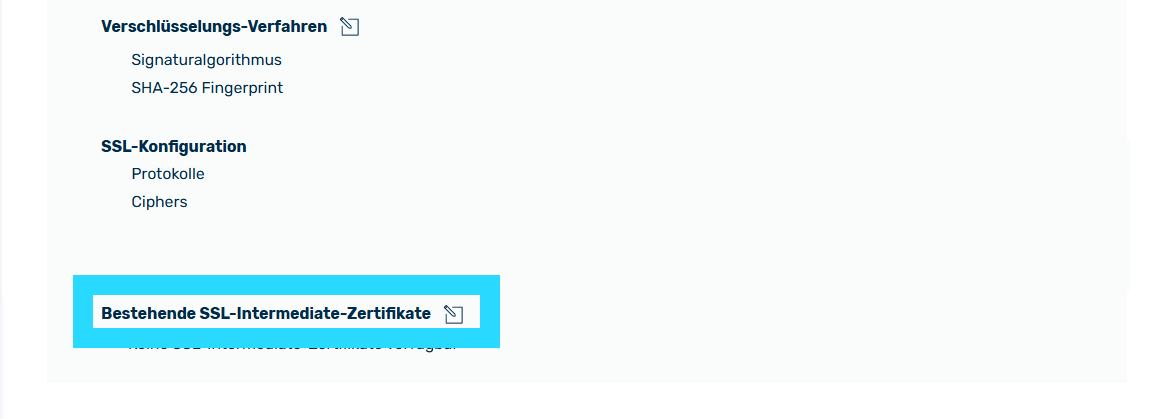
Update SSL/TLS intermediate certificate
- ► In the SSL/TLS Certificate Details view, click on the
 icon next to the Existing intermediate certificates area.
 - ↳ The Edit SSL/TLS Intermediate Certificates dialog opens.
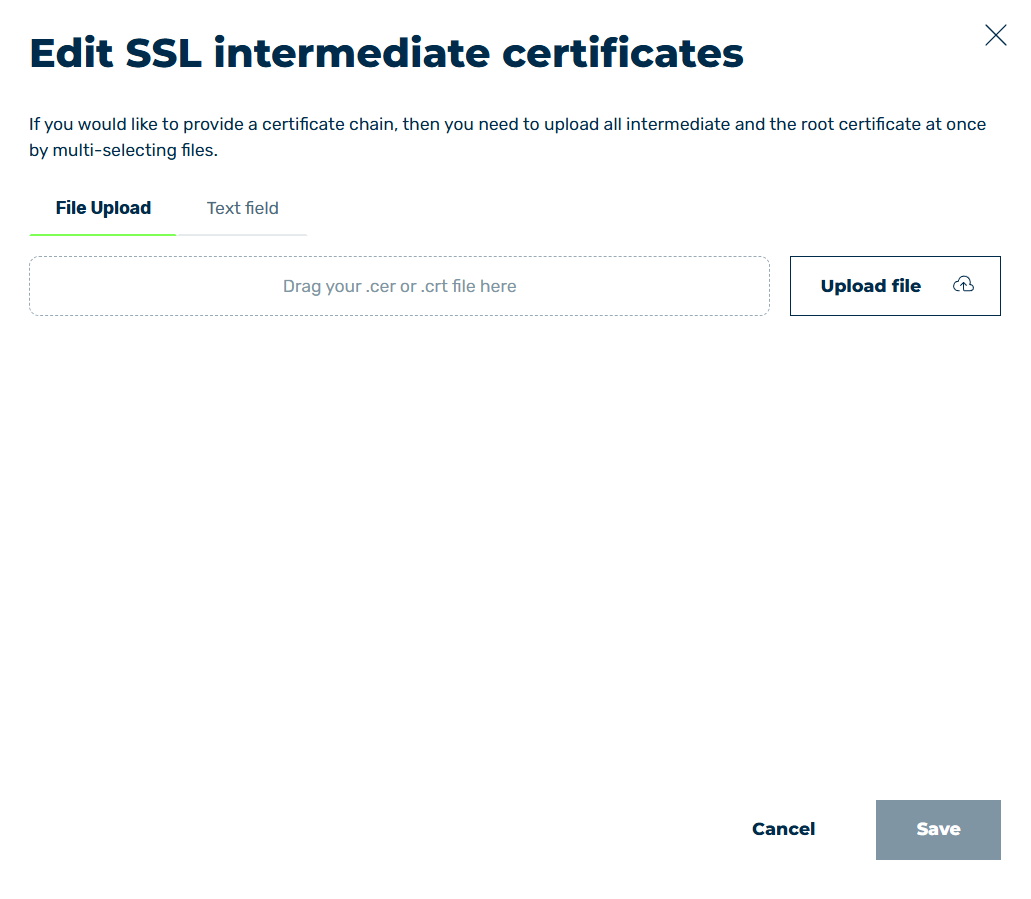
Edit SSL/TLS Intermediate Certificates Dialog
-
► Upload the SSL/TLS intermediate certificate using one of the following methods:
-
▷ Click on the File upload tab if you want to upload an SSL/TLS certificate file from your computer.
- ▷ Click on the Upload a file button in the SSL/TLS certificate area and select the certificate on your computer.
-
↳ Alternatively, you can drag and drop the SSL/TLS certificate into the corresponding box in the SSL/TLS certificate area.
- ▷ Click on the Text field tab if you want to enter the SSL/TLS certificate as text, and paste the text into the corresponding field.
Note
The Myra App supports the following SSL/TLS certificates in X.509 format:
-
PEM
Multiple Base64-encrypted text files for SSL/TLS certificates and private keys (.cer, .crt, .key, .pem) -
PKCS#12
Single binary files containing the SSL/TLS certificate and private key (.p12,.pfx)
-
-
► Click on the Save button.
- ➔ The dialog closes, and the new SSL/TLS intermediate certificate appears in the SSL/TLS certificate details.