Add a maintenance page
Note
A valid HTML page must always be provided for a maintenance page. Entries with missing HTML pages or HTML pages that lack a valid structure cannot be saved.
The following requirements must be met:
- ☑ A domain has been added, see Section Add a domain.
- ☑ A DNS record has been added for the required subdomains, see Section Add a DNS record.
Proceed as follows to add a new maintenance page for a domain:
- ► Open the Redirects for <subdomain name> view, see Section Redirects.
- ► Click on the Create new maintenance page button.
- ↳ The Create new maintenance page view opens.
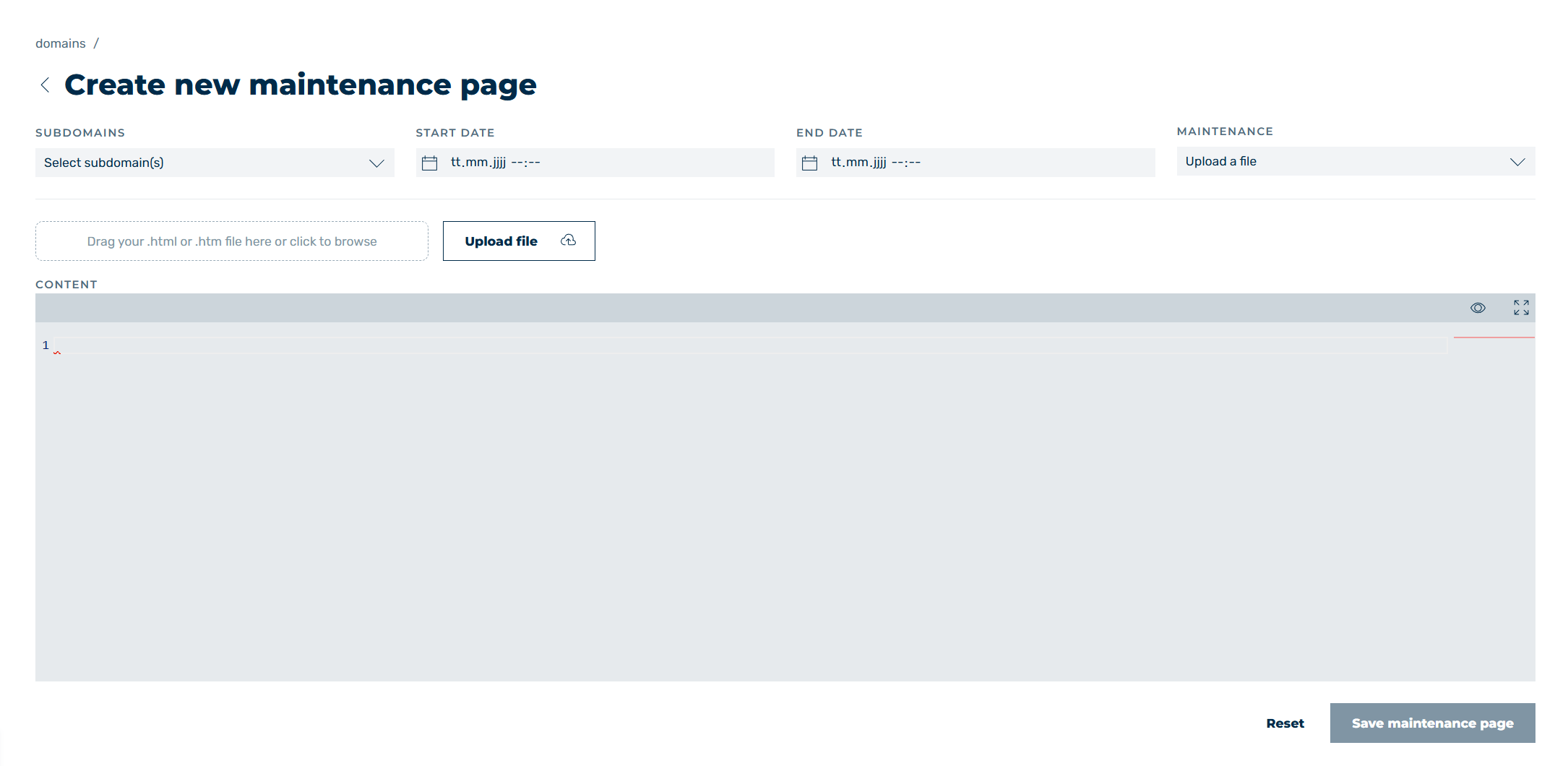
Add a maintenance page
- ► Open the drop-down list under the Subdomains field.
- ► Click on the checkboxes to the left of the subdomain names to select one or more specific subdomains.
-
► In the date field under START DATE specify the date and time from which the maintenance page should be visible.
Note
The start date for the maintenance page cannot be in the past. The start date must always be 5 minutes in the future.
-
► In the date field under END DATE specify the date and time from which the maintenance page should be no longer visible.
- ► Open the drop-down list under the Maintenance page field.
The following steps will vary depending on the option you select on the MAINTENANCE PAGE.
Upload file

Upload HTML file
-
► Add a maintenance page using one of the following methods:
-
Uploading an HTML template:
Click on the Upload File button and select the HTML template. Alternatively, drag and drop the HTML template into the corresponding field. -
▷ Copy HTML directly into the CONTENT field:
Copy your HTML code and paste it directly into the text field under Content.
-
Choose a template

Choose a template
- ► Select an existing template from the drop-down list to the right of the All templates button.
- ↳ A menu for selecting templates appears under the drop-down list.
- ► If necessary, click on the All templates button to add a new template or edit an existing one, see Section Add a template for the maintenance page and Section Edit the maintenance page template.
Add link(s)

Choose a template
- ► If necessary, enter a link to your Facebook page under FACEBOOK.
- ► If necessary, enter a link to your X page under TWITTER/X.
- ► If necessary, enter a link to any page under CUSTOM URL.
- ► Enter a custom name for the website URL under URL NAME.
- ► Click on the Next button.
After selecting the appropriate template option for the maintenance page, follow the step below:
-
► Once the maintenance page has been inserted, it can be viewed in the text field under Content.
- ▷ Click on the
 icon to open a preview of the error page.
 - ▷ Click on the
 icon to enlarge the text field below the content.
- ▷ Click on the
-
► If necessary, modify the HTML code.
- ► Click on the Save maintenance page button.
- ➔ The Maintenance page view opens and the maintenance page appears in the list of all maintenance pages.