Delete a maintenance page template
Note
You can only add, edit, or delete a template for a maintenance page while creating or editing an entry.
Note
A valid HTML page must always be provided for a maintenance page. Entries with missing HTML pages or HTML pages that lack a valid structure cannot be saved.
Proceed as follows to delete a template for a maintenance page:
- ► Create a new maintenance page or edit an existing one, see Section Add a maintenance page and Section Edit Maintenance Page.
- ► Open the drop-down list under the Maintenance page field and click on the Choose a template button.
- ↳ A menu for selecting templates appears under the drop-down list.
- ► Click on the All templates button.
- ↳ The Maintenance templates view opens.
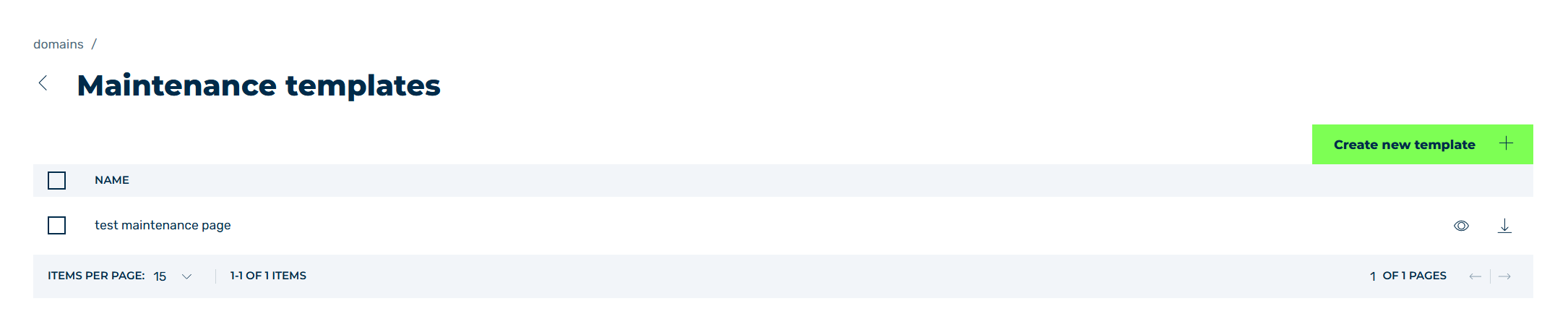
Maintenance templates view
-
► Select the entry you want to edit and click on the checkboxes to the left of the entry.
If you want to delete all maintenance pages, click on the checkbox to the left of NAME.
-
↳ A toolbar appears above the list of entries.
- ► Click on the Delete button.
- ↳ The Delete template(s) dialog opens.
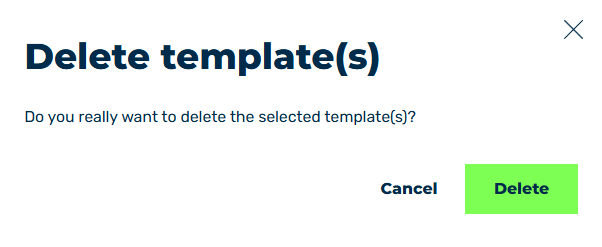
Delete a maintenance page template
- ► Click on the Delete button.
- ➔ The selected entries will be removed from the list of templates.