IP Allow/Blocklist
IP Allow/Blocklist for <subdomain name> view
In the IP Allow/Blocklist view, you can view, add, change, and delete the list of allowed and blocked IP addresses.
Proceed as follows to open the IP Allow/Blocklist view:
- ► Click on the Domains tab in the left navigation bar.
- ↳ The Domains view opens.
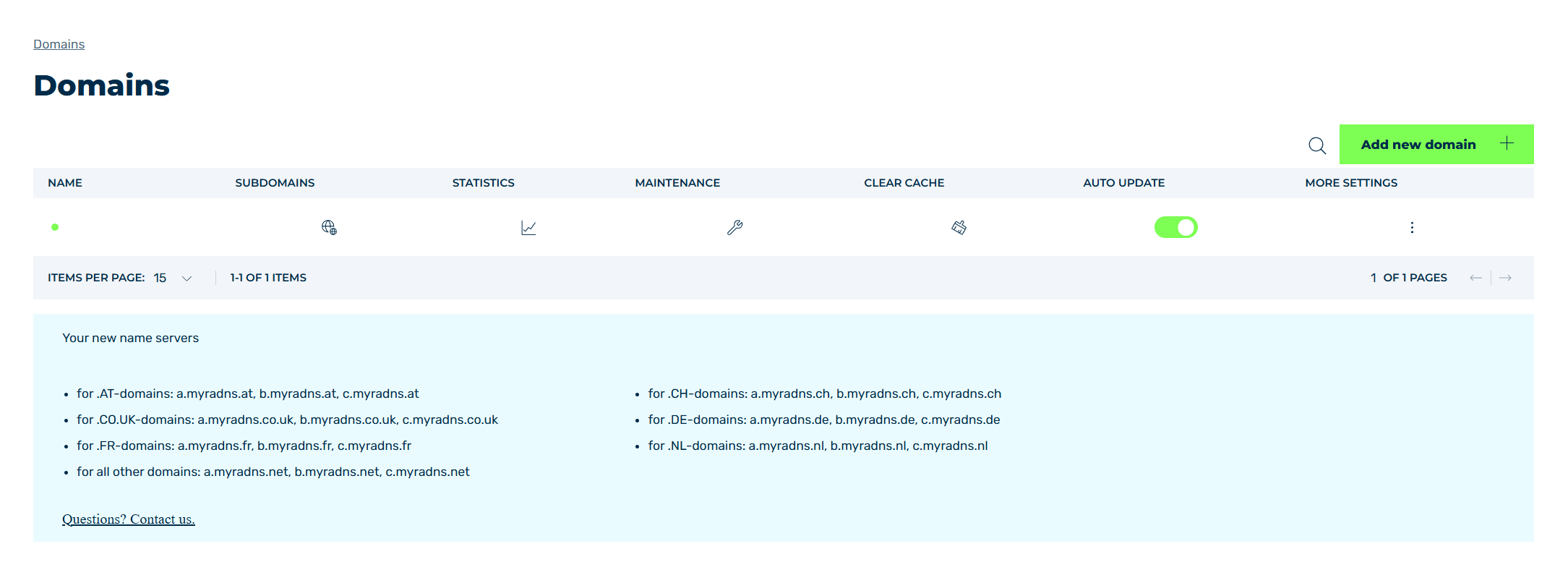
Domains view
- ► Click on the
 icon in the SUBDOMAINS column.
 - ↳ The Subdomain settings for <domain name> view opens.
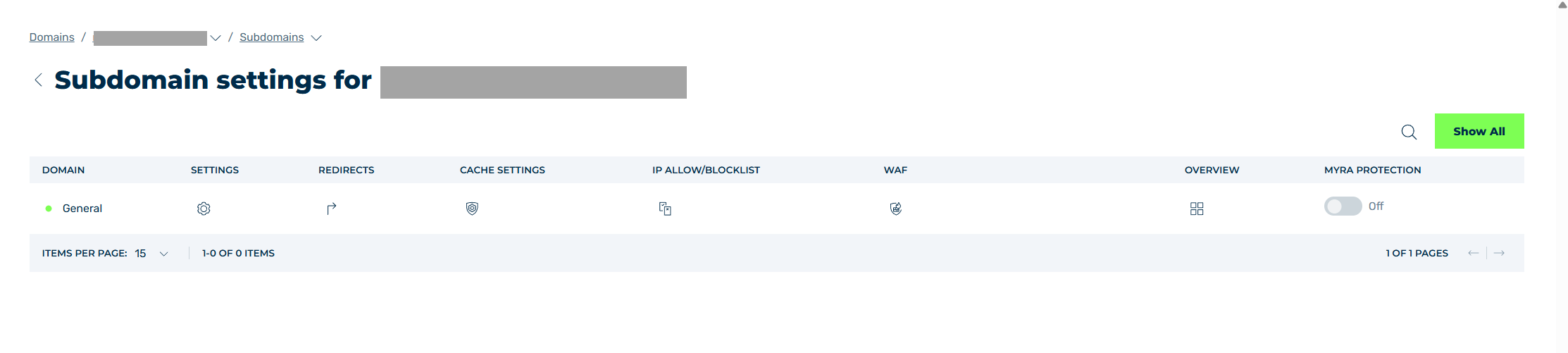
Subdomain settings view
- ► Click on the
 icon in the IP Allow/Blocklist column.
 - ➔ The IP positive list/negative list for <subdomain name> view opens.
Click on the Add entry button to open the Add entry dialog for adding a new entry to the IP allowlist or blocklist.
Click on the Import button opens the Import dialog, where you can add multiple entries as text or from a CSV file.
Click on the Export button opens the Export dialog, which allows you to export multiple entries as a text or CSV file.
The view includes the following tabs:
-
■ IP Allowlist
In the IP Allowlist tab, you enter IP addresses that should have free access to the origin server. These IP addresses are not blocked by Myra’s security mechanisms (Request Limiter, WAF, Antibot). This may be necessary, for example, for internal company proxy IP addresses. If the Block not whitelisted IPs option is set in the Subdomain settings for <subdomain name> → Settings → Security view, all IP addresses that are not entered in the IP allowlist are blocked from the website.
-
■ Allowlist Request Limiter
The IP addresses entered in the Allowlist Request Limiter tab are not blocked by the Request Limiter. All other handling methods, such as Antibot mechanisms, are still applied to the IP addresses.
-
■ IP Blocklist
In the IP Blocklist tab, you enter IP addresses that should be excluded from the website. This may be necessary to block attacking IP addresses or to block entire country areas and other groups of users that are identifiable by their IP address.
The table of IP filter entries in all three tabs provides an overview of all IP addresses that are allowed or blocked for a subdomain and allows you to edit and delete them.
All three tabs have the same fields, providing the following information:
| Name | Definition |
|---|---|
| IP/CIDR | The IP address that should be allowed or blocked. |
| Range | The IP range defined by means of CIDR notation. |
| Last modified | Date of creation or last modification of the entry. |
| Expire Date | A validity date for the selected entry. |
| Status | Indicates whether the entry is enabled. |
The following options are available:
| Name | Definition |
|---|---|
 |
The icon opens the Information dialog with a comment that is created when adding an entry. |
 |
The icon opens the Edit entry dialog for changing the selected entry. |
 |
The icon opens the Delete entry dialog for deleting the selected entry.AttentionWhen an entry is deleted, the entry and all associated settings are permanently deleted. To be able to restore an entry after deletion, you must create a brand-new one and reconfigure it. |
 |
The search field filters entries by names. Click on the X to delete the search entry. |
 |
The icon closes the view and opens the Subdomain settings view. |