Enabling caching
Proceed as follows to enable caching for a domain or subdomain:
- ► Click on the Domains tab in the left menu bar.
- ↳ The Domains view opens.
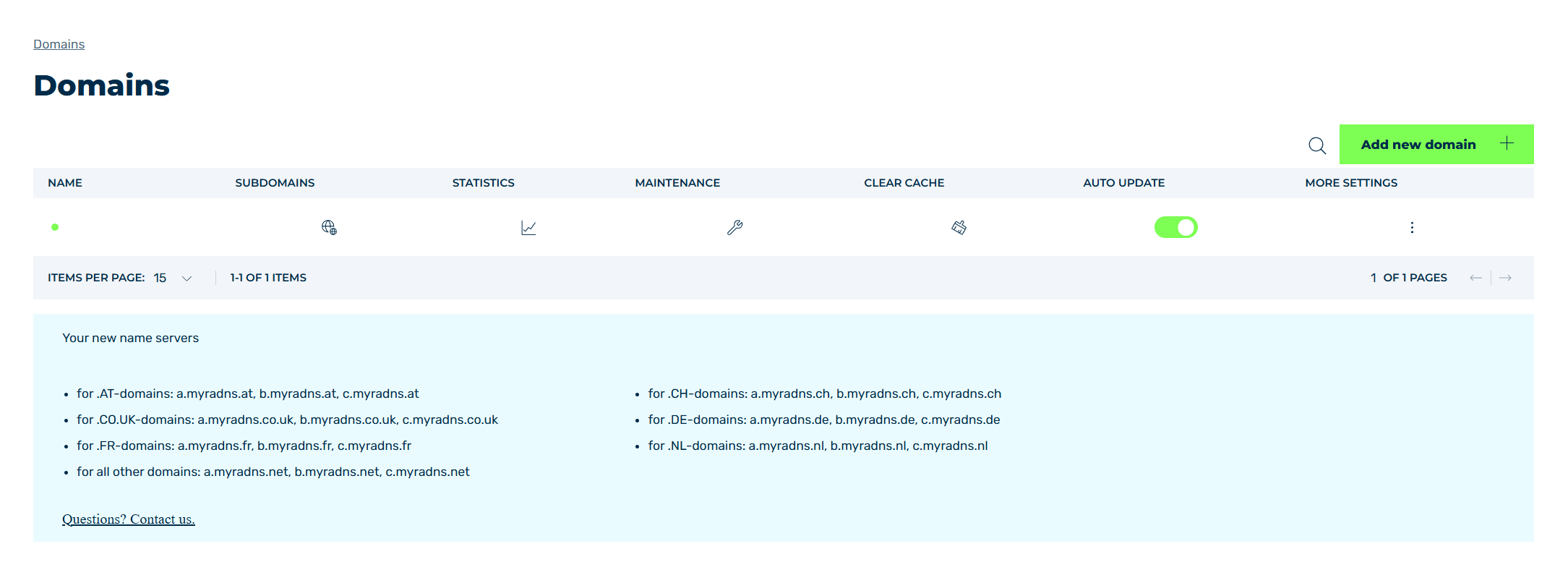
Domains view
- ► Select the relevant domain and click on the
 icon in the SUBDOMAINS column.
 - ↳ The Subdomain settings for <domain name> view opens.
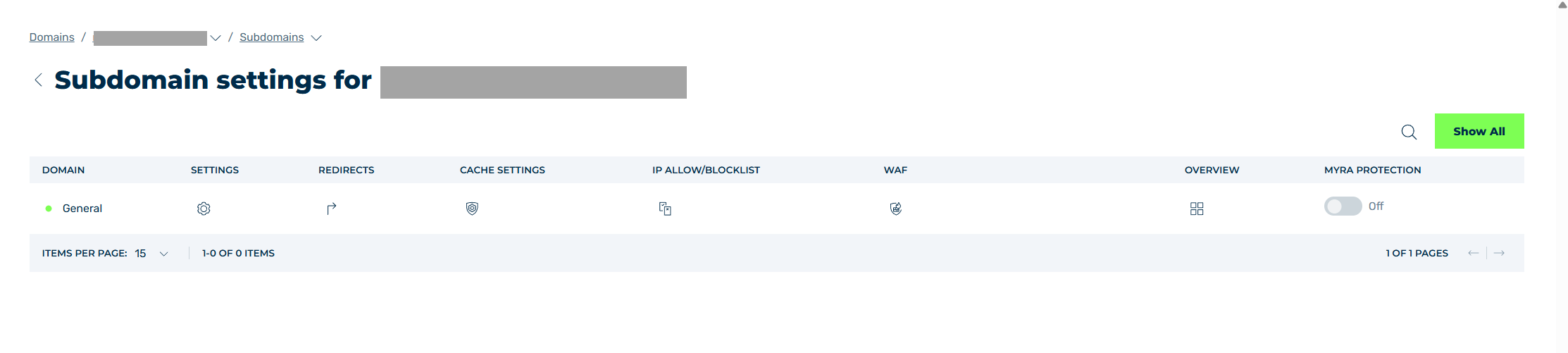
Subdomain settings view
- ► Select either General or a subdomain and click on the icon in the SETTINGS.
- ↳ The Settings view opens.
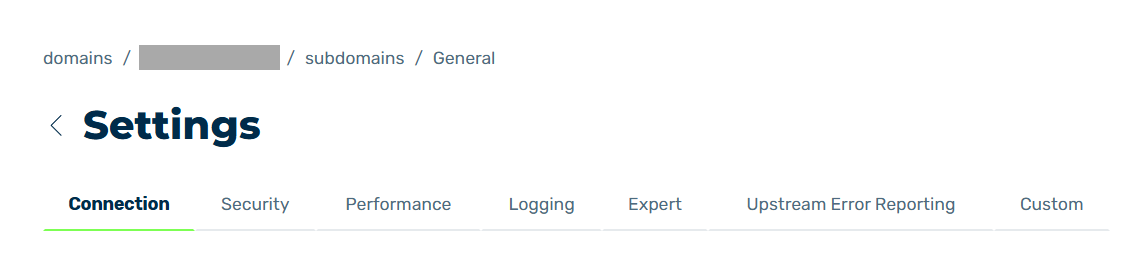
Settings view
- ► Click on the Performance tab.
- ↳ The options below the Performance tab appear.
- ► Navigate to the Cache settings.
- ► Click on the drop-down list and select Enabled.
-
► Optionally, you can enable the following caching options:
-
Enforce cache TTL
When enabled, defines whether the cache header of your infrastructure is overwritten with the values entered in the cache settings.
-
Ignore no-cache header
When enabled, defines whether no-cache headers such as
private,no-store, orno-cacheare ignored. -
Revalidate expired cache objects
When enabled, defines whether Myra requests expired cache entries from your infrastructure using the HTTP headers
If-Modified-SinceandIf-None-Match.
-
-
► Click on the Save button.
- ➔ A message confirms that the setting has been successfully saved and caching is available for the selected domain or subdomain.
Repeat the step until caching has been enabled for all required domains and subdomains.
In addition to the settings in the Performance tab, you can optionally define the behaviour for expired cache entries in the Expert tab. This allows you to deliver an object after the cache TTL has expired and your infrastructure is unavailable.
Note
Only objects that are in Myra's cache before communication with your infrastructure was interrupted can be delivered in case of unavailability. Objects that were not cached by Myra are not available.
Proceed as follows to define the management of expired cache entries:
- ► Click on the Expert tab.
- ↳ The options below the Expert tab appear.
- ► Navigate to the Proxy cache stale handling setting.
- ► Use the selection boxes to activate the cases in which the object should still be delivered if your infrastructure is unavailable and the cache TTL has expired, see Section Expert tab.
- ► Click on the Save button.
- ➔ A message confirms that the settings have been saved successfully.