Create new waiting room / Edit waiting room
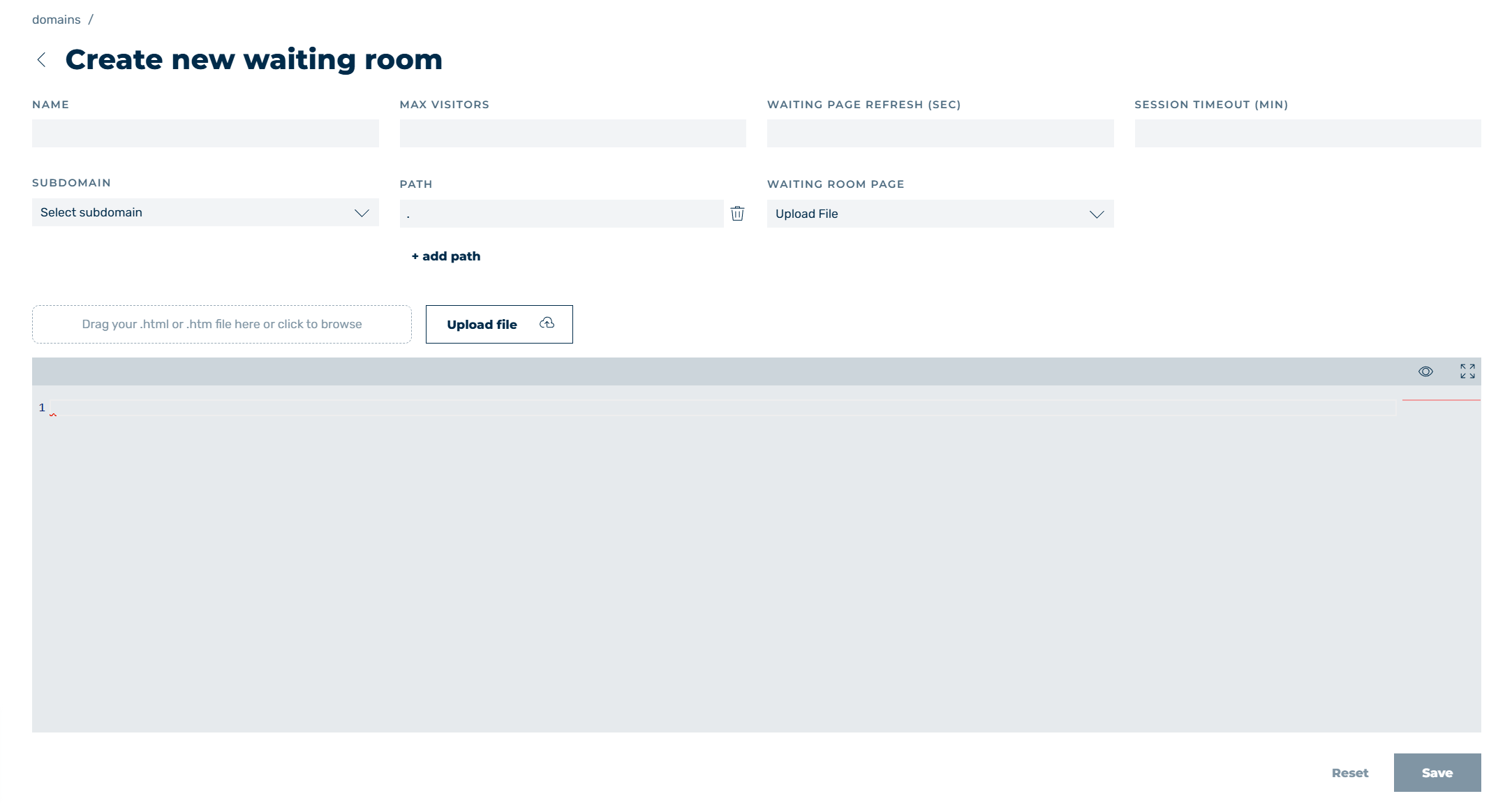
Create new waiting room view
In the Create new waiting room and Edit waiting room views, you can add new waiting rooms or edit existing waiting rooms, depending on the selected option.
The following options are available:
| Name | Definition |
|---|---|
| NAME | Defines the name of the waiting room. |
| SUBDOMAIN | Defines the domain or subdomain that the waiting room should be used for.NoteIn the Edit waiting room view, the SUBDOMAIN drop-down list is disabled. |
| MAX VISITORS | Defines the maximum number of allowed visitors who can be on your infrastructure at the same time. As soon as this value is exceeded, every additional visitor is directed to the waiting room.NoteThe permitted value is a whole number more than 0. |
| WAITING PAGE REFRESH (SEC) | Defines the duration in seconds that the waiting page is reloaded after. If the session is not accessed again after the third reload, the session is removed from the queue.NoteThe permitted value is a whole number more than 0. |
| SESSION TIMEOUT (MIN) | Defines the duration in minutes that an inactive session is allowed to access your infrastructure for. If the session does not access your infrastructure again during this time, this session’s access is disabled.NoteThe permitted value is a whole number more than 0.NoteThe duration until the session is terminated must be determined individually. For example, for an online shop where customers do not linger for long, a value of 5 to 10 minutes may be sufficient. However, when filling out a form where the time factor is higher, the value must be adjusted accordingly. |
| PATH | Defines a path within a domain or subdomain that the waiting room is valid for.NoteThe value . is entered in the PATH text field as the default value.NoteA specific path for each domain and subdomain is set using regex.ExampleUsing a . path includes all possible paths. Using a /checkout path includes all paths with /checkoutin the name. Using a path with ^/checkoutonly includes paths that start with /checkout.NoteThe waiting page and settings for a waiting room are inherited by the underlying paths, which means that when using the wildcard . as a path, specific waiting pages and settings for individual paths are no longer possible.ExampleUsing a waiting room with the wildcard . and a waiting room with a specific path causes the waiting page and settings of Waiting Room 1 to overwrite the waiting page and settings of Waiting Room 2. Waiting Room 1: a.domain.com and path. Waiting Room 2: a.domain.com and path /checkout Using two different paths under a domain and subdomain allows both paths to use different waiting pages and settings. Waiting Room 1: a.domain.com and path /login Waiting Room 2: a.domain.com and path /checkout Using a waiting room with wildcard . for domain and subdomain A and a specific path for domain and subdomain B allows both domains and subdomains to use different waiting pages and settings. Waiting Room 1: a.domain.com and path. Waiting Room 2: b.domain.com and paths /checkout and /cart |
| + add path | The button adds an additional text field for defining a path. |
 |
The icon next to a PATH text field deletes the text field.NoteThe first text field is not deleted but set to the . default value. |
| WAITING ROOM PAGE | Defines the source of the waiting page for the waiting room. The following values are available:
|
| Upload File | The upload area uploads the waiting page as an HTML file from your computer to the Myra App.NoteThe upload area does not show if you selected the Template value. |
| CONTENT | Shows the HTML code of the uploaded waiting page. The window also acts as an editor and allows you to edit the HTML code. |
 |
The icon shows a preview of the waiting room for the selected entry. |
 |
The icon maximises or minimises the content window. |
| Save | The button creates a new waiting room or saves changes to an existing waiting room.NoteThe button is disabled while you have not made a change, while the CONTENT text field is empty, or while a field contains a value that is not permitted. |
| Reset | The button resets all values to the default or the settings’ most recent state.NoteThe button is disabled while you have not made a change. |
 |
The icon closes the view and opens the Waiting Room view. |
Note
If a mandatory field is empty, the The field is required message shows below the field.