Creating API token
Proceed as follows to create an API token:
- ► Open the Myra App or the Myra DataHub.
- ► Log in.
- ► Open your personal account, see Section Profile (Myra App) or Section Profile (Myra DataHub).
- ↳ The Personal account view opens.

Personal account view
- ► Click on the API access tab.
- ↳ The API access tab opens with the API Tokens and API Keys sub-tabs.
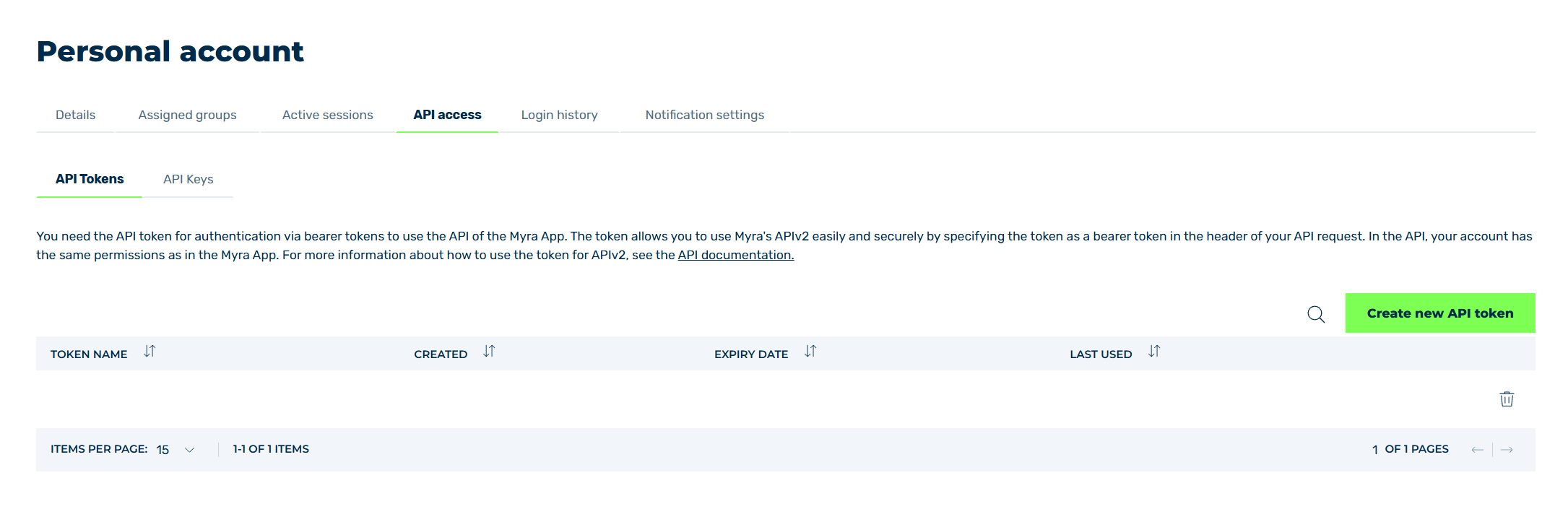
API tokens tab
- ► Click on the API Tokens tab.
- ► Click on the Generate new API token button.
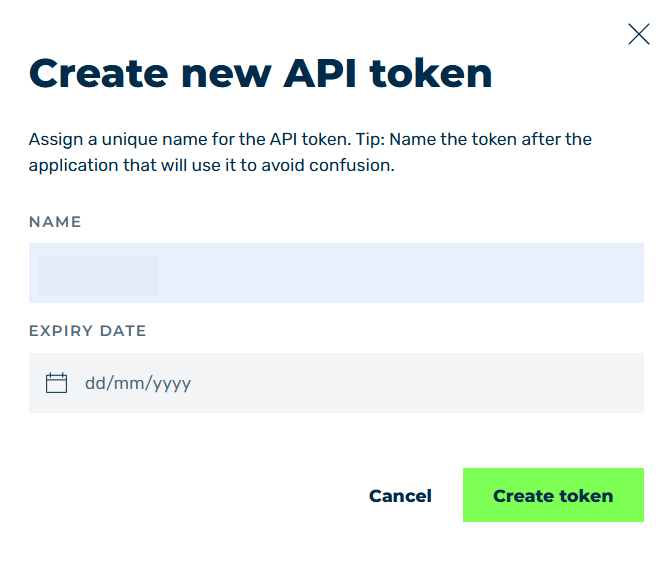
- ↳ The Generate new API token dialog opens.

Enter the name and validity for the API token
- ► Navigate to the Create API token area.
-
► Enter a name in the text field under TOKEN NAME.
Note
The name of an API token should help you to better identify the different purposes of your API tokens.
-
► If required, define a validity period for the API token in the text field under EXPIRES IN DAYS.
Note
By default, an API token is valid for 90 days.
-
► Click on the Save button.
- ↳ The API token created dialog opens.
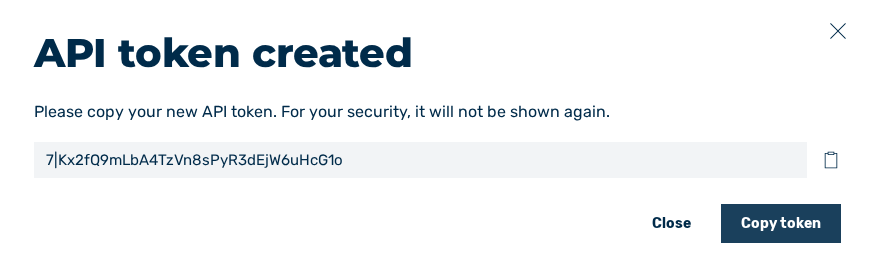
Enter the name and validity for the API token
API token data
-
► Enter a name in the text field under Name.
Note
The name of an API token should help you to better identify the different purposes of your API tokens.
-
► If required, define a validity period for the API token in the text field under Expiry date.
- ► Click on the Create token button.
- ↳ The content of the dialog changes and shows the data for your new API token.
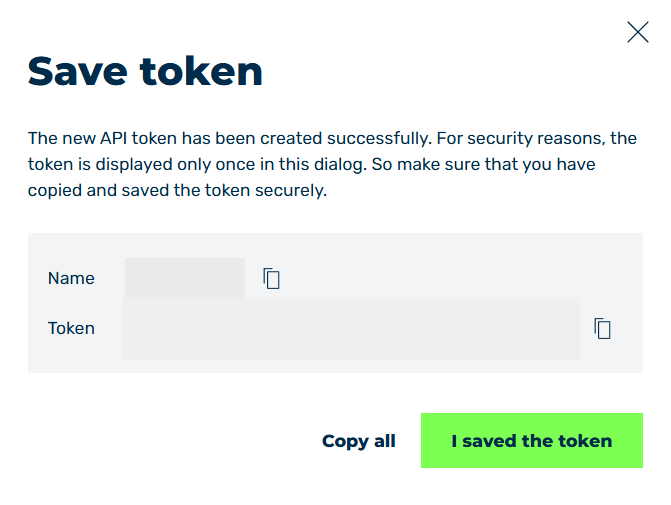
API token data
-
► To copy the API token data, click on the icon
 next to each entry.
Alternatively, copy all entries at once. Click on the Copy all button.
Note
The API token is only visible when creating a new API token and should be stored in a secure place.
Once you click on the I saved the tokenClose button in the Save tokenAPI token created dialog, you can only view the name, creation date, and expiry date.
If you have lost the token, you must generate a new API token.
-
► Click on the I saved the tokenClose button to close the dialog.
- ➔ The new API token appears in the list of all API tokens and can be used immediately.