Enabling Access Logs
Proceed as follows to request the access logs:
- ► Open the Myra App website.
- ► Log in.
- ↳ The Dashboard view opens.
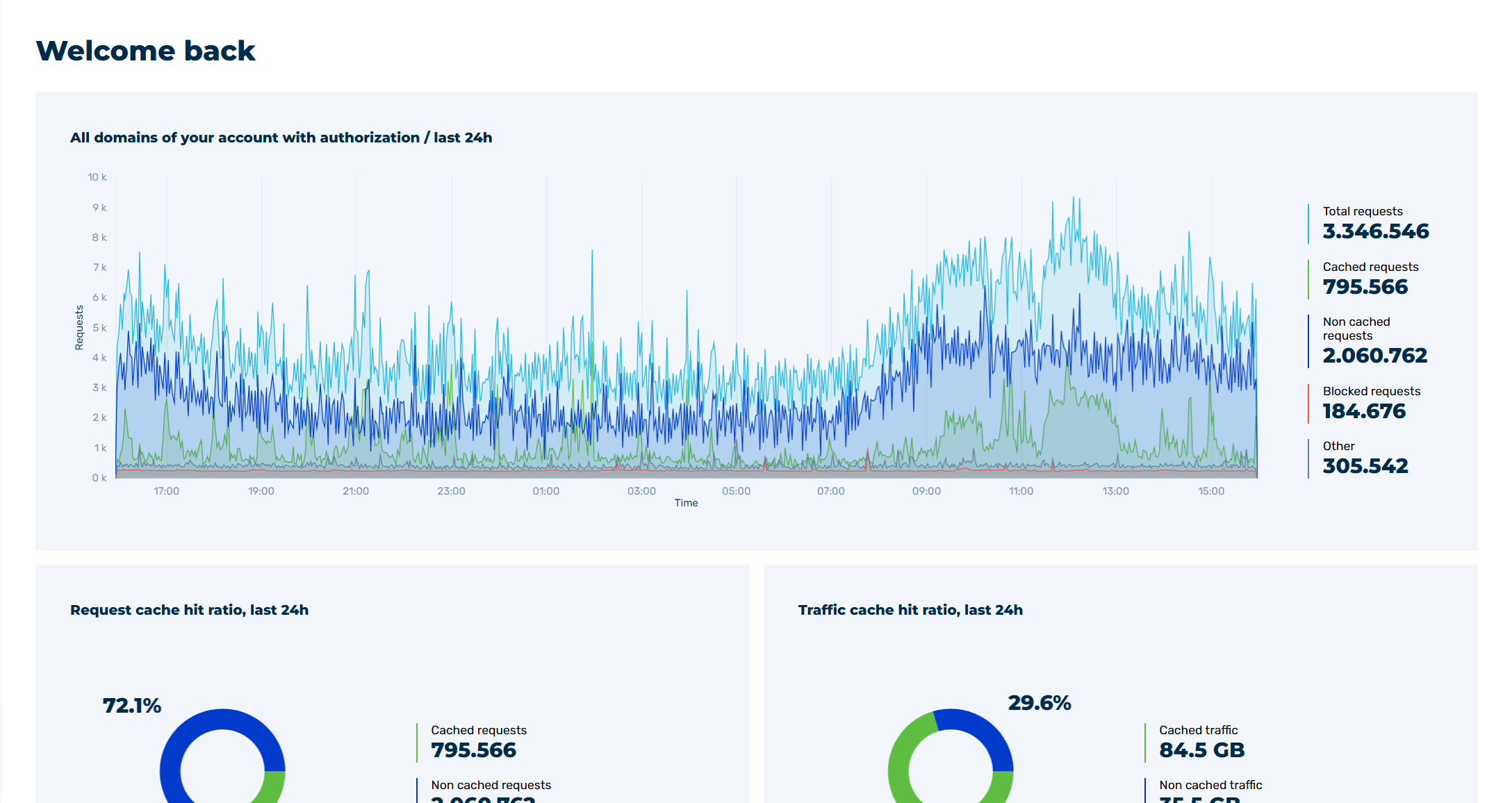
Myra App Home Page
- ► Click on the Domains tab in the left menu bar.
- ↳ The Domains view opens.
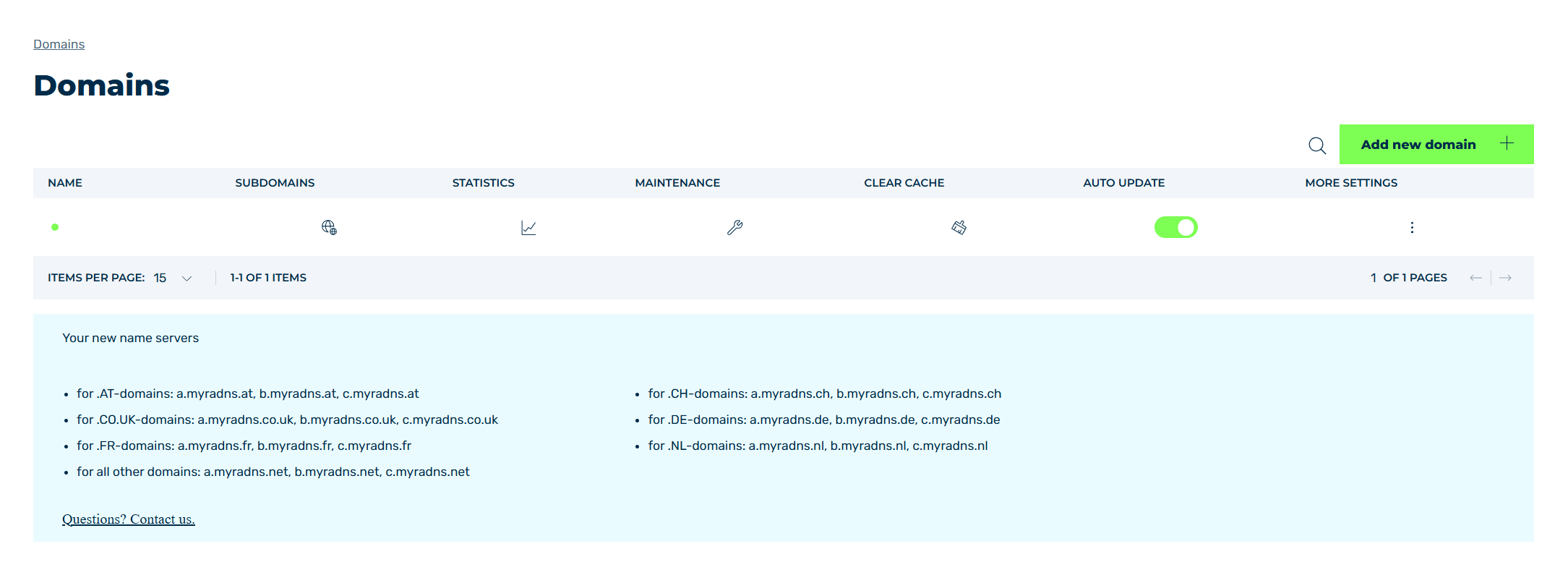
Domains view
- ► Select the domain for which you want to enable the access logs and click on the
 icon in the SUBDOMAINS column.
 - ↳ The Subdomain settings for <domain name> view opens.
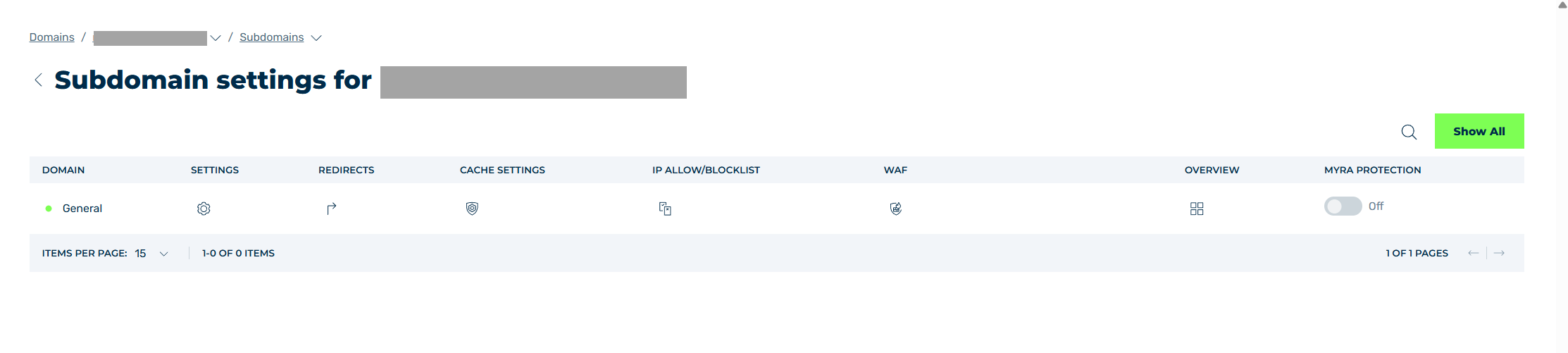
Subdomain settings view
- ► Select either a specific subdomain or General, and click on the
 icon in the SETTINGS column.
 - ↳ The Settings view opens.
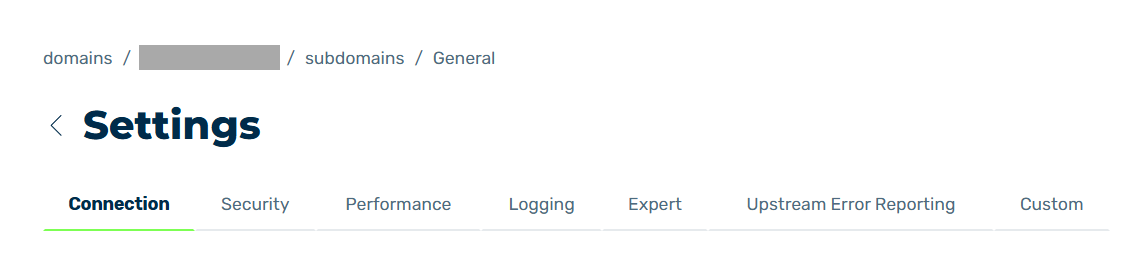
Settings view
- ► Click on the Logging tab.
- ↳ The options below the Logging tab appear.
- ► Click on the drop-down list next to Access log and select Enabled.
- ► From the drop-down list next to Log Format, select the Log format that you want to use for the access logs, see Section Myra Log Formats tab.
- ► Click on the Save button.
- ► Repeat this process for all the required subdomains.
- ↳ Access logs are enabled in the Myra App.
In order to access the access logs, you must request SFTP access from the Myra Support.
Proceed as follows to request SFTP access:
- ► In the navigation bar, click on the Organization tab.
- ► Click on the Ticket center tab in the list.
- ↳ The Ticket center view opens.
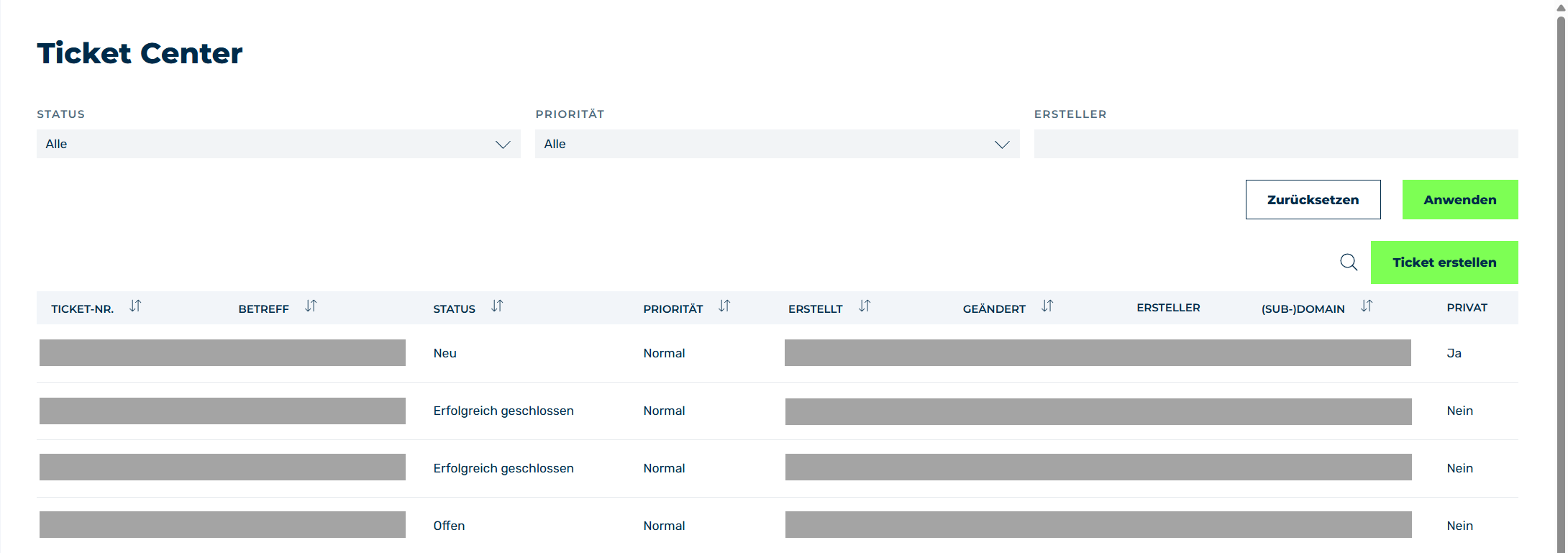
Ticket center view
- ► Click on the Add New Ticket button.
- ↳ The Add New Ticket view opens.
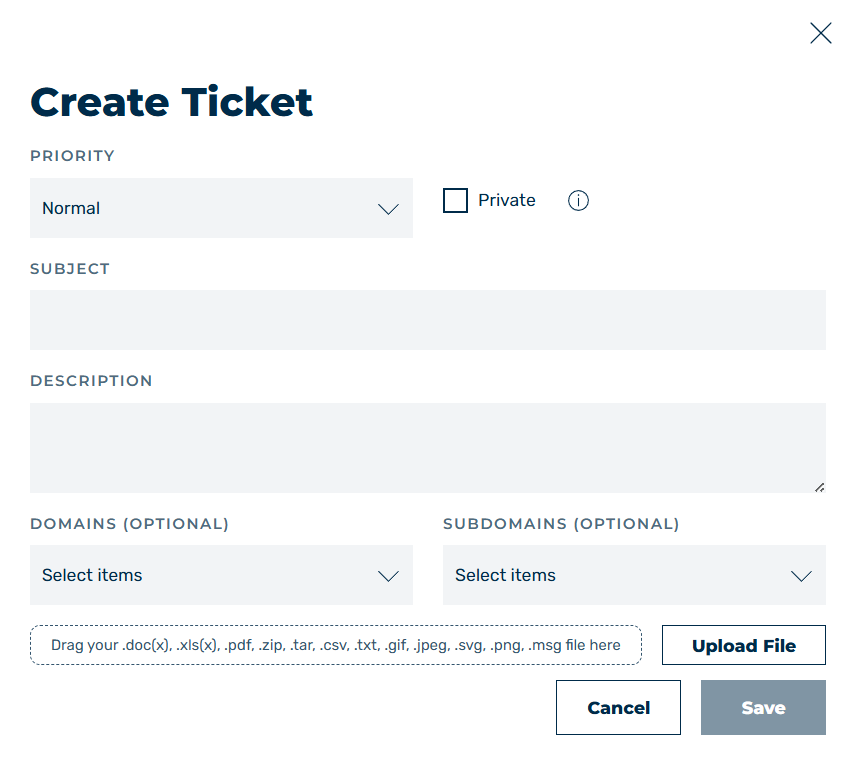
Create Ticket dialog
Note
This view is only available in the classic user interface.
-
► Enter the following information in the ticket fields:
- Domain: Select the domains for which you want to enable access logs.
- Subdomain: Select specific subdomains in the Subdomain text field.
- Subject: Enter Request for activation of access logs as the subject here.
- Details: Please describe your request here and provide the following information:
- ▷ If necessary, specify the domains and subdomains that should receive the access logs.
-
↳ Indication of whether access logs should be stored for longer than 7 days.
-
▷ Specify whether the interval for creating access logs should be adjusted.
Note
By default, logs are removed from the server after seven days. The access logs are transferred to the log servers every 60 minutes. The time sequence can be shortened if desired.
To adjust availability and intervals, please contact the Myra Support.
-
-
► Click on the File upload button under Attachments and select the public SSH key in the ED25519 format.
- ► Check all the details and click on the Add ticket button.
- ↳ A new ticket is added to the list of tickets.
- ➔ Once Myra has processed your request, you will receive an SFTP account. With this account, you can connect to Myra's log server via FTP and retrieve your access logs.