Edit subdomain mappings
When you upload an SSL/TLS certificate to the Myra App, you can select which subdomains included in the SSL/TLS certificate should actually be included. This assignment can be modified at any time in the SSL/TLS certificate.
The following requirements must be met:
- ☑ A domain has been added, see Section Add a domain.
- ☑ A DNS record has been added for the required subdomains, see Section Add a DNS record.
- ☑ An SSL/TLS certificate has been uploaded or created, see Section Create an SSL/TLS certificate using the Myra App, Section Upload SSL/TLS certificate and Section Myra Certificate Management.
Proceed as follows to edit the subdomain assignments:
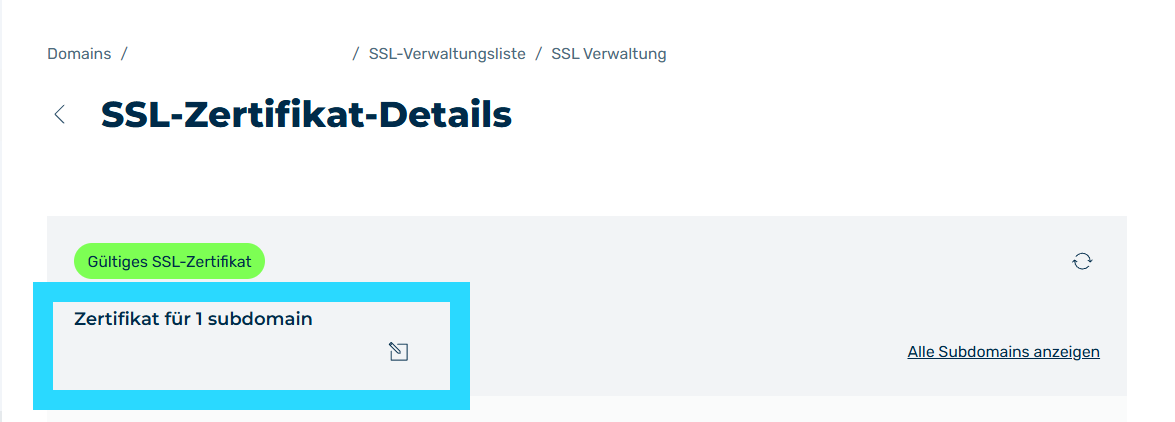
Edit subdomain mappings
- ► In the SSL/TLS Certificate Details view, click on the
 icon next to the name of the subdomain.
 - ↳ The Assign Subdomains dialog opens.
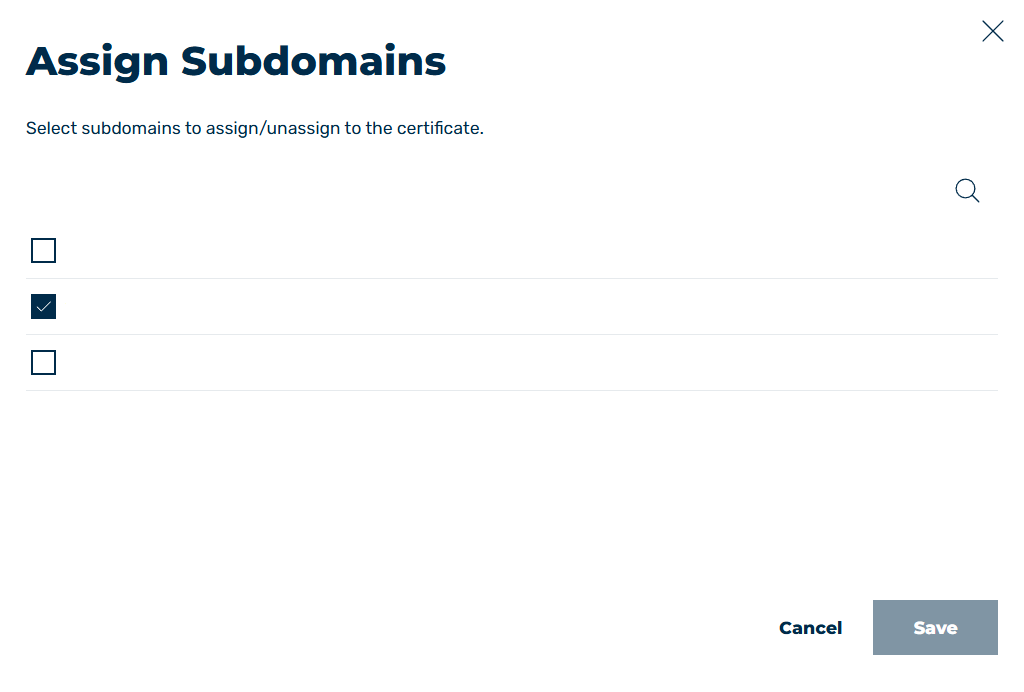
Assign Subdomains Dialog
-
► Select all subdomains that you want to include.
Note
If an entry in the list shows an icon
 next to its name, the certificate does not include that subdomain.
You can still select the highlighted subdomain in the following way:
- ► Select the highlighted subdomain.
- ↳ A message appears below the list of entries.

Force upload of SSL/TLS certificate
- ► Check the checkbox in the message.
- ➔ Highlighted subdomains are now also included in the SSL/TLS certificate.
-
► Click on the Save button.
- ➔ The dialog closes, and the new subdomain mappings appear in the SSL/TLS certificate.