Activating Your Account
Before you can log into the Myra App, an admin must create an account for you in the Myra App. As soon as your new account has been created, you will receive an invitation email with the subject line Welcome to Myra – Your Account Is Ready.
Proceed as follows to enable the account:
- ► Open the welcome email.
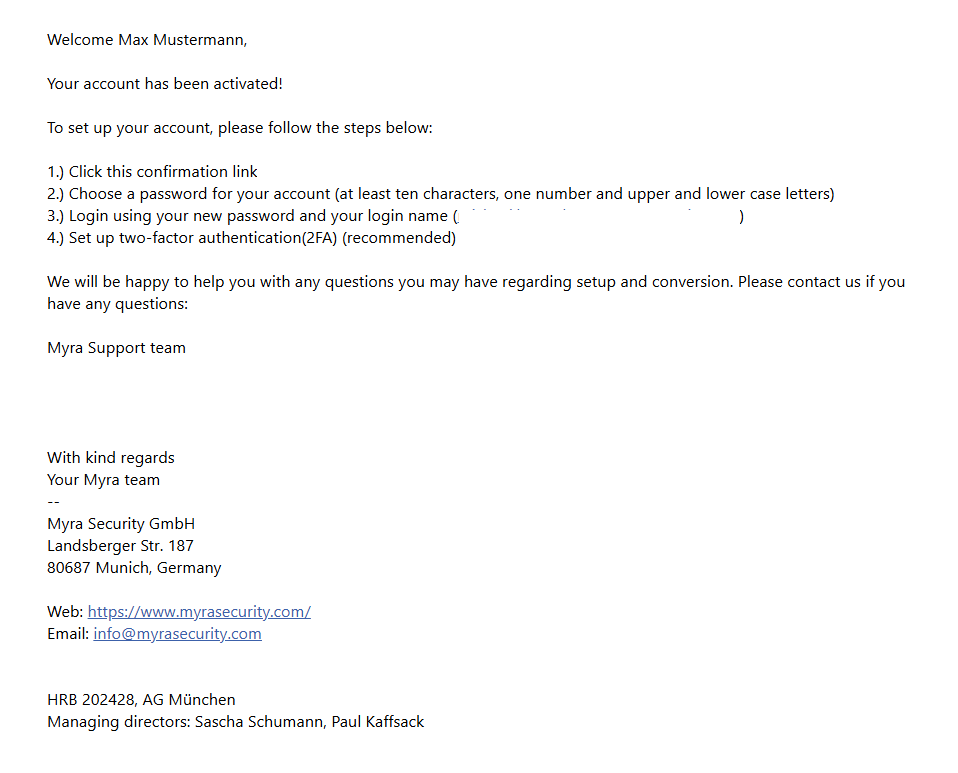
Welcome Email
- ► Click on the link next to Click This Confirmation Link.
- ↳ You will be directed to the Myra App website.
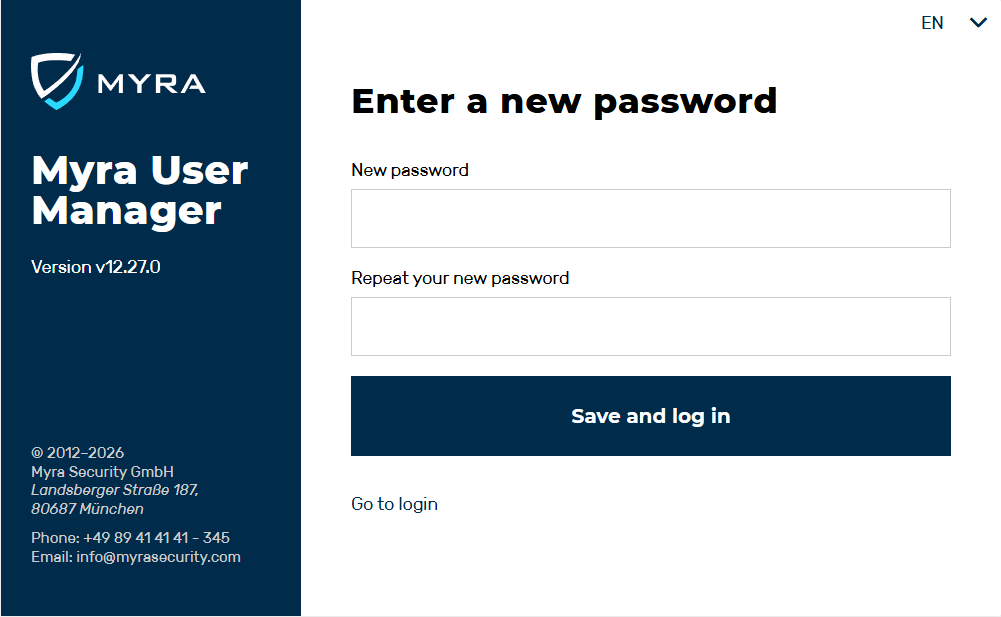
New Password for Registration
-
► Enter an individual password in the text field under New password.
Note
The password must be at least 12 characters long and contain at least one uppercase letter, one number, and one special character. The minimum password length may change depending on your organization’s requirements.
-
► Repeat your individual password in the text field under Repeat password.
- ► Click on the Save and log in button.
- ↳ Your new account has been successfully activated and you will be redirected to the Myra App login page.
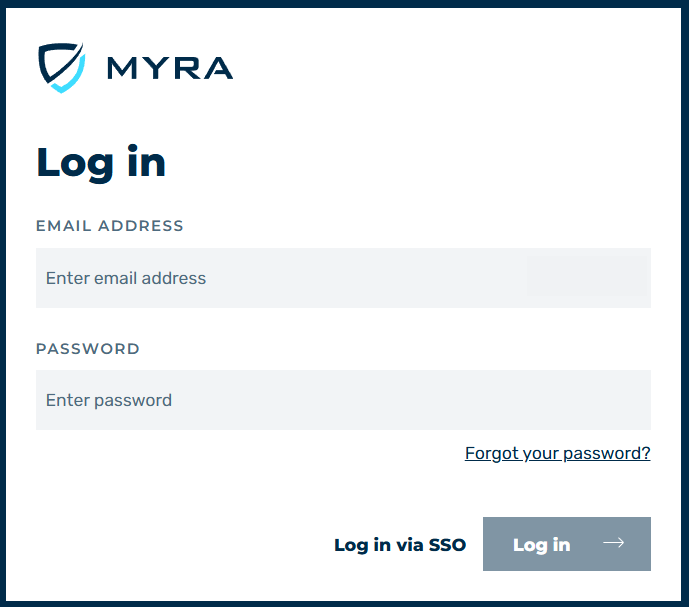
Logging In for the First Time – Login Screen
-
► Enter the following information in the login form:
- E-MAIL ADDRESS of the account.
- PASSWORD of the account.
-
► To log in to the Myra App, click on the Log in button.
- ► If your organisation requires two-factor authentication (2FA) as standard and this has been defined in your organisation’s policies, the Set up two-factor authentification (2FA) dialog will open.
-
► If necessary, set up 2FA as follows:
-
▷ Download the required authenticator app (if not already available) and open it.
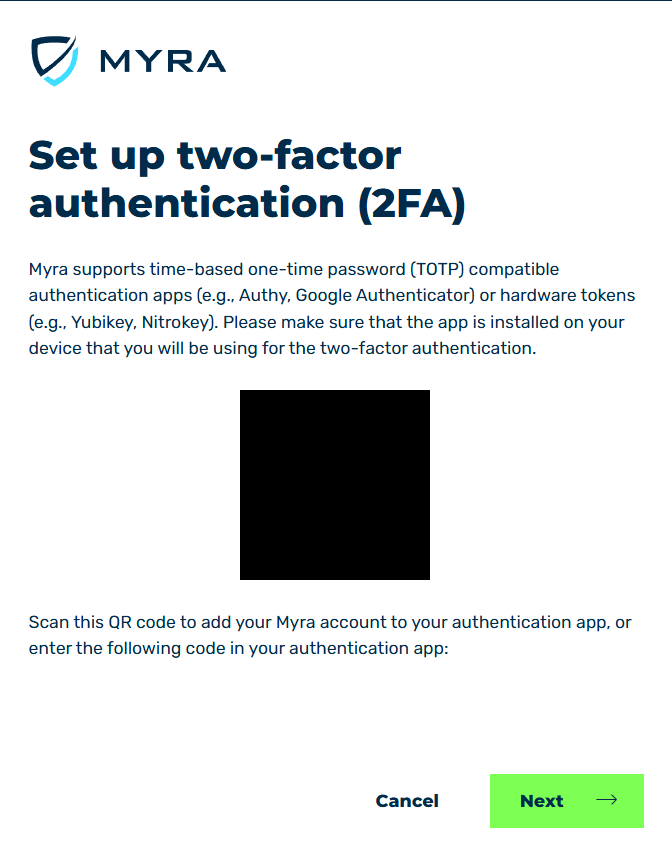
Logging In for the First Time – Enabling Two-Factor Authentication (2FA) (1)
-
▷ Scan the QR code or enter the shown code to add Myra 2FA to your authenticator app.
-
▷ Click on the Next button.
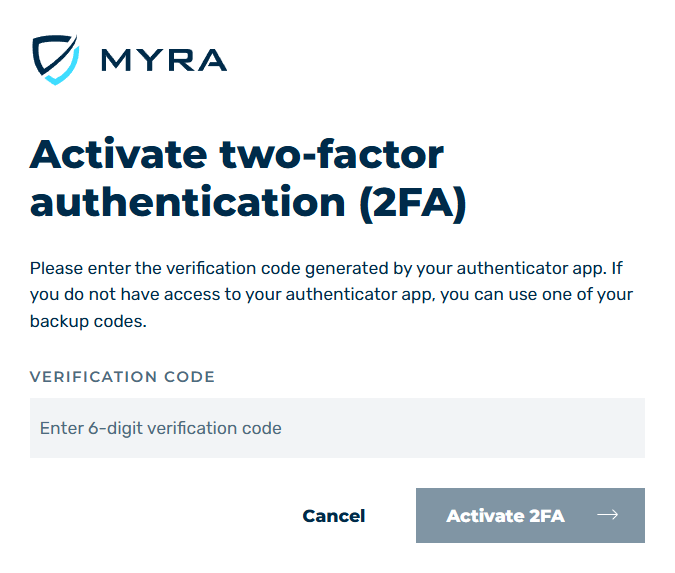
Logging In for the First Time – Enabling Two-Factor Authentication (2FA) (2)
-
▷ Enter your 2FA code from the authenticator app in the field.
-
▷ Click on the Verify login button.
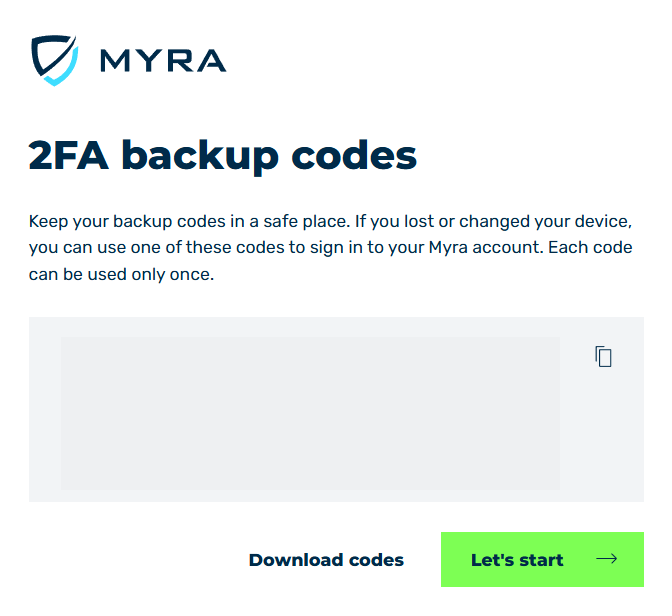
Logging In for the First Time – Enabling Two-Factor Authentication (2FA) (3)
-
▷ Save the backup codes in a safe place.
Note
Store or keep the recovery codes in a safe place. Without these codes, you will not be able to access your account if you lose your 2FA device.
You can find the codes in your account settings under Manage your account → Two-Factor Authentication → Show codes.
-
▷ Click on the Let's start button to close the dialog.
-
-
► Log in.
- ► Enter your 2FA code.
- ► Click on the Verify button.
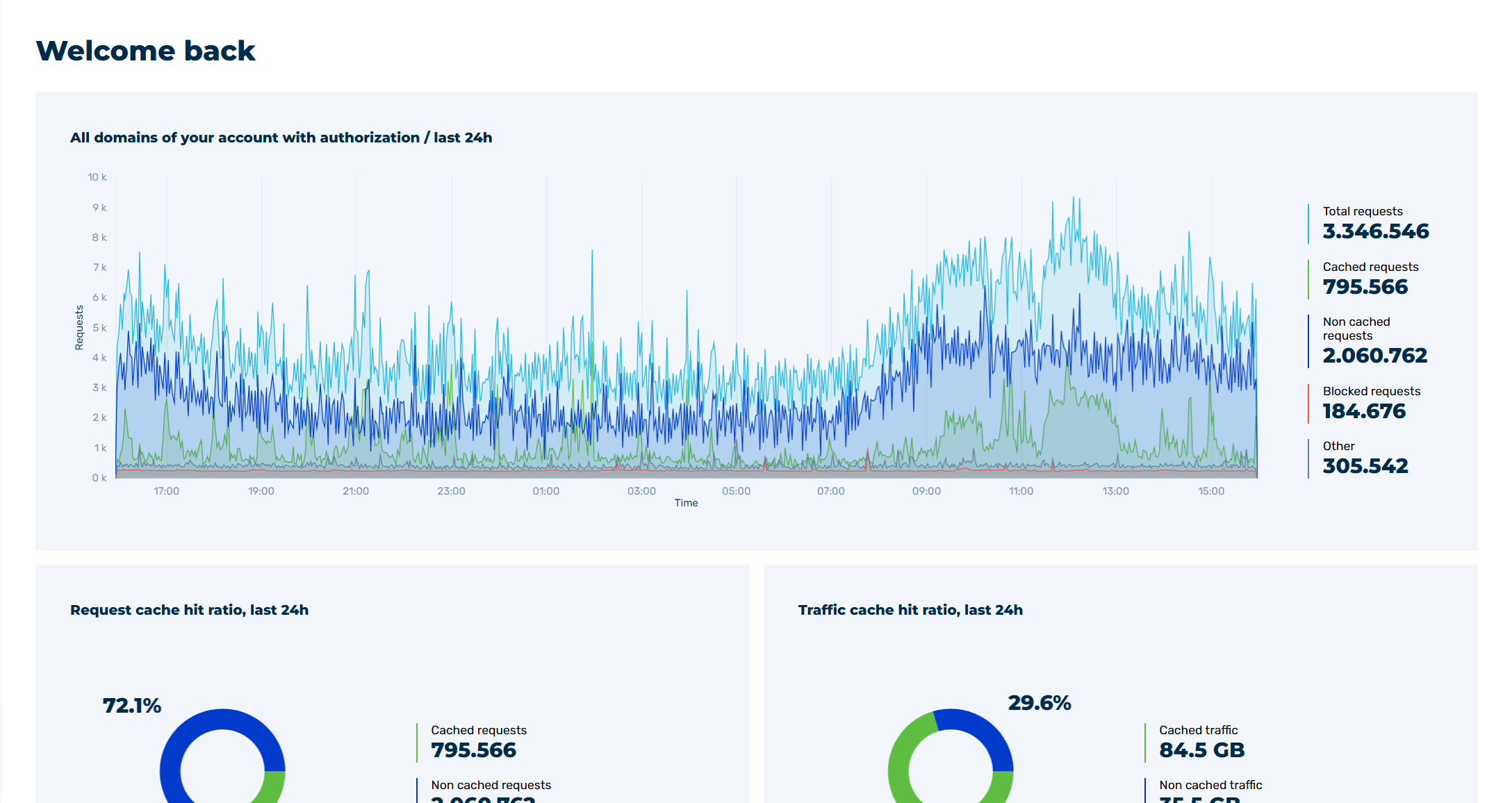
Myra App Home Page
- ➔ The home page of the Myra App with the Dashboard view opens.