Enabling Two-Factor Authentication
Note
Manual 2FA setup is only required if your organization’s policies did not prompt you to enable 2FA during initial account setup.
Myra recommends enabling two-factor authentication (2FA) to ensure that your account is protected.
Proceed as follows to activate 2FA for your account:
- ► Open the Myra App website.
- ► Log in.
- ↳ The home page of the Myra App with the Dashboard view opens.
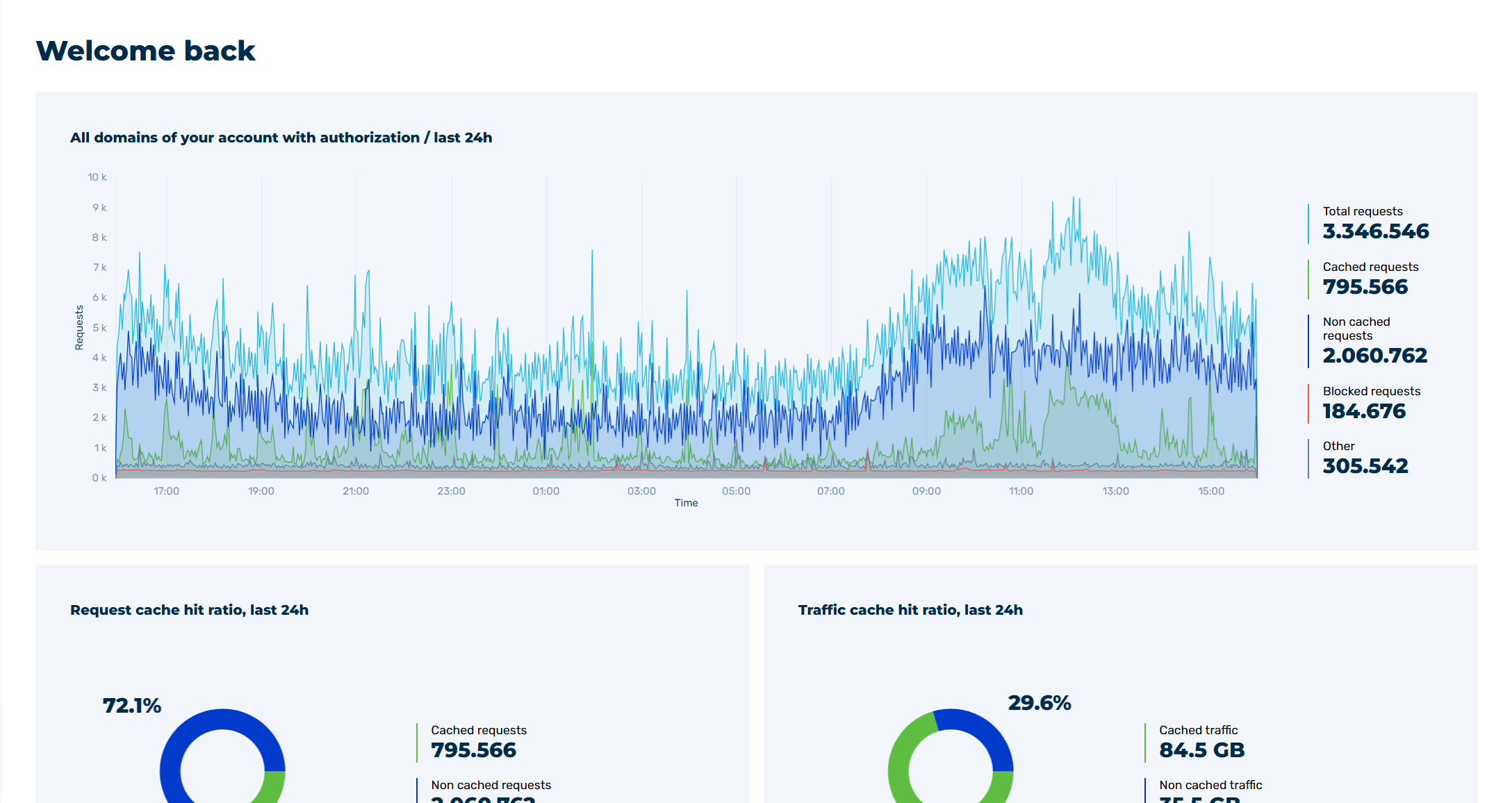
Myra App Home Page
- ► Click on the account icon in the top right-hand corner.
- ► In the list, click on the Personal account button.
- ↳ The Personal account view opens.

Personal account view
- ► Switch to the classic design by clicking on the Switch back to the classic UI button.
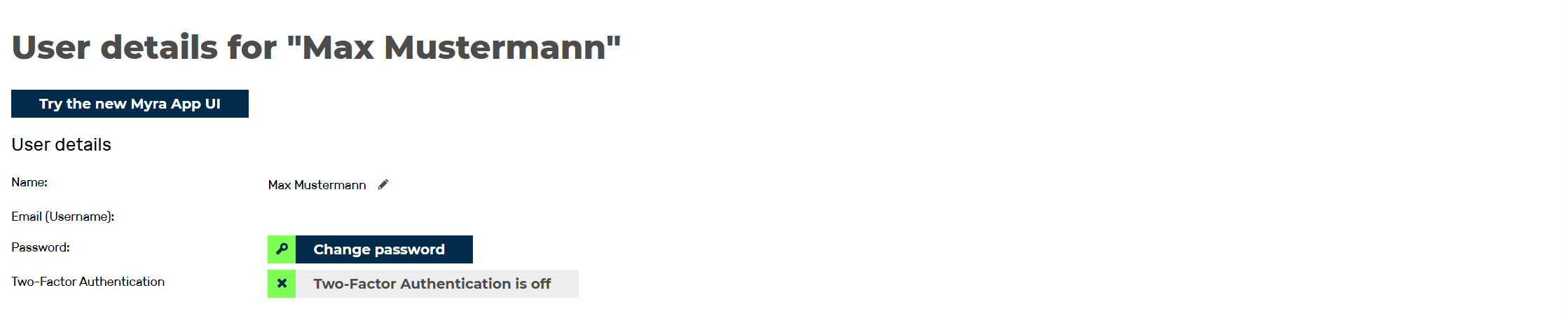
Personal account view
- ► Click on the Two-Factor Authentication is off button in the User details area.
- ↳ The Enable Two-Factor Authentication dialog opens.
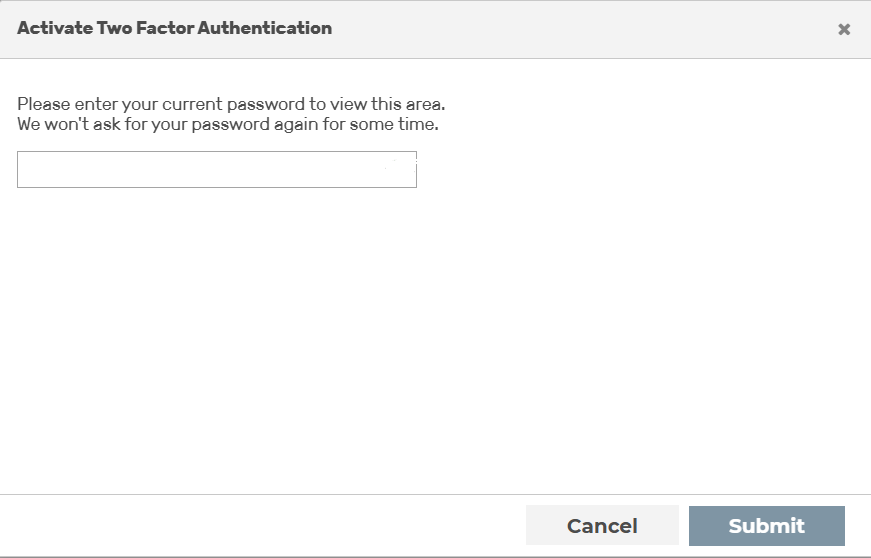
Enable two-factor authentication (1)
- ► Enter your personal password.
- ► Click on the OK button.
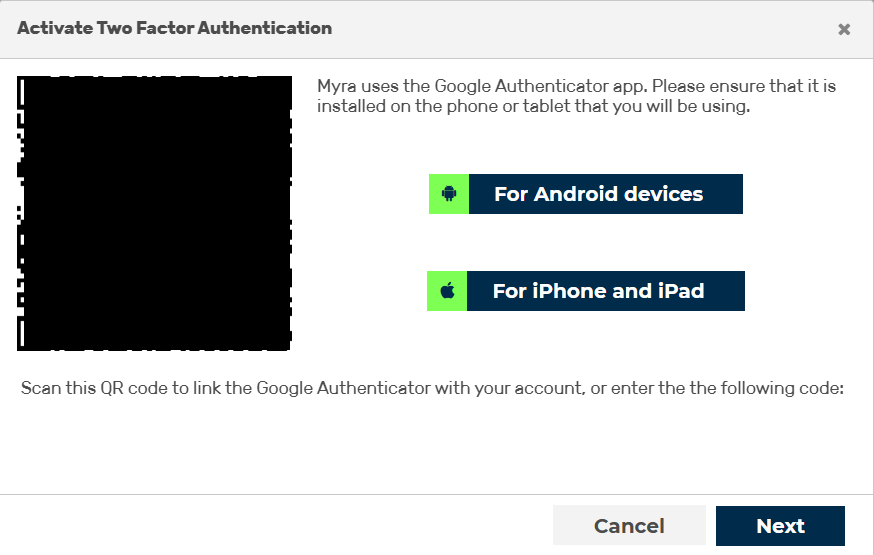
Enable Two-Factor Authentication (2)
- ► Download the required authenticator app (if not already available) and open it.
- ► Scan the QR code or enter the shown code to add Myra 2FA to your authenticator app.
- ► Click on the Next button.
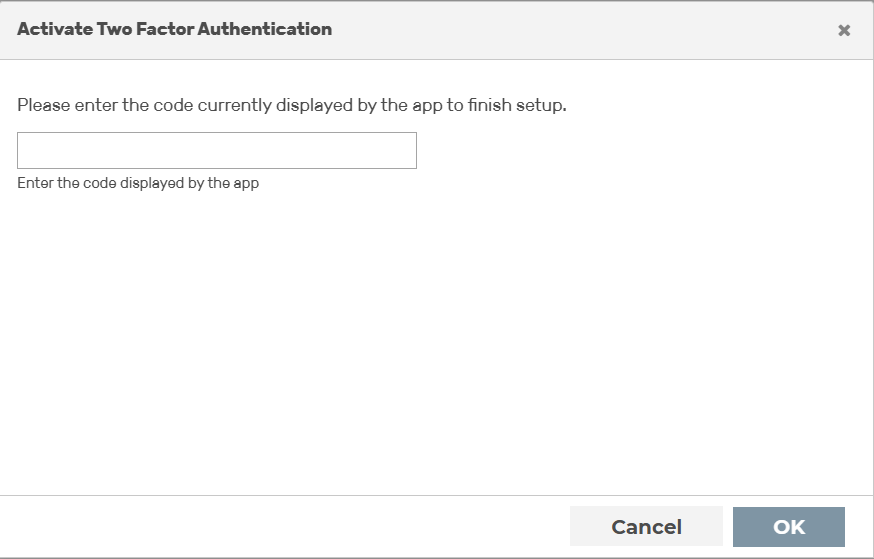
Enable Two-Factor Authentication (3)
- ► Enter your 2FA code from the authenticator app in the field.
- ► Click on the OK button.
- ↳ A list of backup codes will appear.
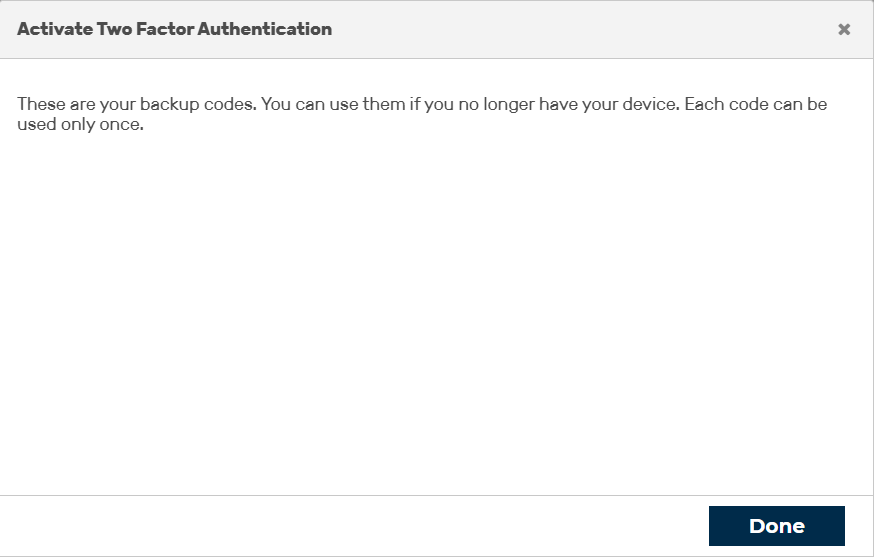
Enable Two-Factor Authentication (4)
-
► Save the backup codes in a safe place.
Note
Store or keep the recovery codes in a safe place. Without these codes, you will not be able to access your account if you lose your 2FA device.
You can find the codes in your account settings under Manage your account → Two-Factor Authentication → Show codes.
-
► Click on the Done button.
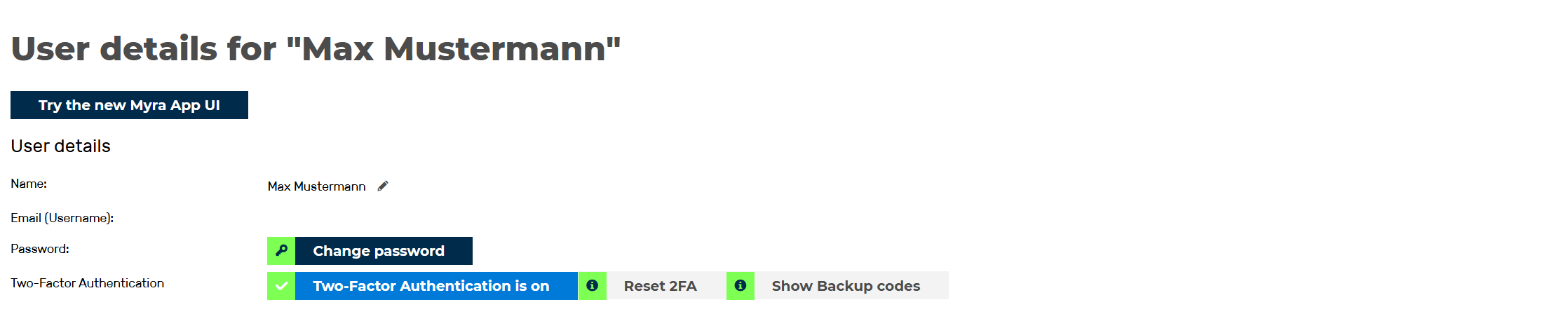
Two-factor authentication enabled
- ➔ The Two-Factor Authentication is off button changes to Two-Factor Authentication is on. Your account is now additionally protected with 2FA.