Creating waiting room
Note
The view is only visible if you have purchased this product as part of the Myra App.
For more information, please get in touch with your contact person from the Sales team or our Customer Success Management.
Note
For a description of the views from the Myra Waiting Room, see Section Waiting Room.
The waiting rooms are defined at the subdomain level. A waiting room can cover exactly one domain or subdomain, including the defined paths.
Proceed as follows to create a new waiting room for a domain:
- ► Click on the Domains tab in the left menu bar.
- ↳ The Domains view opens.
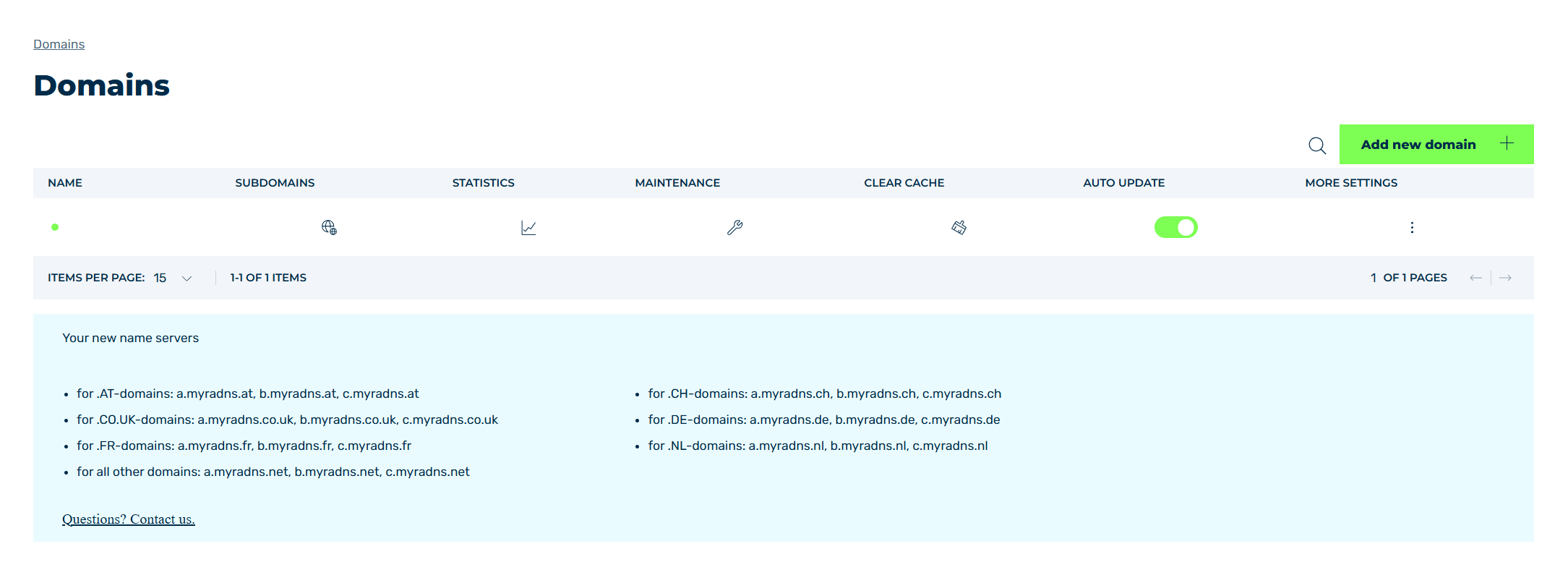
Domains view
- ► Select the relevant domain and click on the
 icon in the MORE SETTINGS column.
 - ► Click on the WAITING ROOM button.
- ↳ The Waiting Room view opens.

Waiting Room view
- ► Click on the Create new waiting room button.
- ↳ The Create new waiting room view opens.
Note
If you reached the waiting room limit of your contract, the Create new waiting room button opens the You need an upgrade to do this! note instead. The Upgrade Now button creates an email to the Myra sales team.
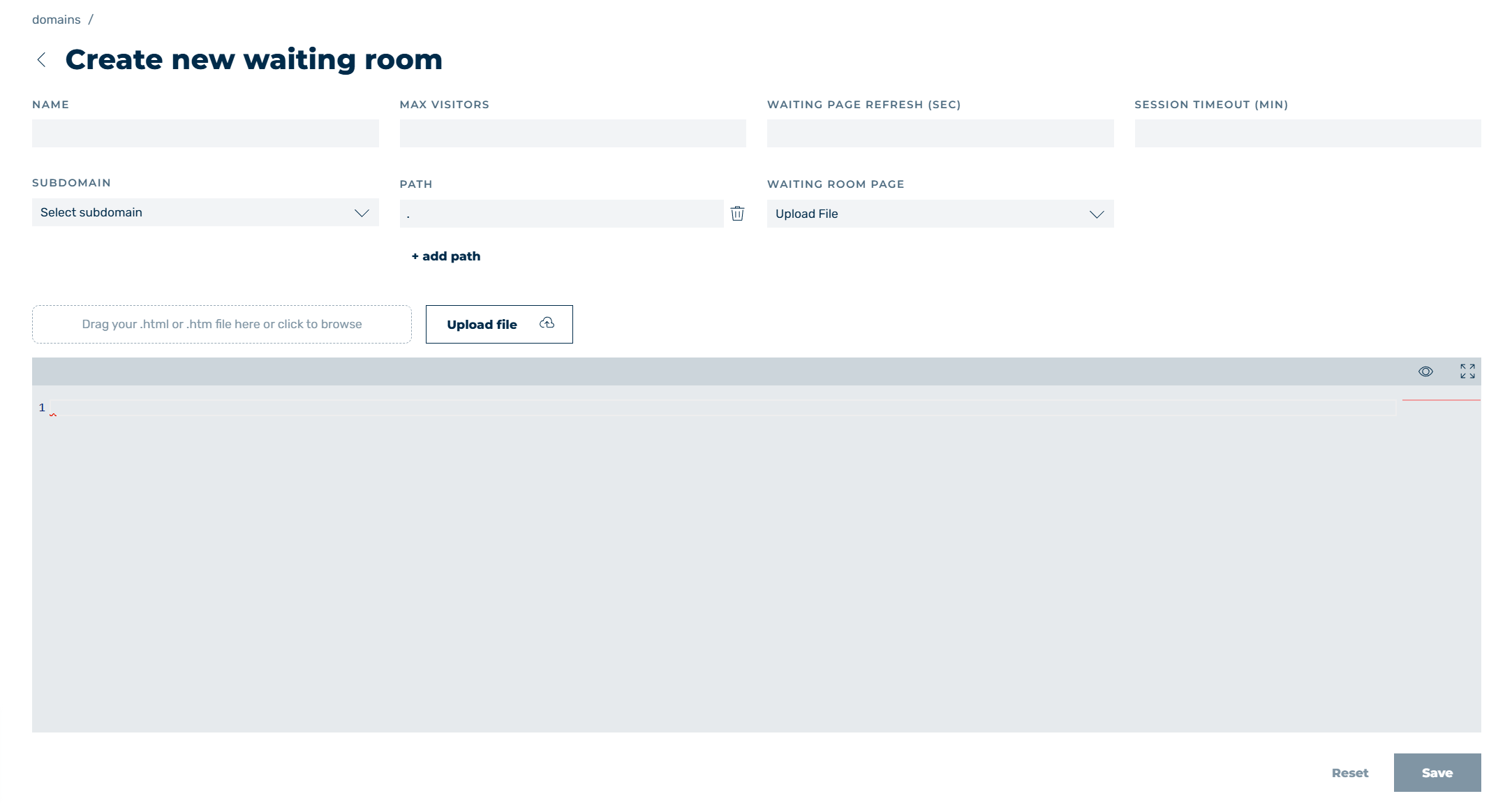
Add new waiting room
- ► In the NAME text field enter the name of the waiting room.
- ► Set the maximum number of visitors in the MAX VISITORS text field.
- ► In the WAITING PAGE REFRESH (SEC) text field, specify the duration in seconds until the wait page is reloaded.
Note
The duration until the session is terminated must be determined individually. For example, for an online shop where customers do not linger for long, a value of 5 to 10 minutes may be sufficient. However, when filling out a form where the time factor is higher, the value must be adjusted accordingly.
- ► From the drop-down list under SUBDOMAINS select the domain or subdomain for which you want to define the waiting room.
-
► If necessary, specify a path in the PATH text field for which the waiting room is to be defined.
Note
The value
.is entered in the PATH text field as the default value.Note
A specific path for each domain and subdomain is set using regex.
Example
- Using a
.path includes all possible paths. - Using a
/checkoutpath includes all paths with/checkoutin the name. - Using a path with
^/checkoutonly includes paths that start with/checkout.
Note
The waiting page and settings for a waiting room are inherited by the underlying paths, which means that when using the wildcard
.as a path, specific waiting pages and settings for individual paths are no longer possible.Example
Using a waiting room with the wildcard
.and a waiting room with a specific path causes the waiting page and settings of Waiting Room 1 to overwrite the waiting page and settings of Waiting Room 2.- Waiting Room 1:
a.domain.comand path. - Waiting Room 2:
a.domain.comand path/checkout
Using two different paths under a domain and subdomain allows both paths to use different waiting pages and settings.
-
Waiting Room 1:
a.domain.comand path/login -
Waiting Room 2:
a.domain.comand path/checkout
Using a waiting room with wildcard
.for domain and subdomain A and a specific path for domain and subdomain B allows both domains and subdomains to use different waiting pages and settings.-
Waiting Room 1:
a.domain.comand path. -
Waiting Room 2:
b.domain.comand paths/checkoutand/cart
- Using a
-
► If necessary, click on the add path to add another path.
-
► Select the waiting page for the waiting room from the drop-down list under WAITING ROOM PAGE.
You have two options:
- ▷ Select an existing website directly from the list.
-
↳ With Upload File upload a new waiting page as an
*.htmor*.htmlfile.- ▷ Click on Upload file to select an
*.htmor*.htmlfile from your computer. - ▷ Drag and drop the template file into the corresponding field.
- ▷ Click on Upload file to select an
-
↳ After uploading the waiting page, the file appears below the Upload file button as HTML code at the bottom of the page and can be customised or shown as a preview page.
- ► To add the waiting room, click on the Save button.
- ➔ The Waiting Room view opens and the newly created waiting room is visible in the list.