User management

User Management view
In the User Management view, you can view and edit all added users, as well as add new users to your organisation.
Proceed as follows to open the Group Management view:
- ► Open the Myra App.
- ► Click on the name of your organisation in the top menu bar.
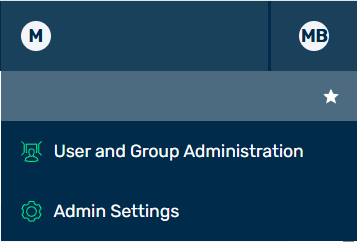
Options under the Organization Name
- ► In the list, click on the User and group management button.
- ➔ The User Management view opens.
The following information is available:
| Name | Definition |
|---|---|
| Name | The name of the user. Click on the name to open the User Details for <user name> view, see Section User details for <user name>. |
| Email (Username) | The email address that the account was registered under. |
| 2FA | Indicates whether 2FA is enabled for the account. |
| Actions | Shows the possible options for editing the selected entry. |
The following options are available:
| Name | Definition |
|---|---|
| Add user | The button opens the Add user dialog for adding new accounts. See Section Add a user's account. |
 |
The icon opens the Edit user <email address> dialog for changing the name and locking the accounts. See Section Edit the account of a user. |
 |
The icon locks or unlocks the account. See Section Lock or unlock a user's account.NoteLocked accounts are still available in the Myra App, and the settings for these accounts are retained. The affected user just cannot log into the Myra App any more. They can only log in again once an admin unlocks the account. |
 |
The icon opens the Delete user <email address> dialog for deleting the accounts. See Section Delete account.AttentionWhen an account is deleted, the account and all associated user settings are permanently deleted. The user can no longer log in under the affected account. To give a user whose account was deleted access to the Myra App again, you must create a new account. |
| Filter field | The field filters the account entries by names and email addresses. |