Book Object Storage
To book and activate the Myra Object Storage add-on, please contact your Customer Success Team or your Account Manager. The add-on can only be activated by Myras. It is not possible to activate or deactivate the Object Storage add-on within the Myra App.
Proceed as follows to activate the add-on:
- ► Open the Myra App website.
- ► Log in.
- ↳ The Dashboard view opens.
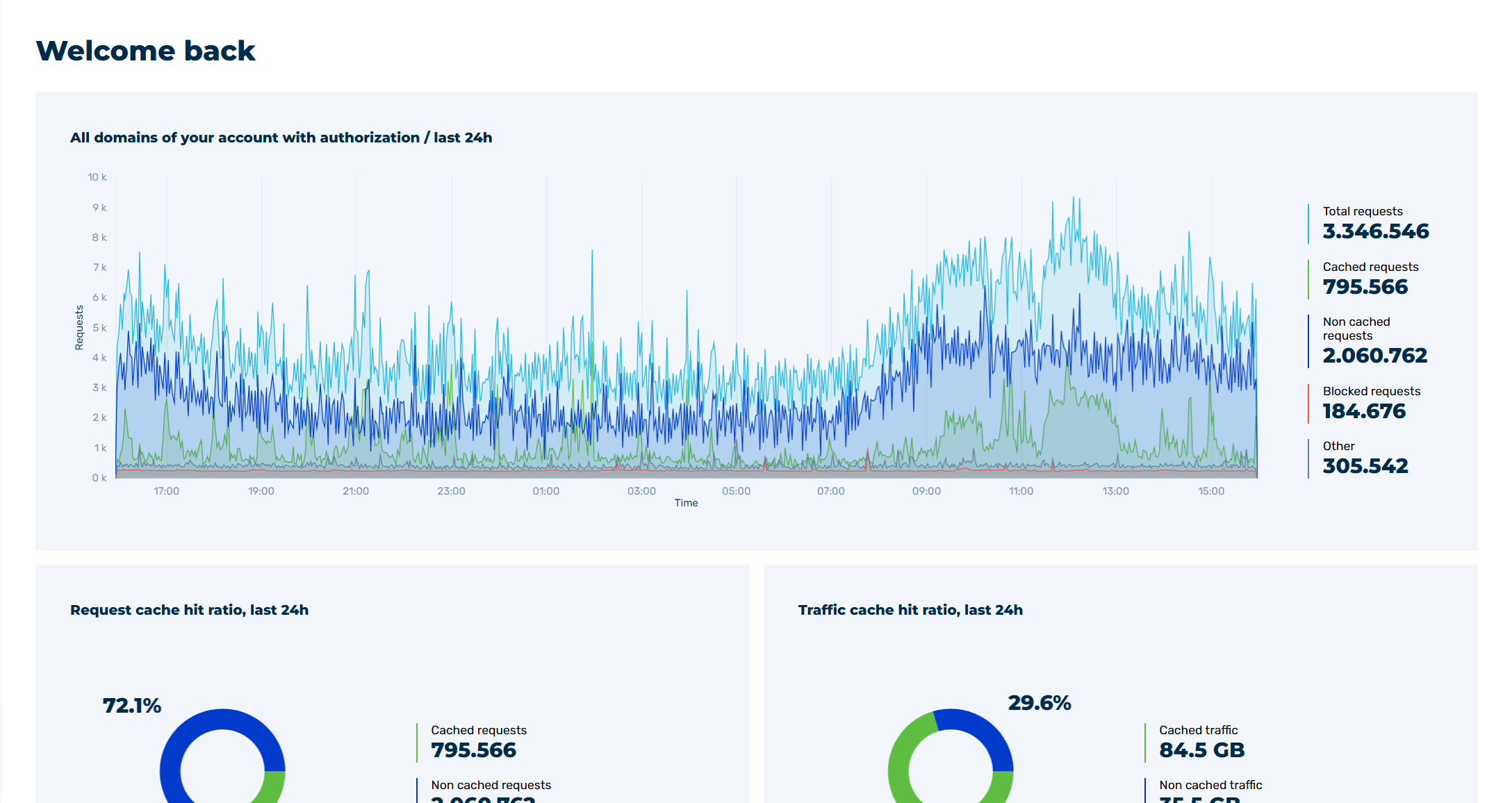
Myra App Home Page
- ► In the navigation bar, click on the Organization tab.
- ► Click on the Ticket center tab in the list.
- ↳ The Ticket center view opens.
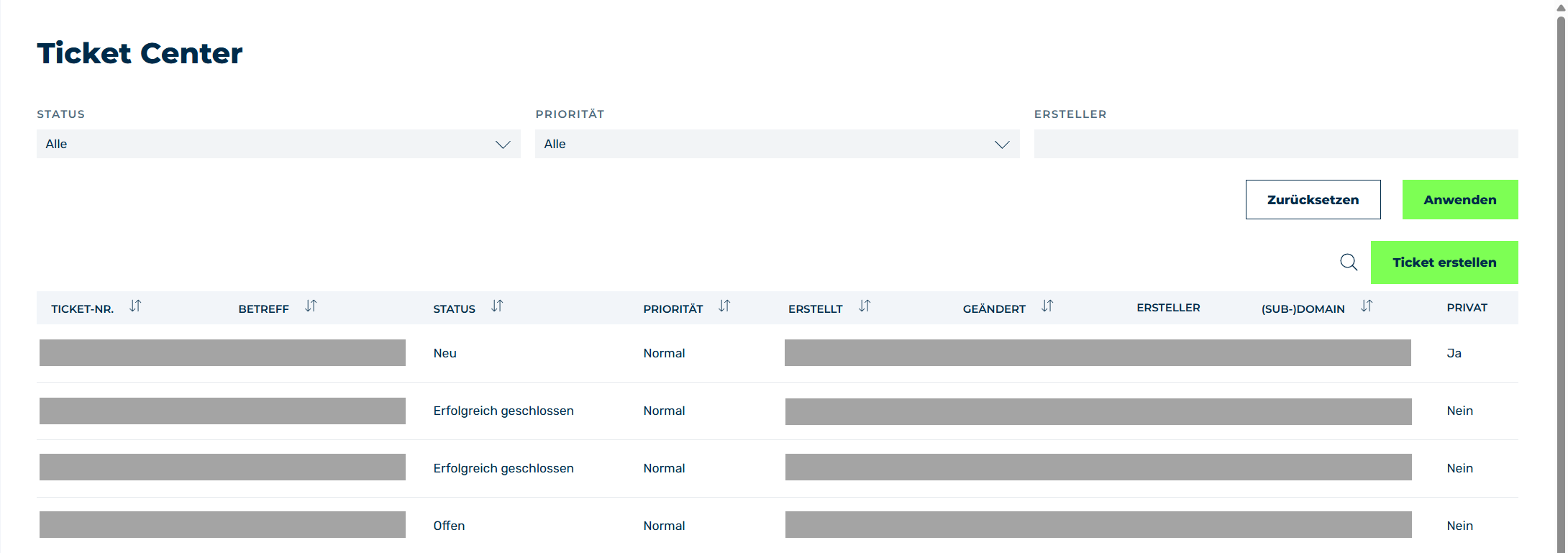
Ticket center view
- ► Click on the Add New Ticket button.
- ↳ The Add New Ticket view opens.
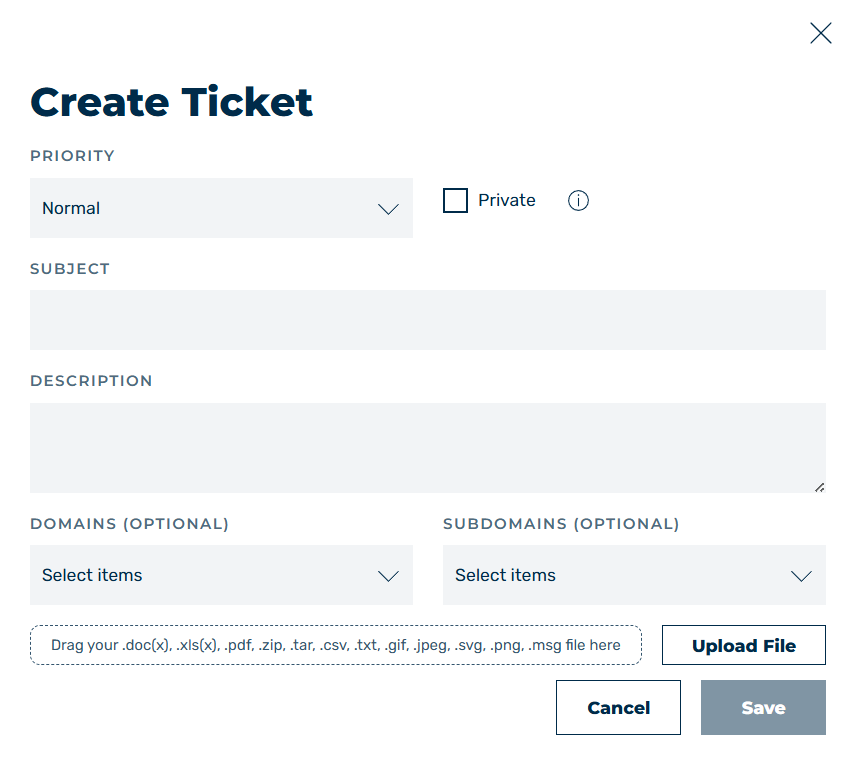
Create Ticket dialog
Note
This view is only available in the classic user interface.
-
► Enter the following information in the ticket fields:
- Domain: Select the domains for which you want to enable the add-on.
- Subdomain: Select specific subdomains.
- Subject: Enter Request for activation of Object Storage add-on as the subject here.
- Details: Please describe your request here and provide the following information:
- ▷ If necessary, specify the domains and subdomains that should use this add-on.
-
▷ Specify the public IP address to add to the allowlist of Myra.
Note
The public IP address that you provide to Myra for the allowlist must be static. Otherwise, access problems may occur.
-
► Click on the File upload button under Attachments and select the public SSH key in the ED25519 format.
- ► Check all the details and click on the Add ticket button.
- ➔ A new ticket is added to the list of tickets.
Once Myra has processed your request, you will receive an SFTP account. With this account, you can connect to Object Storage and upload your data.