Edit contact
Note
To add, edit, and delete contacts, you need admin rights.
Proceed as follows to edit a contact:
- ► Open the Admin Settings view, see Section Admin Settings.
- ► Click on the Contacts & Communication tab.
- ↳ The Contacts & Communication tab opens with the Contact list tab already open.

Contacts & Communication tab
- ► Select the entry you want to edit.
- ► Click on the
 icon.
icon. - ↳ The Edit entry dialog opens.
Depending on the type of contact, you have the following options:
Edit Myra App users as contacts
Note
The name and email address of a contact person can only be changed in the Edit entry dialog if they were not created as a Myra App user.
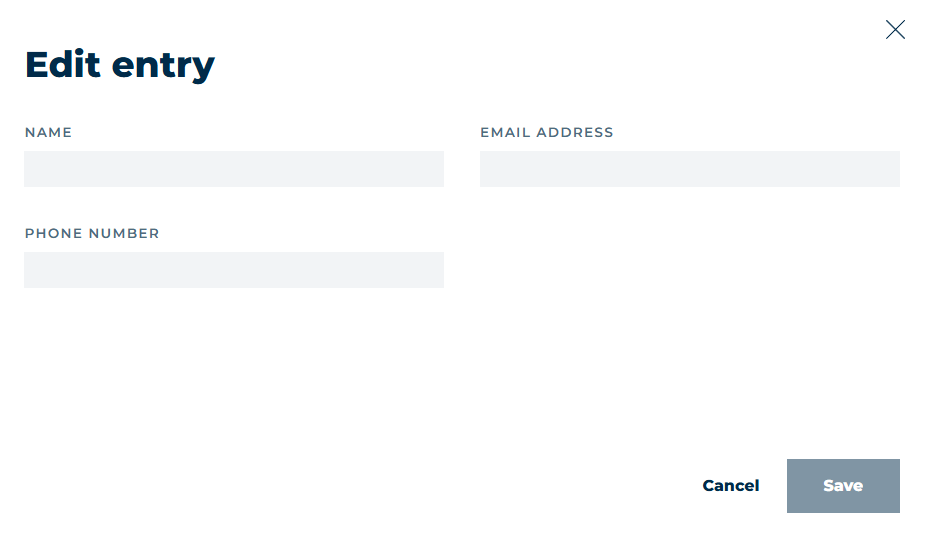
Edit Myra App users as contacts
- ► If necessary, enter the phone number of the contact in the text field under PHONE NUMBER.
Edit non Myra App users as contacts
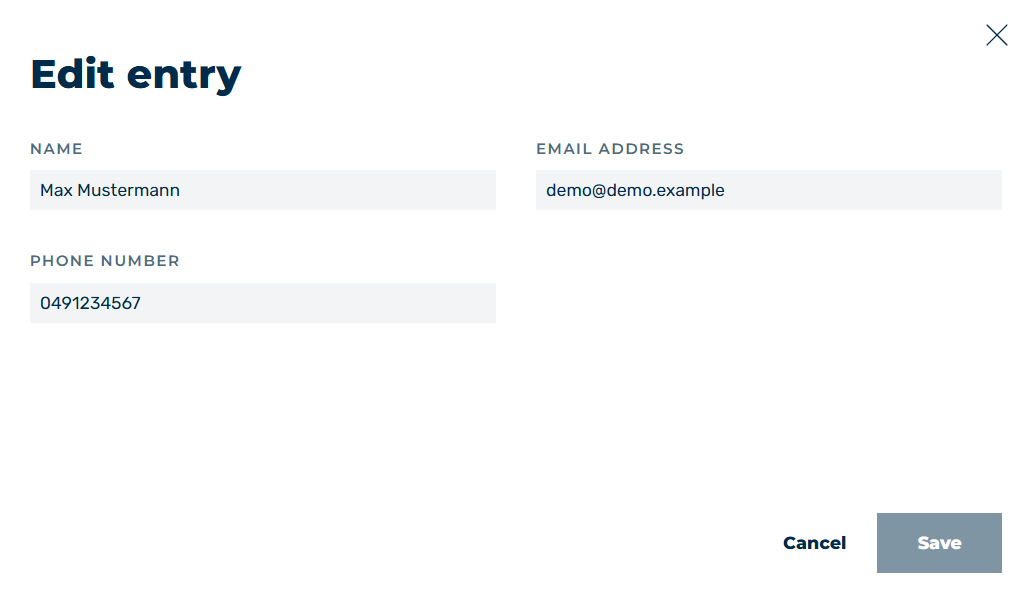
Edit non Myra App contact
- ► Change the values as needed, see Section Contact list tab.
Once you have filled in all the fields, you can save the entry.
- ► Click on the Save button.
- ➔ The dialog closes and the changes are saved.