Creating API key and secret
Proceed as follows to create an API key:
- ► Open the Myra App.
- ► Log in.
- ► Open your personal account, see Section Profile.
- ↳ The Personal account view opens.

Personal account view
- ► Click on the API access tab.
- ↳ The API access tab opens with the API Tokens and API Keys sub-tabs.
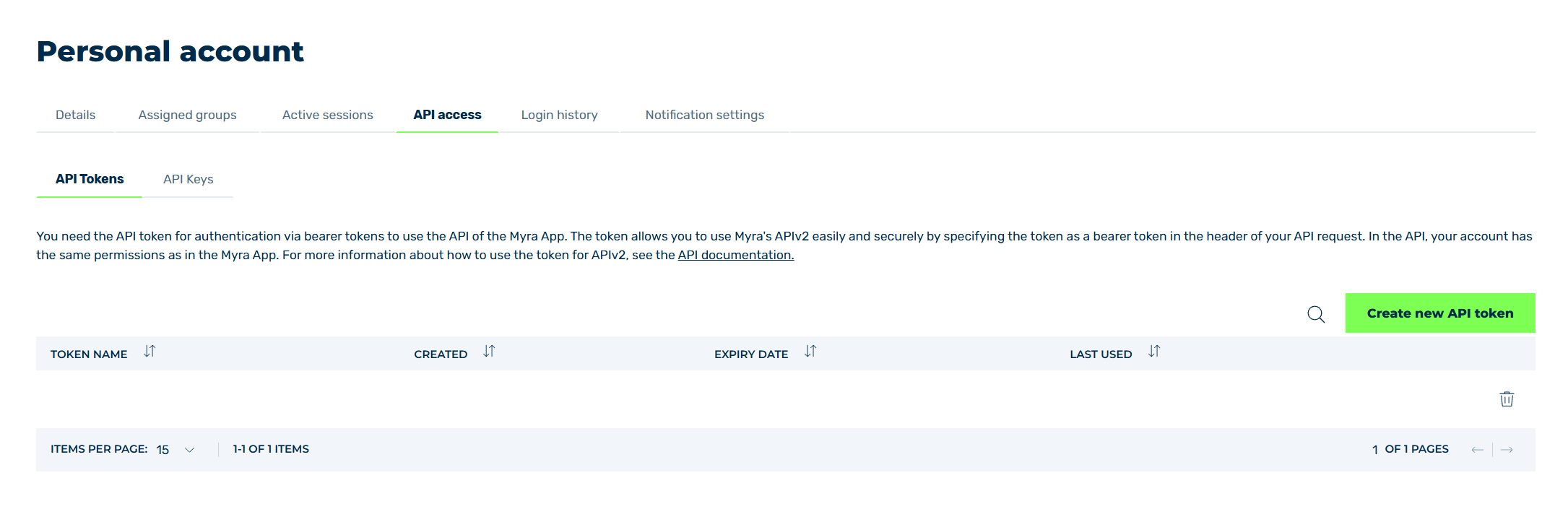
API tokens tab
- ► Click on the API Keys tab.
- ► Click on the Create new API key button.
- ↳ The Create new API key dialog opens.
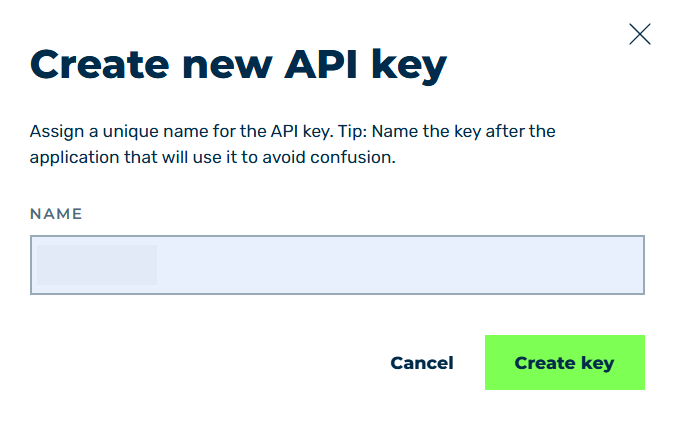
Enter the name of the API key.
-
► Enter a name in the text field under Name.
Note
The name of an API key should help you to better identify the different purposes of your API keys.
-
► Click on the Create key button.
- ↳ The content of the dialog changes and shows the data for your new API key.
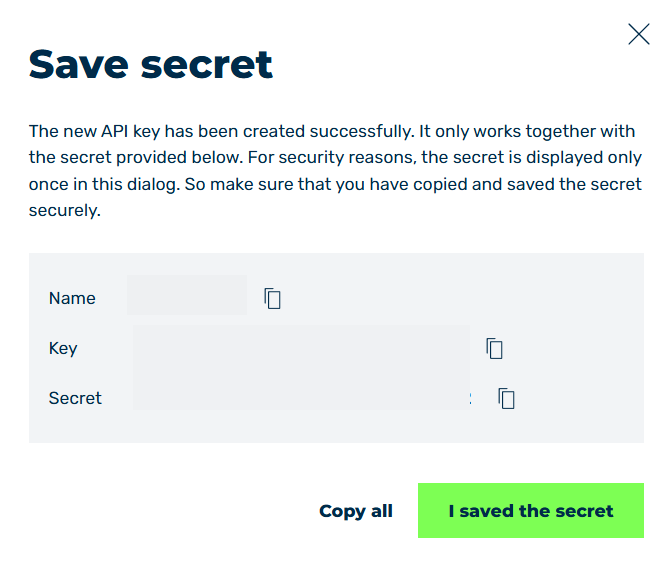
New API key data
-
► To copy the API key data, click on the icon
 next to each entry.
Alternatively, copy all entries at once. Click on the Copy all button.
-
► Save the data in a secure location.
Note
The secret is only visible when creating a new API key and should be stored in a secure location.
Once you click on the I saved the secret button in the Save secret dialog, you can only view the name, key, and creation date.
If you have lost the key, you must generate a new API key.
-
► Click on the I saved the secret button to close the dialog.
- ➔ The new API key appears in the list of all API keys and can be used immediately.