Create an SSL/TLS certificate for <domain name> dialog
Note
This feature is only available if you have subscribed to Myra Certificate Management.
Note
You need administrator privileges to create an SSL/TLS certificate.
Note
It can take up to an hour to generate a new SSL/TLS certificate through Myra.
The Create SSL/TLS Certificate for <Domain Name> dialog allows you to create and manage a new SSL/TLS certificate for your domains through Myra.
After opening the Create SSL/TLS Certificate for <Domain Name> dialog, the following tabs and options are available:
Select Provider
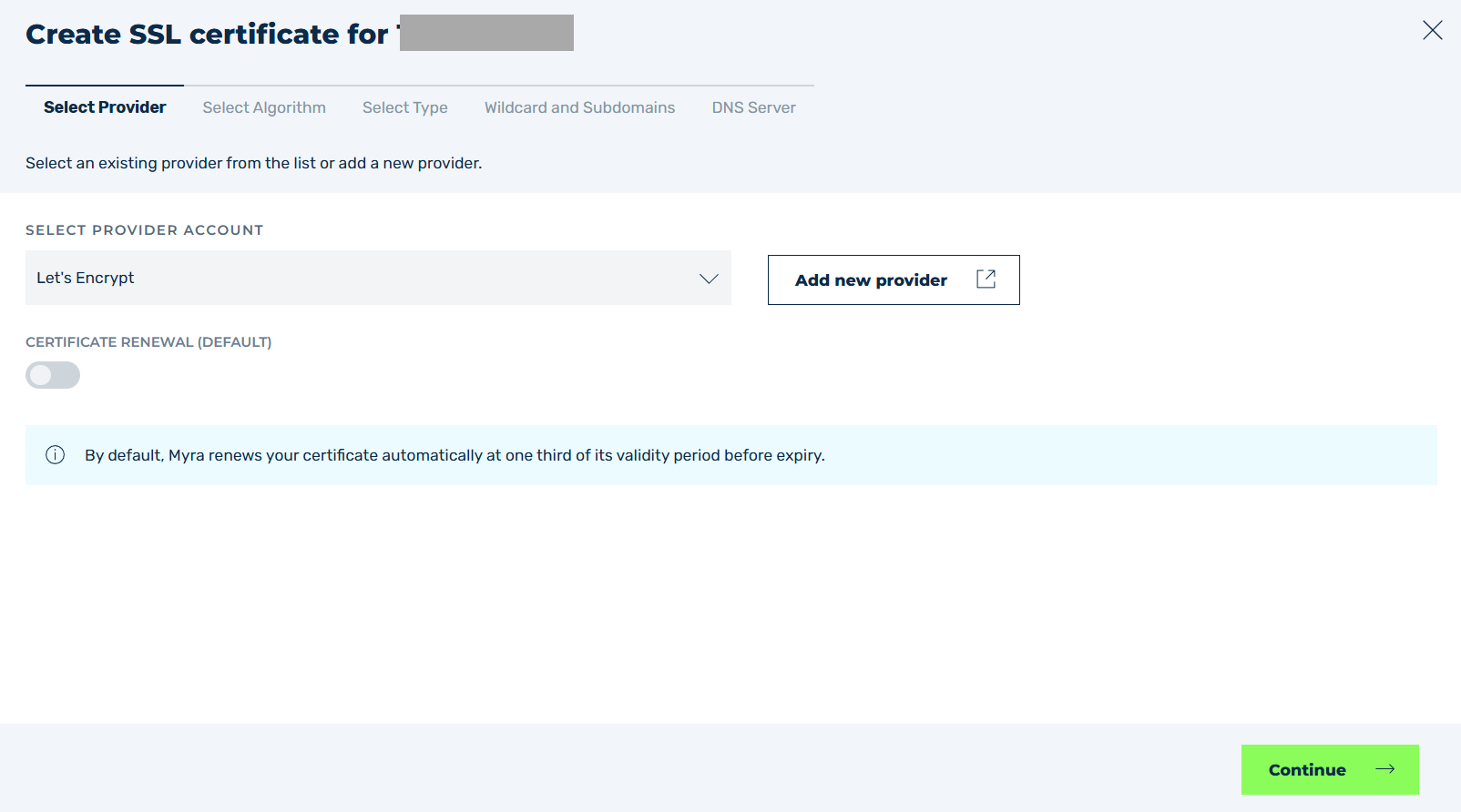
Select Provider tab
On the Select Provider tab, you can specify which certificate authority you want to use to issue your new SSL/TLS certificate. In the drop-down menu under Select Provider Account, you can choose Let's Encrypt as the default certificate authority or select your own provider. To use your own provider for certificate issuance, you must first create it via the Manage Providers view. Alternatively, you can create new certification authorities directly by clicking on the Add new provider button.
You can also use the button under Certificate Renewal to specify when the SSL/TLS certificate should be updated.
- Certificate Renewal (Standard): The switch is disabled, and the SSL/TLS certificate is renewed when its remaining validity period reaches one-third of its total validity period.
- Certificate Renewal (Custom): The switch is enabled, and you can use the Renewal interval (days) setting to specify the number of days before the SSL/TLS certificate should be renewed.
Select Algorithm
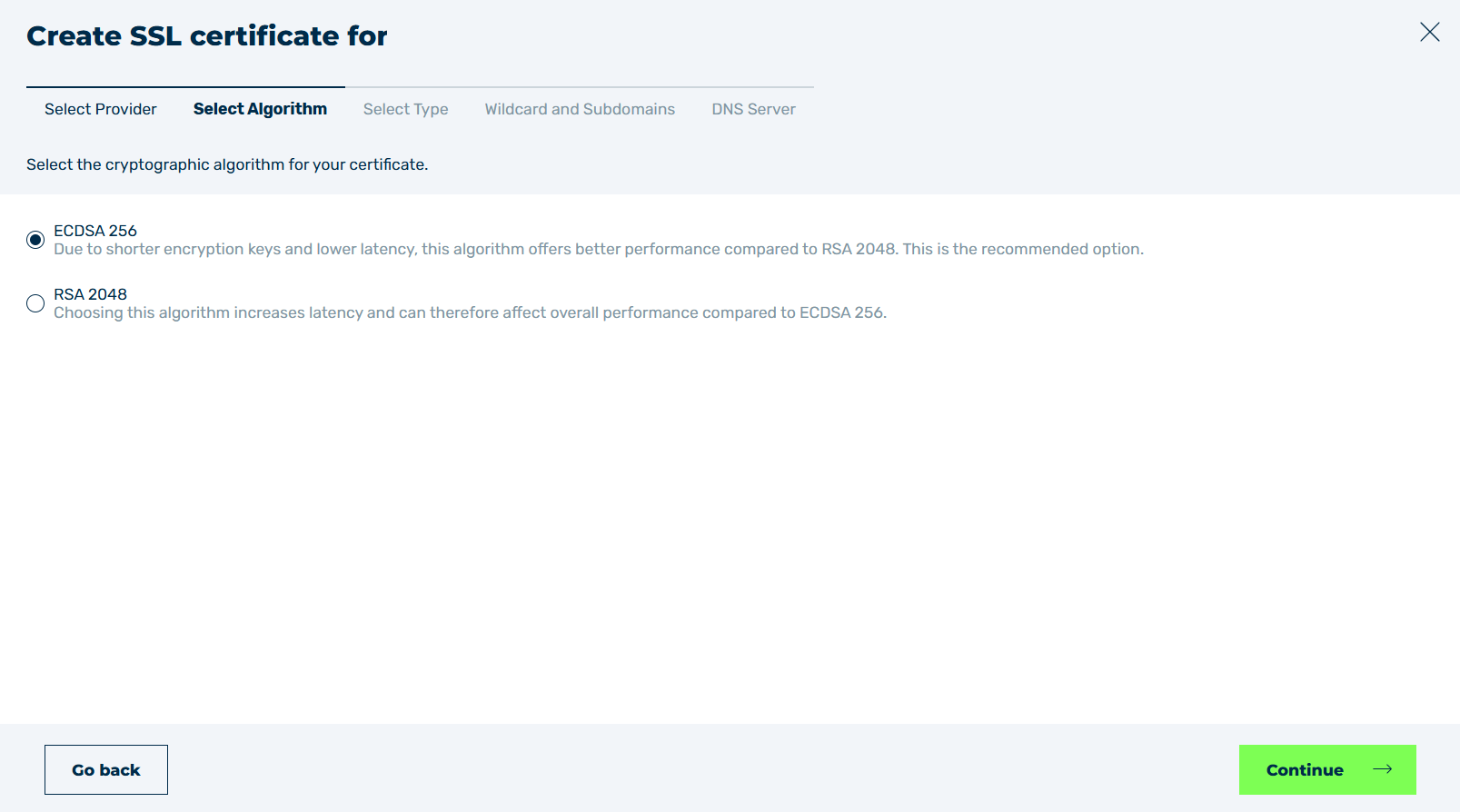
Select Algorithm tab
In the Select Algorithm tab, you can specify which signature algorithm you want to use for the new SSL/TLS certificate. This setting can only be changed later by creating a new SSL/TLS certificate.
Select Type
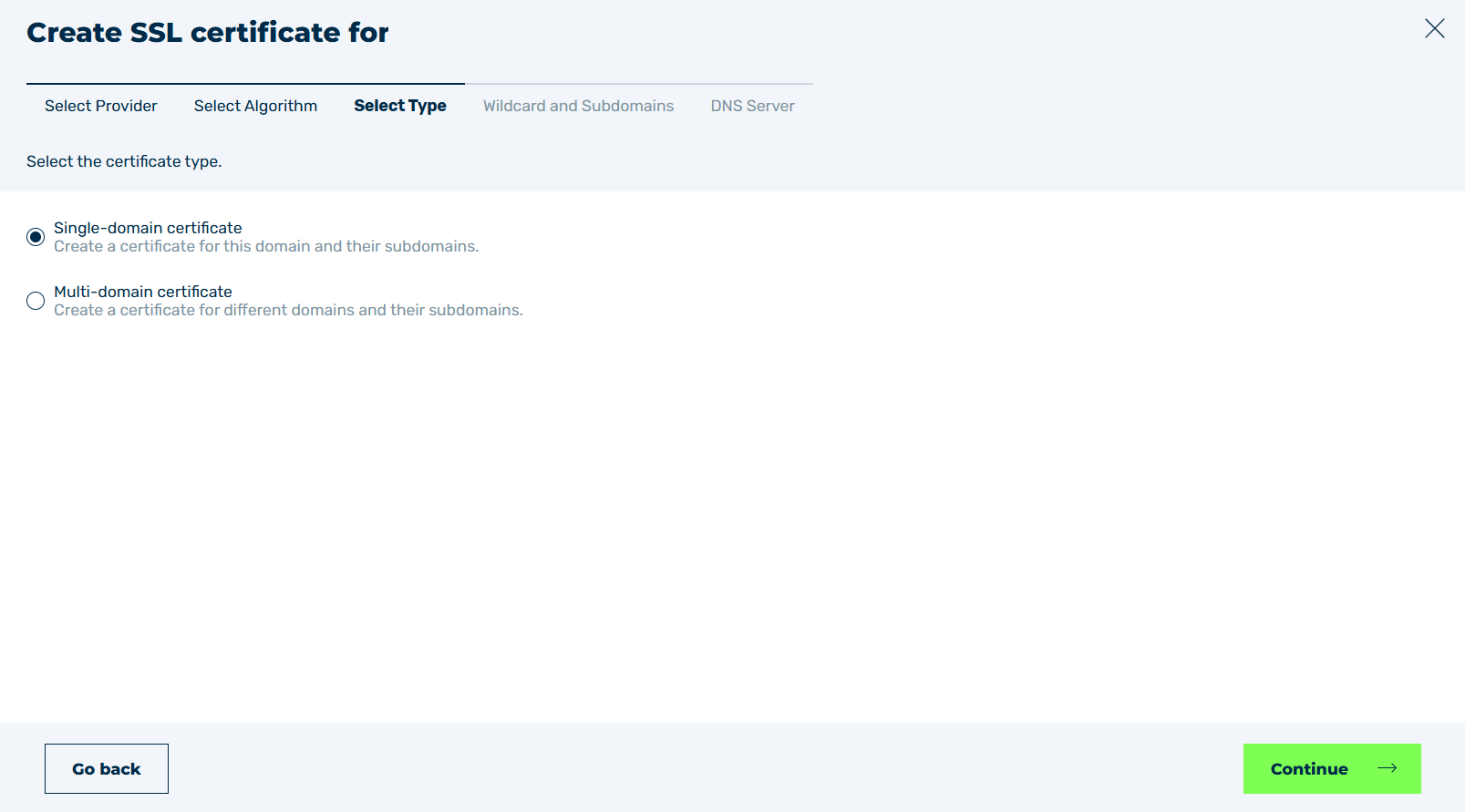
Select type tab
In the Select Type tab, you can choose whether the new SSL/TLS certificate should be valid only for the domain from which you initiated the creation process, or whether it should cover multiple domains you have added.
Wildcard and Subdomains
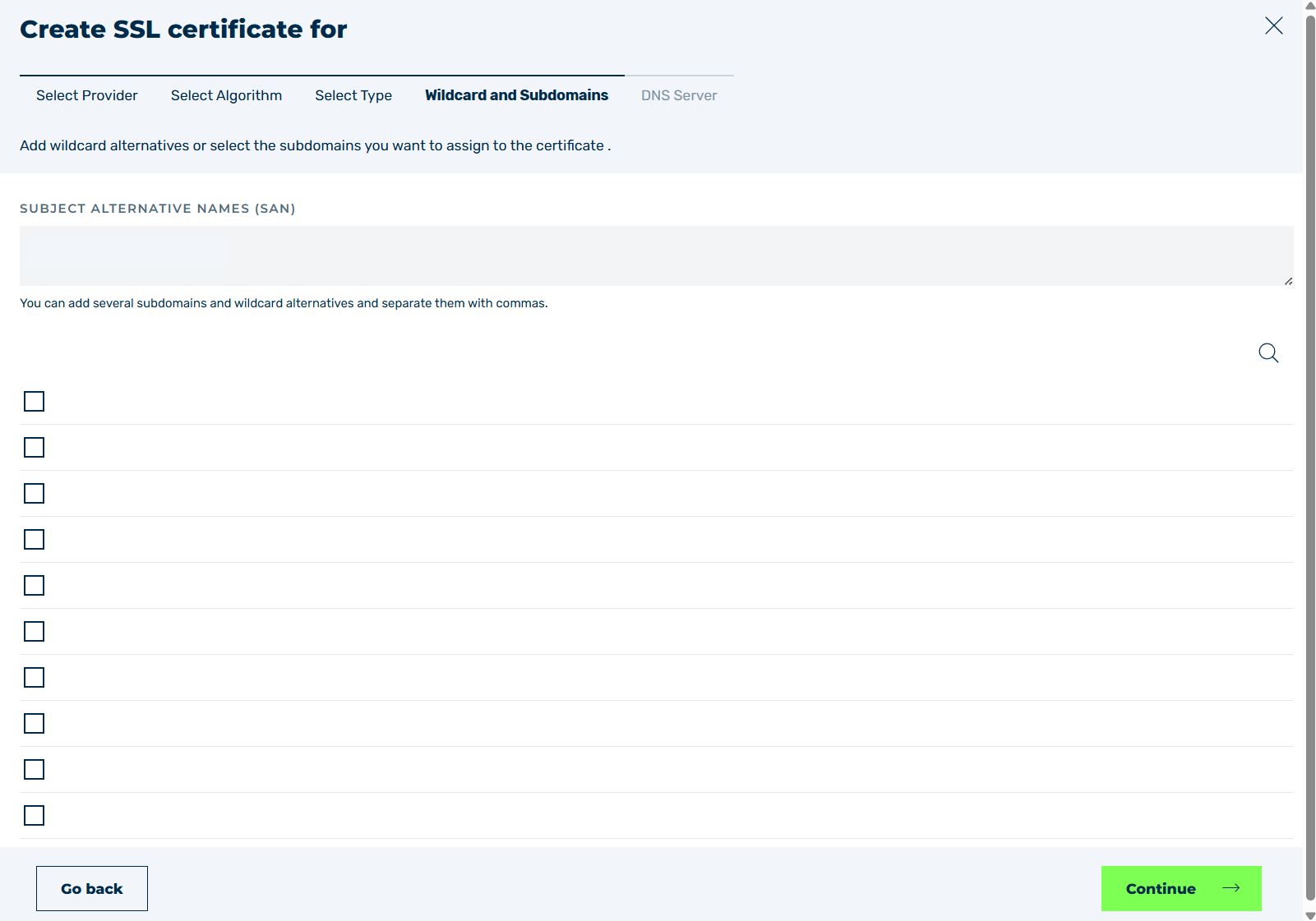
Wildcard and Subdomains tab
In the Wildcard and Subdomains tab, depending on the type selected on the previous tab, you can choose for each domain that the SSL/TLS certificate should cover whether the SSL/TLS certificate is valid only for specific subdomains or should be a wildcard certificate. When selecting a multi-domain certificate, the dialog will guide you through each domain in turn, allowing you to make your selection.
Note
If a valid SSL/TLS certificate already exists for the subdomain, the  icon will appear next to the subdomain name.
When you select subdomains with a valid SSL/TLS certificate, an information box will appear informing you that the existing SSL/TLS certificate will become invalid and that a new SSL/TLS certificate with a new IP address will be created.
If this is not what you intended, update the existing SSL/TLS certificate instead, see Section Configure SSL/TLS Certificate dialog.
DNS server
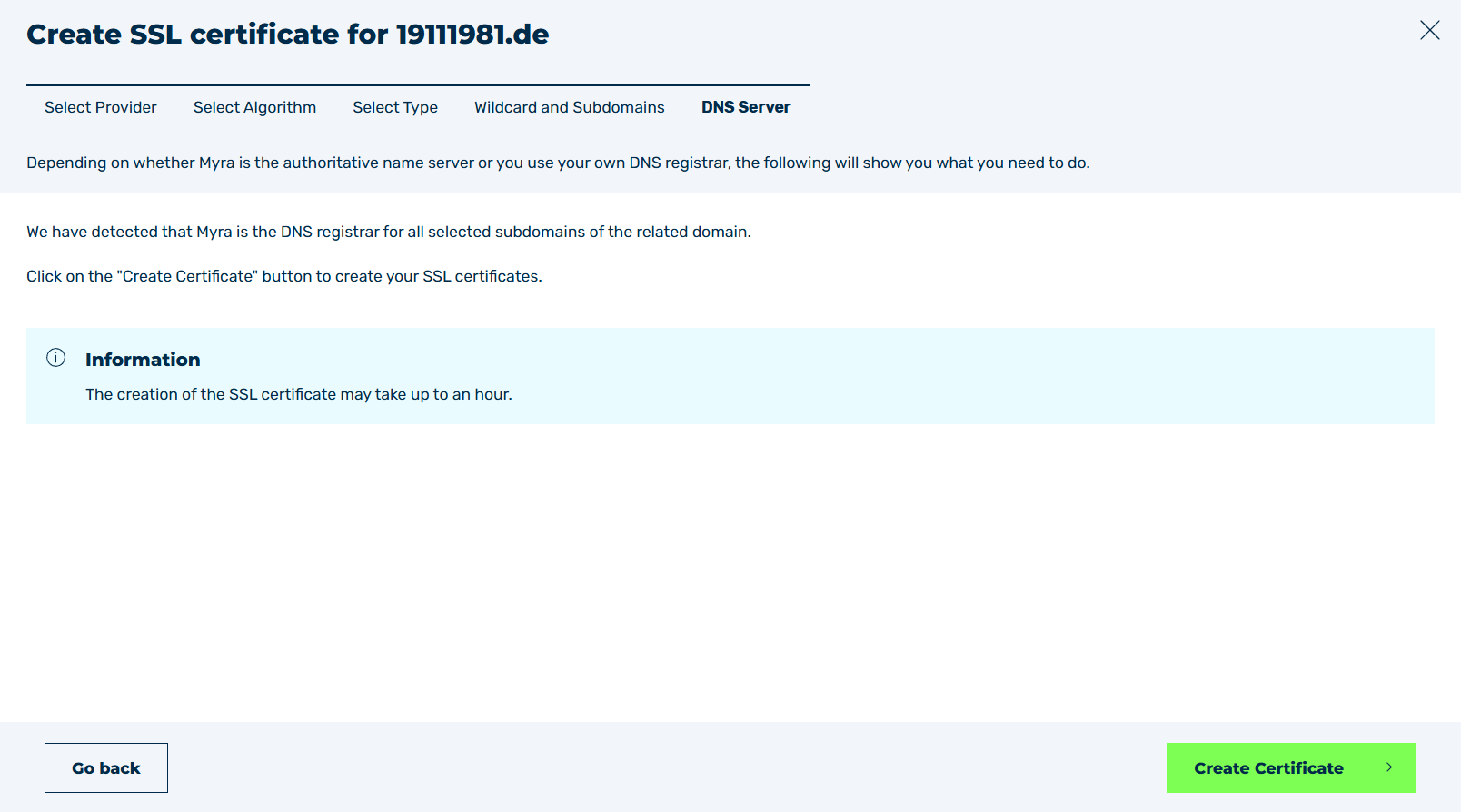
DNS server tab
In the DNS Server tab, the Myra App checks whether the name server for the selected domains is Myra or you. Depending on how you have configured your nameserver, you will receive different instructions to ensure that communication between you and Myra works properly after the SSL/TLS certificate has been created.