DNS Records
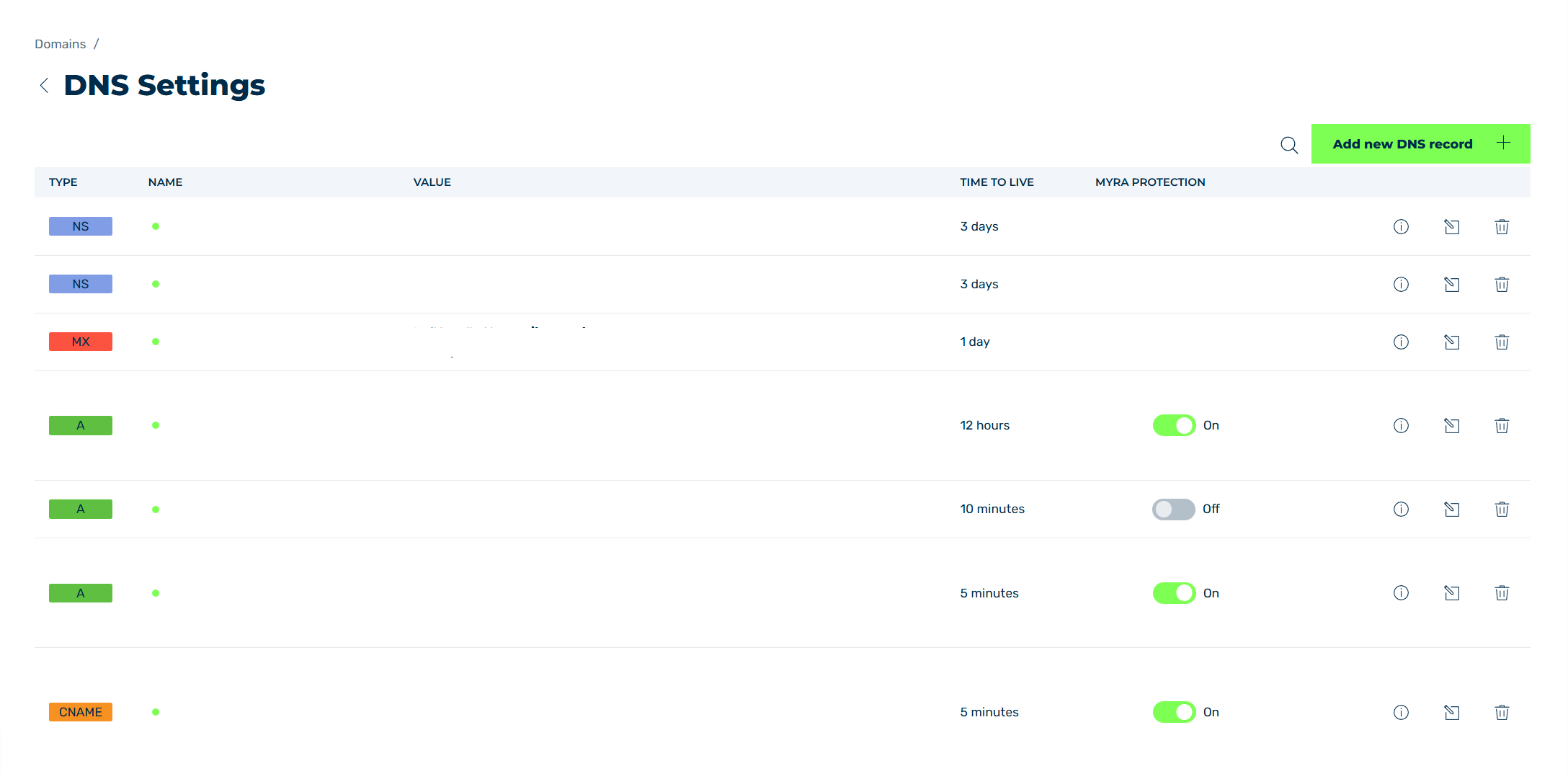
DNS Records view
In the DNS Records view, you can view, edit, or delete existing DNS records. You can also add new DNS records.
You need DNS records so that all requests can be correctly forwarded to your infrastructure. To do this, you must enter the IP addresses (for example, IPv4) or target addresses (CNAME) of your infrastructure for the subdomains so that the website is accessible and Myra protection can be enabled.
Proceed as follows to open the DNS Records view:
- ► Click on the Domains tab in the left navigation bar.
- ↳ The Domains view opens.
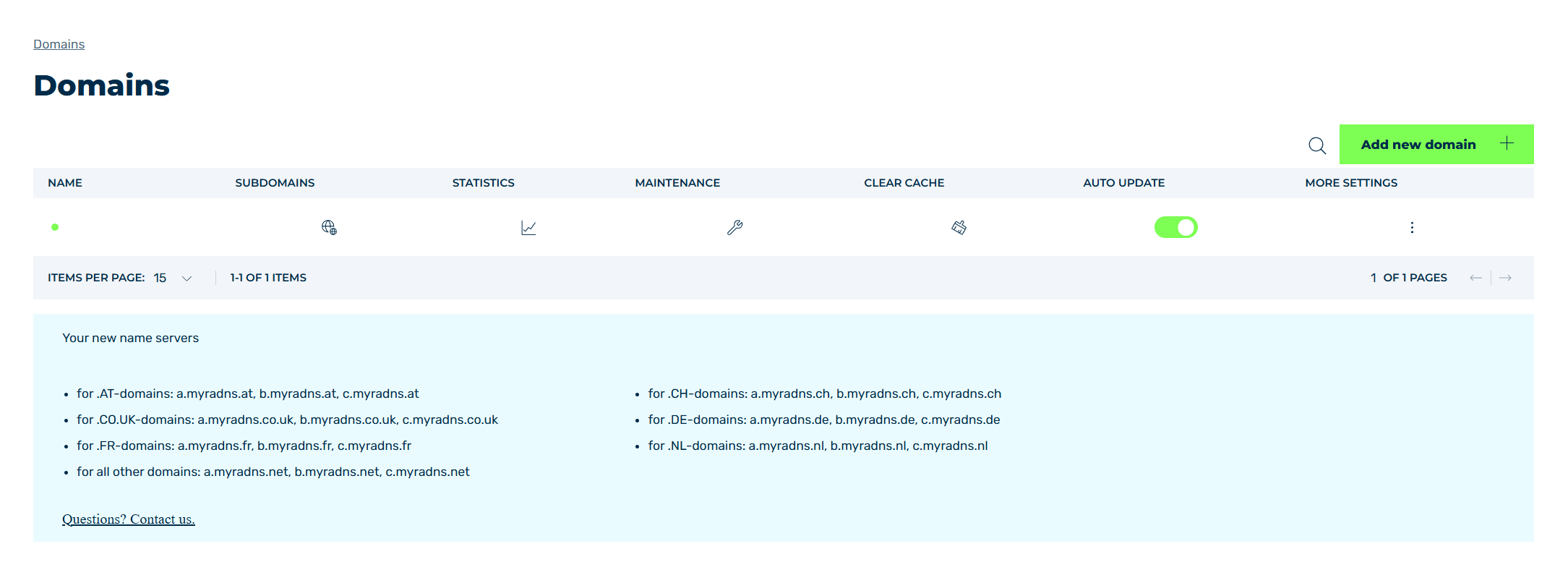
Domains view
- ► Click on the
 icon in the MORE SETTINGS column.
- ► Click on DNS RECORDS in the list.
- ➔ The DNS Records view opens.
The Add new DNS record button opens the Add new DNS record dialog for adding a new DNS record.
The table of created DNS records provides an overview of all DNS records that were created in your Myra App. It is also possible to edit or delete existing DNS entries here.
The following information is available:
| Name |
Definition |
| TYPE |
The record type of the DNS record.
The following record types are available:- A: The A resource record assigns an IPv4 address to the DNS name.
- AAAA: The AAAA resource record assigns an IPv6 address to the DNS name.
- MX: The mail exchange resource record refers exclusively to the email service (SMTP). It determines via which FQDN (fully qualified domain name) the mail server can be reached.
- CNAME: A CNAME record works similarly to an A/AAAA resource record. However, in the case of a CNAME, it is not the IP address of the host that is resolved, but rather another DNS name. This way, a DNS name of a specific domain can resolve to the host of another domain.
- TXT: A TXT resource record is used to attach freely definable text to a DNS record.
- NS: The nameserver (NS) resource record specifies which authoritative nameserver is officially responsible for the domain’s zone. Furthermore, the nameserver record can link zones together and thus enable delegation to different nameservers.
- SRV: A service record (SRV record) defines the address (for example the host name and port number) of servers that provide the specified services.
- CAA: A CAA (Certification Authority Authorization) record defines which certification authorities are allowed to issue certificates with the domain name of the organisation.
- DS: A DS (Delegation Signer) record for linking of DNSSEC-signed zones to establish a chain of trust.
- ALIAS: An ALIAS allows the use of a CNAME record at the APEX level. Through the use of CNAME flattening, the CNAME is fully resolved on the server side, and only the final A/AAAA records (IP addresses) are returned.
NoteAlias entries do not work with DNSSEC-signed zones.NoteOnce you have created an ALIAS record, you can no longer create an A, AAAA, or CNAME record for that domain.NoteYou can only create an ALIAS record if there is no A, AAAA, or CNAME record for the domain in the DNS records. |
| NAME |
The name of the DNS record, which is the same as the name of the registered domain or subdomain. |
| VALUE |
Shows the values assigned when the DNS record was created, for example the IP address or the domain name.
The values that show depend on whether the Myra protection is activated, and on the record type:- Myra protection activated: Resolves to: with the Myra IP address, and and points to: with the IP address of your infrastructure.
- A and AAAA: Public IP: with the IP address.
- CNAME and ALIAS: Is an alias of: with the target name.
- NS: the name of the name server.
- MX: Mail handled by: with the name of the mail server, and Priority: with the priority.
- SRV: the name of the target, and Priority:, Weight:, and Port:.
- CAA: Public IP: with the value, and Flags: and Tags:.
- DS: the fingerprint of the key, and ID:, Encryption:, and Hash type:.
NoteThe Myra IP address (Resolves to:) is assigned by Myra to route the traffic through Myra and points to the IP address of your infrastructure (and points to:).NoteWhile the Myra IP address is not assigned yet, Waiting… shows. |
| TIME TO LIVE |
The duration that a DNS record is cached for before it is queried again. |
| MYRA PROTECTION |
Shows whether the Myra protection is activated or deactivated for the selected DNS record. |
The following options are available:
| Name |
Definition |
 |
The icon opens the Information dialog.
The following information is available:- CNAME Alternative: The alternative CNAME that is created by Myra when adding a domain or subdomain.
- Fetch from origin: The value that was found on your infrastructure.
- Comment: The comment that you gave the DNS record.
NoteAn area only shows if a related value is available for the DNS record.NoteThe icon next to a value copies the value to the clipboard. |
 |
The icon opens the Edit DNS record dialog for changing the selected entry.NoteThe record type cannot be changed in the Edit DNS record dialog. |
 |
The icon opens the Delete DNS record dialog for deleting the selected entry.AttentionWhen an entry is deleted, the entry and all associated settings are permanently deleted. To be able to restore an entry after deletion, you must create a brand-new one and reconfigure it. |
 |
The search field filters entries by names.
Click on the X to delete the search entry. |
 |
The icon closes the view and opens the Domains view. |
Note
If you have not created a DNS record yet, the You haven't created any DNS records yet. Please create at least one DNS record. text shows in the table.
If the search does not find an entry, the No results found text shows.