Maintenance templates
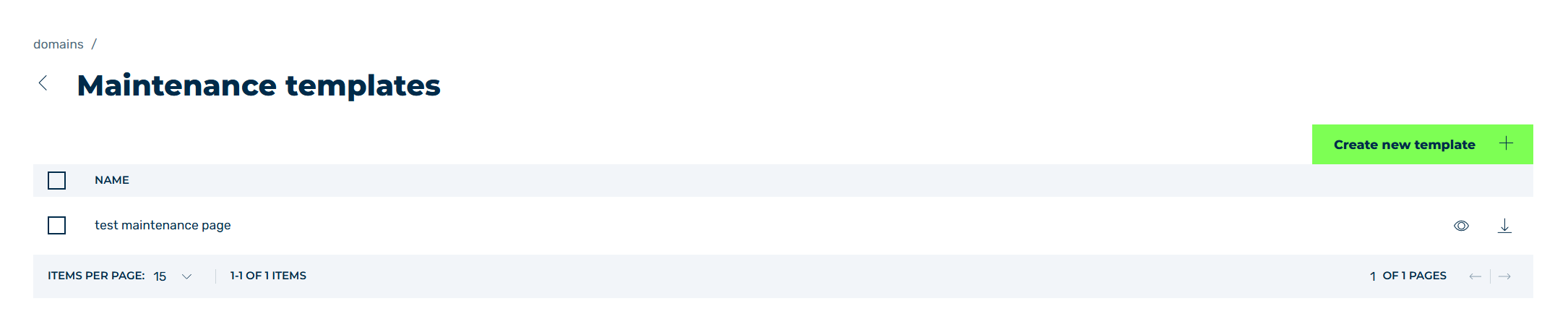
Maintenance templates view
In the Maintenance templates view, you can manage your templates and store new templates for maintenance pages.
The Create new template button opens the Create new template view for adding a new maintenance page template.
The list of created templates provides an overview of all the maintenance page templates that have been added.
The following information is available:
| Name | Definition |
|---|---|
| NAME | The name of the maintenance page template. |
The following options are available for each entry:
| Name | Definition |
|---|---|
 |
The checkbox selects an entry from the table. Clicking on the checkbox in the table header selects all entries. |
 |
The icon shows a preview of the maintenance page for the selected entry. |
 |
The icon downloads the maintenance page as an HTML file for the selected entry. |
 |
The icon closes the view and opens the Maintenance Page view. |
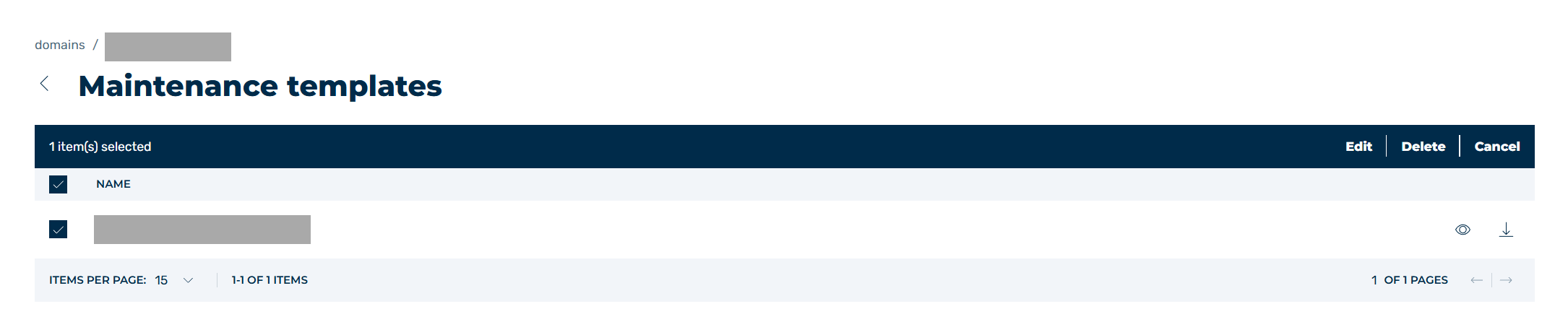
Selecting the Maintenance Page Templates view
When selecting one or all entries using the checkbox, the following options appear above the table header:
| Name | Definition |
|---|---|
| Edit | The button opens the Edit template view for editing the selected entry. |
| Delete | The button opens the Delete template(s) dialog for deleting the selected entries.AttentionWhen an entry is deleted, the entry and all associated settings are permanently deleted. To be able to restore an entry after deletion, you must create a brand-new one and reconfigure it. |
| Cancel | The button removes the selection for the selected entries. |
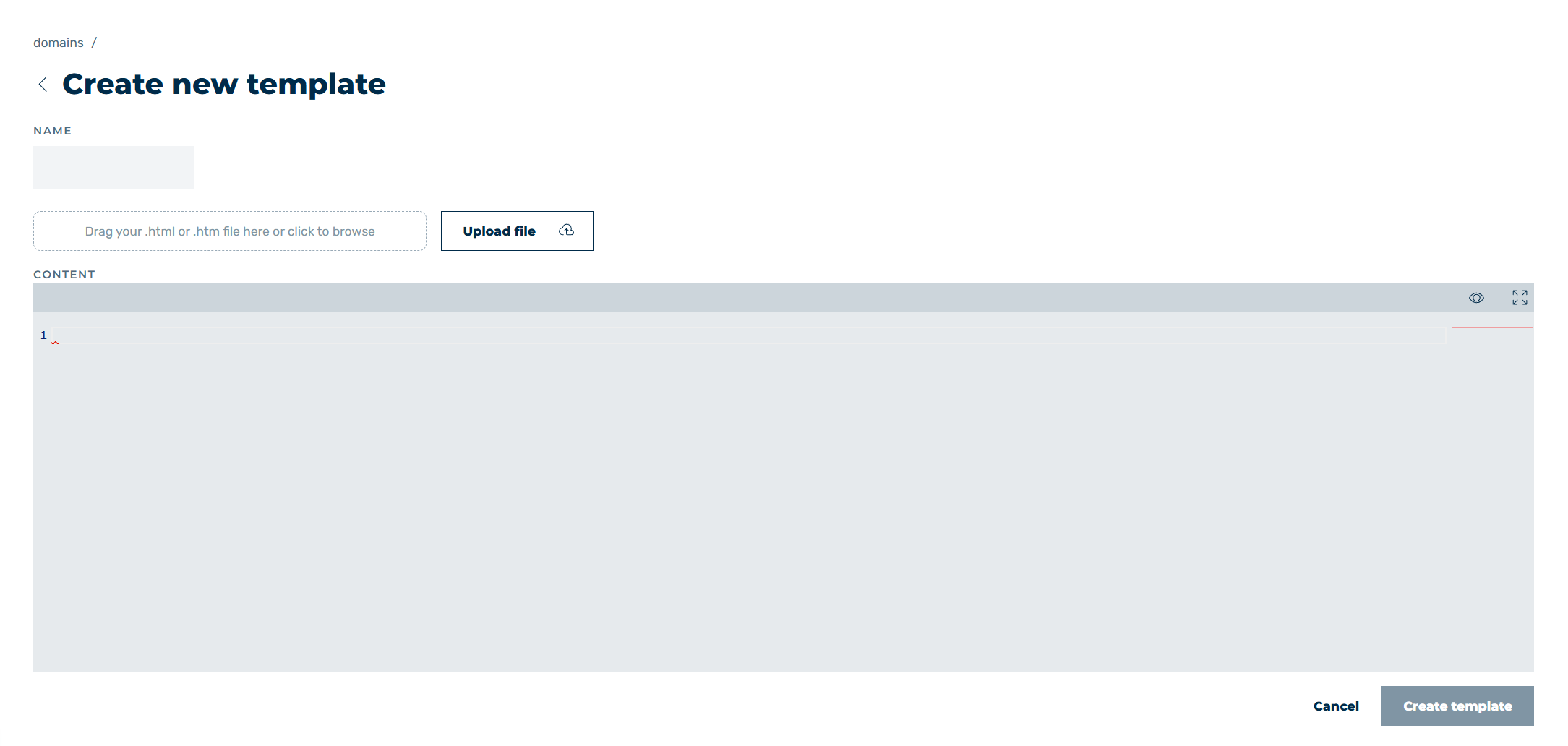
Create new template view
In the Create new template and Edit template views, you can set up or change maintenance page templates with the following options.
| Name | Definition |
|---|---|
| NAME | Defines the name of the maintenance page template. |
| Upload file | Uploads a maintenance page template from your computer as an HTML file. |
| CONTENT | Shows the HTML code of the uploaded maintenance page template. The window also acts as an editor and allows you to edit the HTML code. |
|
The icon shows a preview of the maintenance page for the selected entry. |
 |
The icon maximises or minimises the content window. |
| Create template | The button saves the maintenance page template settings. The button is greyed out as long as not all the data has been entered. |
| Edit template | The button saves changes to the maintenance page template. The button is greyed out as long as no changes have been made. |
| Cancel | The button closes the view without creating a maintenance page template or saving changes. |
|
The icon closes the view and opens the Maintenance Page view. |