Add new redirect / Edit redirect dialog
Note
When adding a new redirect, the Myra App automatically checks whether a redirect loop could exist and notifies you by means of an information window. You are free to decide whether to save the entry anyway or change the settings.
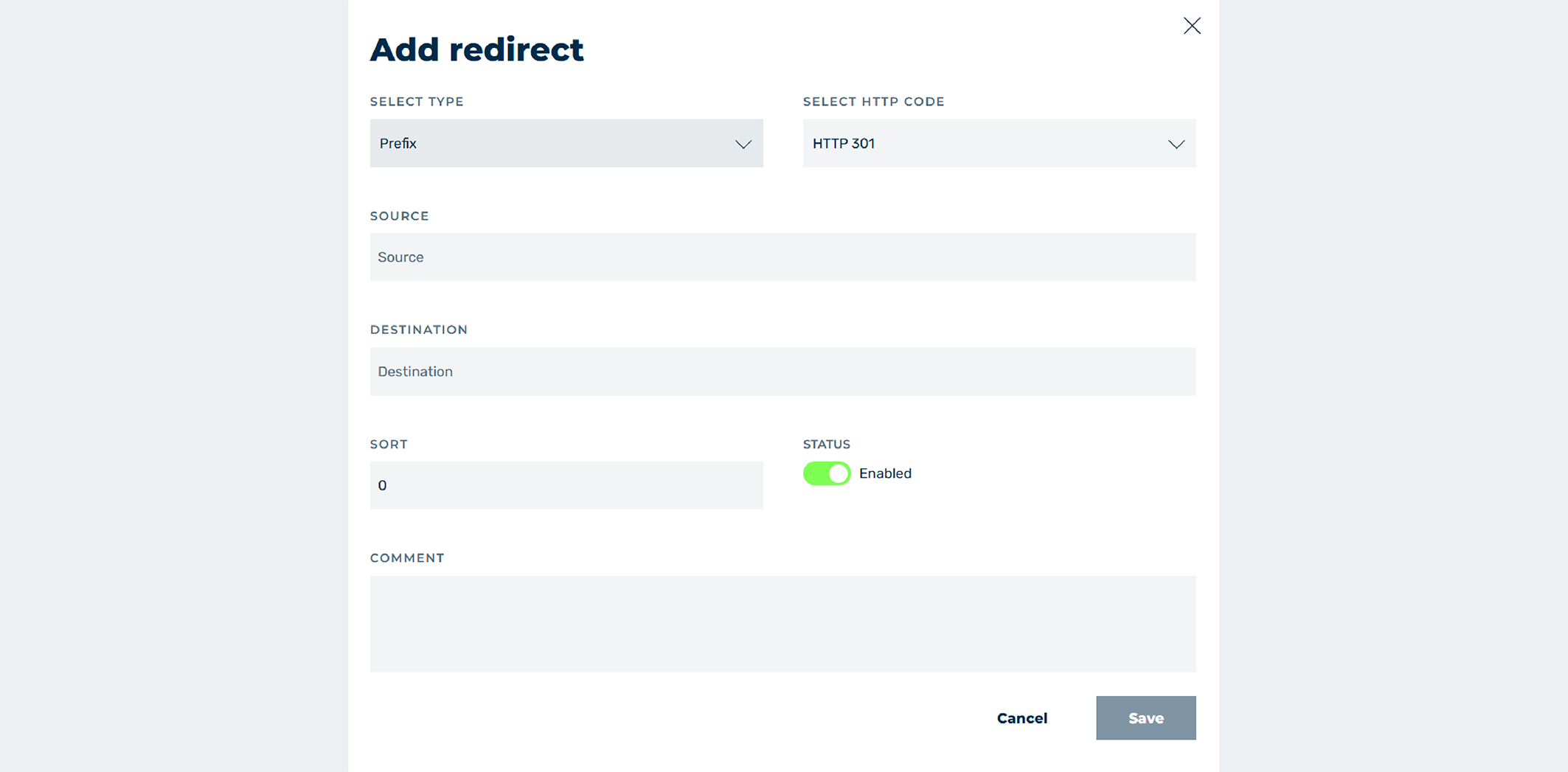
Add redirect dialog
In the Add New RedirectandEdit Redirects dialogs, you can add new redirects or edit existing redirects, depending on the selected option.
The following options are available:
| Name | Definition |
|---|---|
| SELECT TYPE | Defines the part of the path of a subdomain that should be redirected. The following options are available:
.jpg affects all JPG files on your website. |
| SELECT HTTP CODE | Defines the HTTP status code that is passed for the redirect to the target URL. The following options are available:
|
| SOURCE | Defines one or more paths of a domain that should be redirected.NoteYou can use regular expressions to identify and specify different paths of a domain. |
| DESTINATION | Defines a URL as the target for redirecting the paths defined in the Source text field.NoteAn absolute path must be entered as the target URL. |
| Sort | Defines a number for positioning the entry in the sequence of all entries. |
| STATUS | Defines whether the entry is enabled or disabled. |
| COMMENT | Defines a custom description of the entry. |
| Save | The button adds a new entry or changes it. |
| Cancel | The button closes the window without adding a new entry or changing an entry. |
Example
A configured redirect from non-www to www looks like this:
| Name | Definition |
|---|---|
| Type | Exact |
| Source | ^/(.*) |
| Destination | $scheme://www.example.com/$1 |
| HTTP Code | HTTP 302 |
With this rule, the request to example.com is redirected to the subdomain www.example.com. All the parameters are taken into account and passed along.