Add a user to a group
Note
You need admin rights to add, edit, or delete an account.
Note
To add a group, you need root group admin rights or sub group admin rights for the group under which the new subgroup is to be created.
In the Myra App, permissions for individual features are granted by assigning groups and specific permissions. One way to assign permissions to users is to assign a user's account to one or more groups.
Proceed as follows to assign a user's account to a group:
-
► Open the User Management view, see Section User management.
-
► Select the user you want to assign to a group.
- ↳ The User details for <user name> view opens.
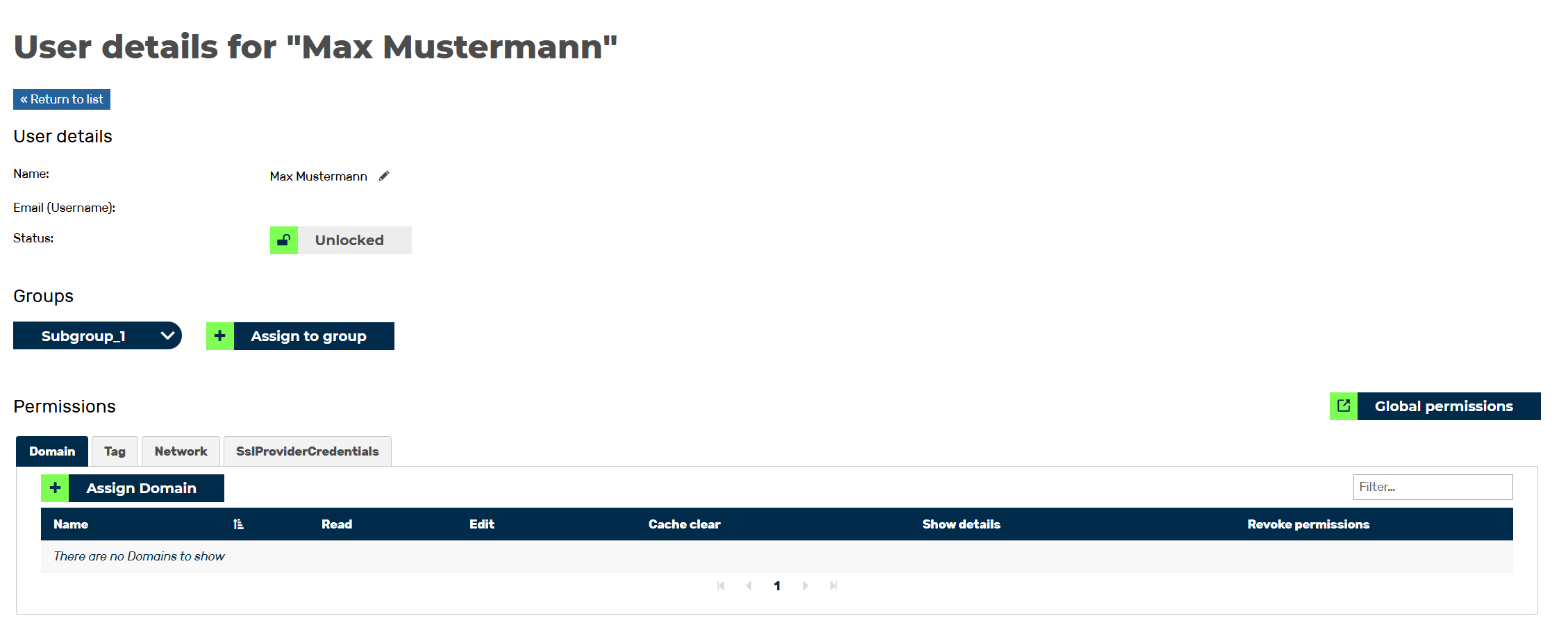
User details for <user name> view
- ► Navigate to the Groups area.
- ► Click on the Assign user to group button.
- ↳ The Assign user to the group <group name> dialog opens.
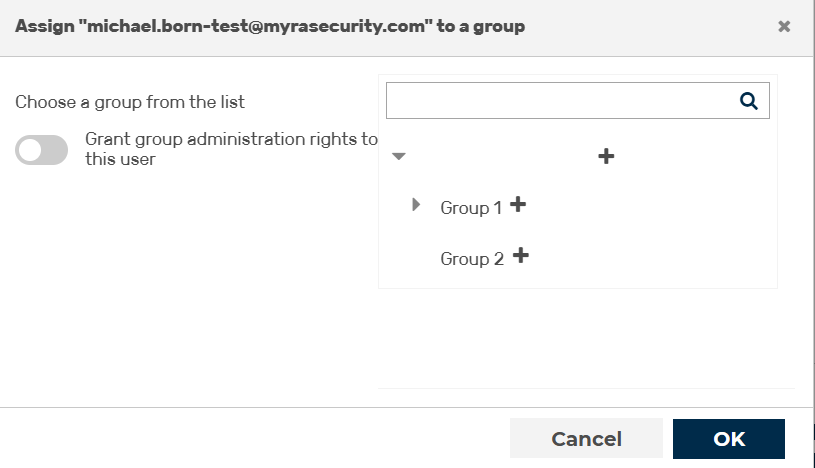
Assign an account to a group
- ► Select a group from the list or search for a group using the search field.
- ► If necessary, select the checkbox next to Grant group administration rights to this user to grant the user admin privileges within the group.
- ► To change the settings, click on the Assign button.
- ➔ The dialog closes, and the group appears under the Group area.