Waiting Room
Note
The view is only visible if you have purchased this product as part of the Myra App.
For more information, please get in touch with your contact person from the Sales team or our Customer Success Management.
Waiting Room view
The waiting room limits the number of visitors to a target page or an application and automatically queues all excess requests in a virtual queue, where all the waiting users are informed of their progress in real time.
In the Waiting Room view, you can view, edit, or delete existing waiting rooms. You can also add new waiting rooms.
Proceed as follows to open the Waiting Room view:
- ► Click on the Domains tab in the left navigation bar.
- ↳ The Domains view opens.
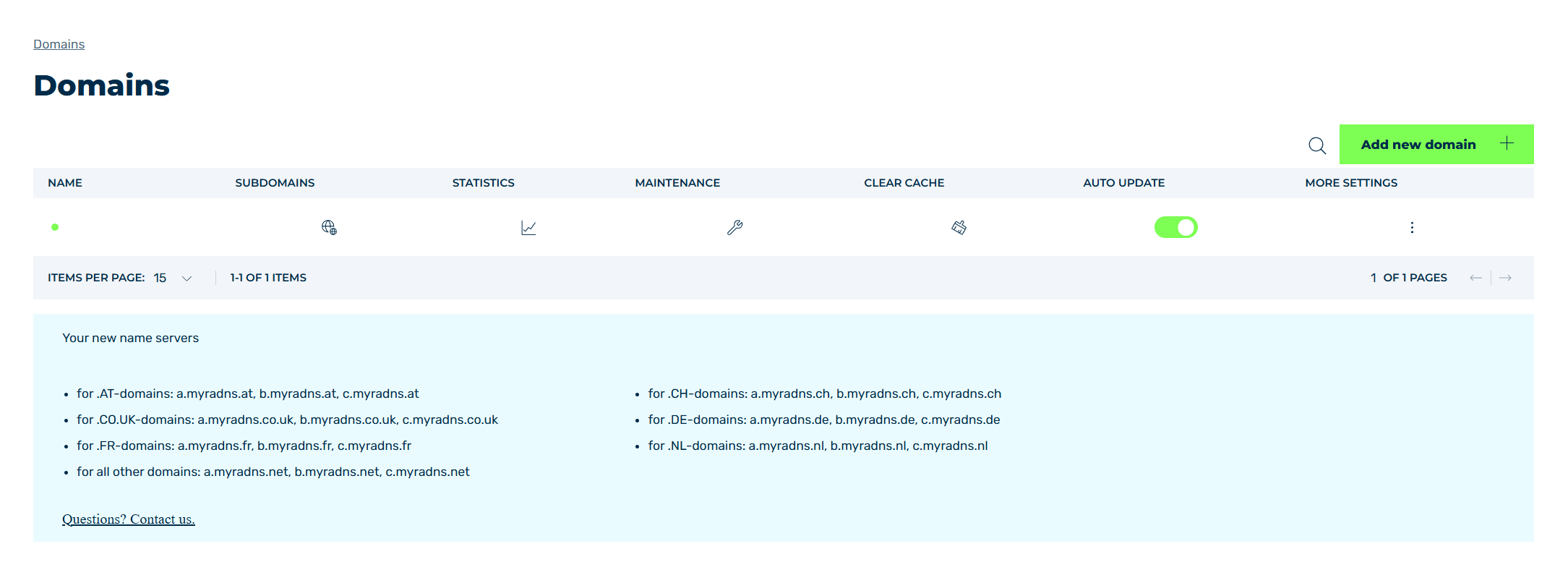
Domains view
- ► Click on the
 icon in the MORE SETTINGS column.
 - ► Click on WAITING ROOM in the list.
- ➔ The Waiting Room view opens.
The Create new waiting room button opens the Create new waiting room dialog for creating a new waiting room.
The table of created waiting rooms provides an overview of all waiting rooms that have been added and allows you to edit and delete them.
The following information is available:
| Name | Definition |
|---|---|
| NAME | The name of the waiting room. |
| SUBDOMAIN | The domain or subdomain that the waiting room is defined for. |
| MAX VISITORS | The maximum number of allowed visitors who can be on the customer infrastructure at the same time. As soon as this value is exceeded, every additional visitor is directed to the waiting room. |
| WAITING PAGE REFRESH (SEC) | The duration in seconds that the waiting page is reloaded after. If the session is not accessed again after the third reload, the session is removed from the queue. |
| SESSION TIMEOUT (MIN) | The duration in minutes that an inactive session is allowed to access the customer infrastructure for. If the session does not access your infrastructure again during this time, this session’s access is disabled. |
The following options are also available:
| Name | Definition |
|---|---|
 |
The icon shows a preview of the waiting room for the selected entry. |
 |
The icon downloads the current HTML page of the waiting room. |
 |
The icon opens the Edit waiting room dialog for changing the selected entry. |
 |
The icon opens the Delete waiting room dialog for deleting the selected entry.AttentionWhen an entry is deleted, the entry and all associated settings are permanently deleted. To be able to restore an entry after deletion, you must create a brand-new one and reconfigure it. |
 |
The search field filters entries by names. Click on the X to delete the search entry. |
 |
The icon closes the view and opens the Domains view. |
Note
If you have not created a waiting room yet, the You haven't created any waiting rooms yet. Please create at least one waiting room. text shows in the table.
If the search does not find an entry, the No results found text shows.
Above the table, an information box shows if the Waiting Room feature is not activated for your account or if you have reached the maximum number of waiting rooms.
The following information boxes are available:
| Name | Definition |
|---|---|
| Discover the Waiting Room feature! | The information box shows if the Waiting Room feature is not activated for your account. The Request Free Trial button starts an email to Myra Security to request the trial period.NoteThe Create new waiting room button is disabled. The tooltip Please contact your account manager to activate this feature. shows. |
| You need an upgrade to do this! | The information box shows if you have reached the maximum number of waiting rooms of your contract. The Upgrade Now button starts an email to the Myra Sales team to request the upgrade. |