Add WebSockets
WebSocket is a communication protocol that enables a persistent, bidirectional connection between a client and a server over a single TCP connection. Unlike standard HTTP, where the client sends each request to the server individually, the WebSocket connection remains open after the initial handshake. Both the client and the server can send data at any time, without delay and without having to re-establish a connection. WebSocket is ideal for applications that rely on real-time communication, such as live chats, dashboards, or collaborative tools.
Proceed as follows to add WebSockets:
- ► Open the Myra App website.
- ► Log in.
- ↳ The Dashboard view opens.
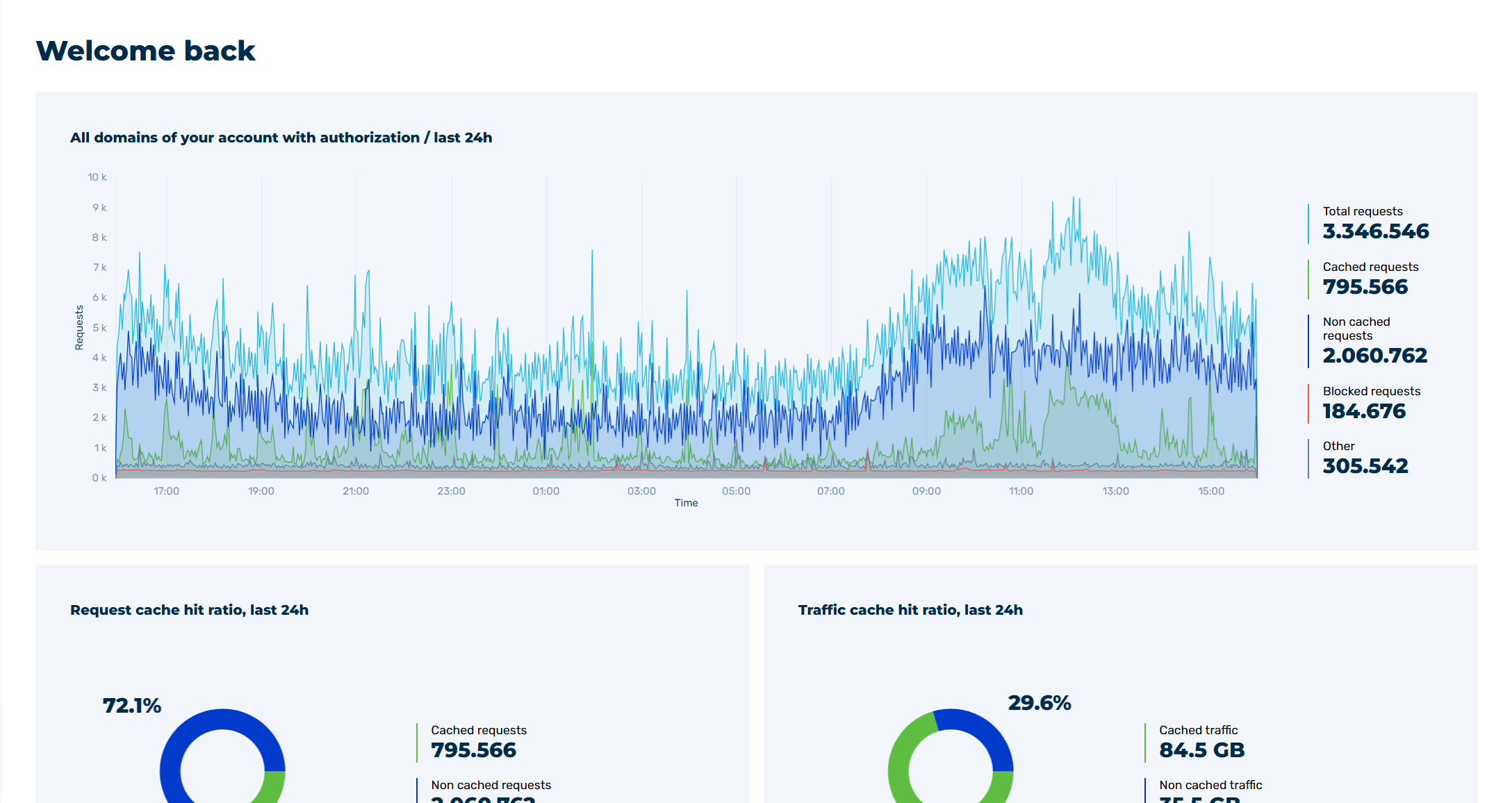
Myra App Home Page
- ► In the navigation bar, click on the Organization tab.
- ► Click on the Ticket center tab in the list.
- ↳ The Ticket center view opens.
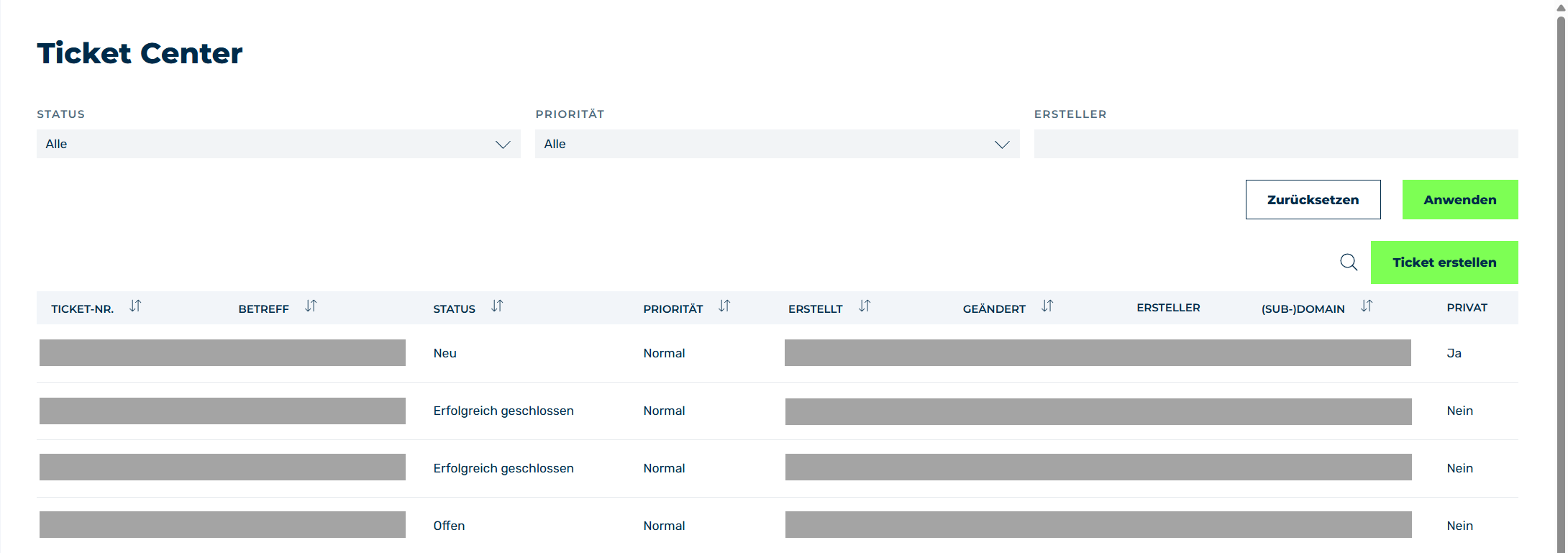
Ticket center view
- ► Click on the Add New Ticket button.
- ↳ The Add New Ticket view opens.
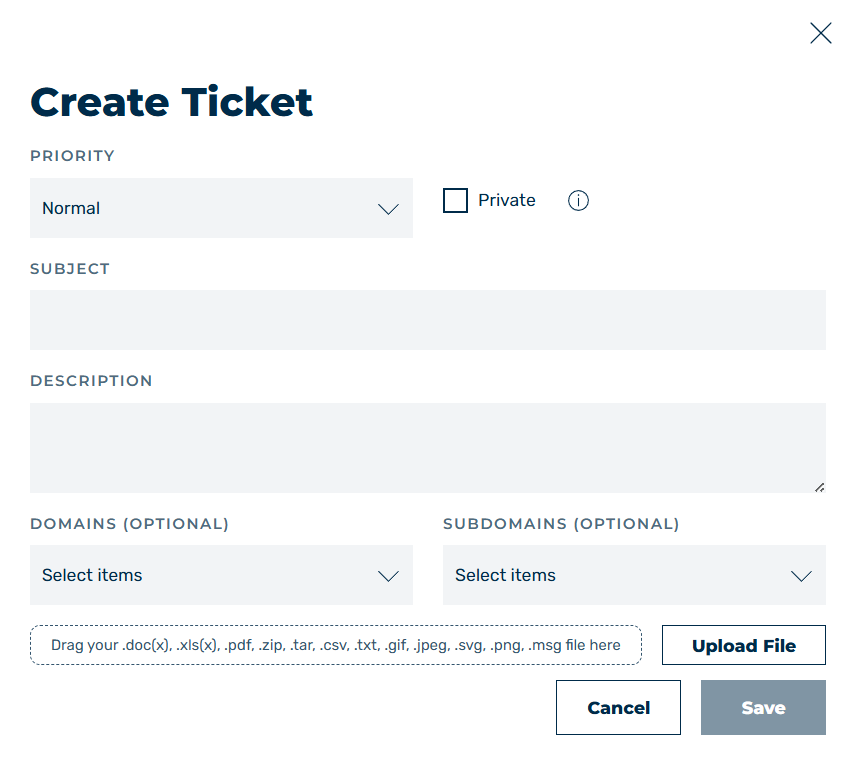
Create Ticket dialog
Note
This view is only available in the classic user interface.
-
► Enter the following information in the ticket fields:
- Domain: Select the domains for which you want to enable WebSockets.
- Subdomain: Select specific subdomains in the Subdomain text field.
- Subject: Enter Request to enable WebSockets as the subject here.
- Details: Please describe your request here and provide the following information:
- ▷ Specify the domains and subdomains for which WebSockets should be enabled.
- ▷ Specify the paths where WebSockets should be enabled.
-
► Check all the details and click on the Add ticket button.
- ↳ A new ticket is added to the list of tickets.
- ➔ As soon as Myra has processed your request, you will receive a response from our Myra support team.