Load Balancing
Note
If a DNS record that resolves to multiple origin IP addresses is added with the CNAME type, load balancing is automatically enabled for these IP addresses. All IP addresses are assigned the weight 1 , and requests are distributed using the round robin method.
This behaviour is not visible in the Myra App.
Note
To make the most of the advantages that load balancing offers, you must create at least two DNS records for the same subdomain with different target IP addresses.
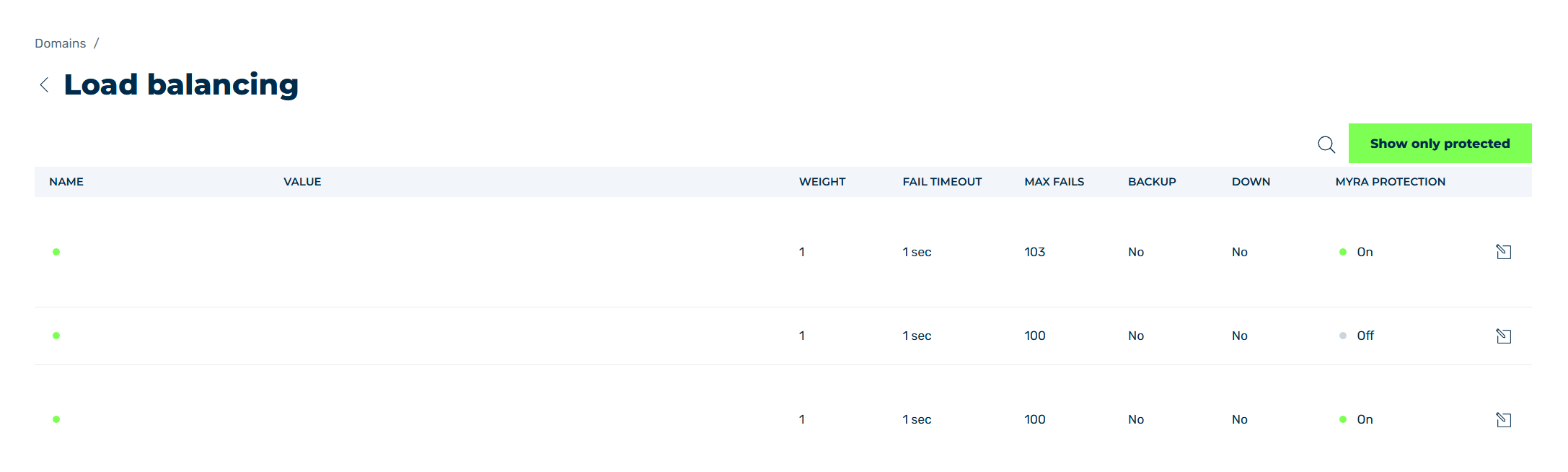
Load Balancing view
In the Load balancing view, you can make load balancing settings for the created DNS records.
Load balancing is a CDN feature that distributes requests from clients across multiple backend servers within the customer's infrastructure to ensure high availability, optimal performance, and reliability. Load Balancing monitors the health of the customer infrastructure and selects the best-performing server based on responsiveness and load balancing configuration, minimising downtime, preventing overload, and improving the global user experience.
Supported load distribution policies are Round Robin, Least Connections, IP Hash, and Cookie-Based session affinity. Each server in the customer infrastructure can be assigned a weight, a maximum failure threshold, and a failure timeout, with a backup designation used only when all primary servers in the customer infrastructure are unavailable. Passive health checks verify the responsiveness of the customer infrastructure continuously, and failover routing automatically steers traffic to healthy servers when a server in the customer infrastructure becomes unreachable. If all servers in the customer infrastructure fail simultaneously, the CDN continues serving previously cached content to end users, maintaining availability during complete outages of the customer infrastructure.
Proceed as follows to open the Load balancing view:
- ► Click on the Domains tab in the left navigation bar.
- ↳ The Domains view opens.
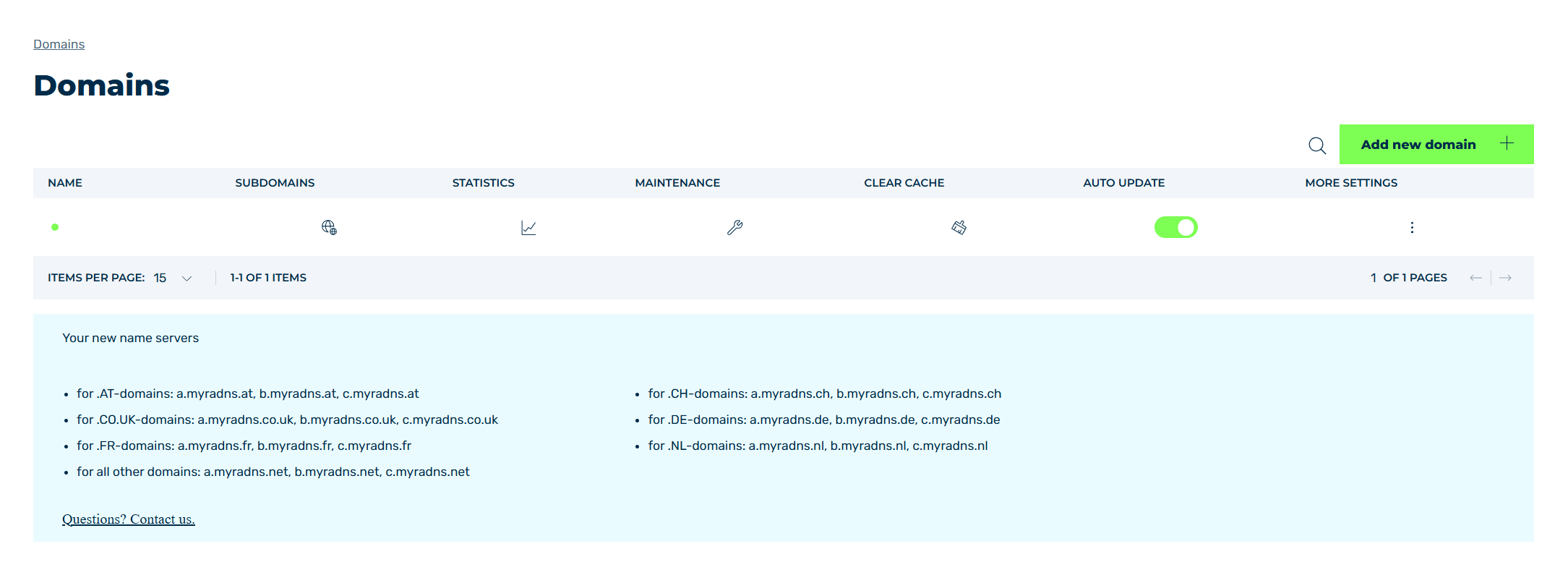
Domains view
- ► Click on the
 icon in the MORE SETTINGS column.
 - ► Click on Load balancing in the list.
- ➔ The Load balancing view opens.
The following information is available:
| Name | Definition |
|---|---|
| NAME | The status and name of the domain or subdomain. An entry can have the following status:
|
| VALUE | The value of the DNS record. What shows depends on the type of the DNS record and on whether the record is protected by Myra. The following values are available:
|
| Weight | The number of requests that an upstream accepts before the next upstream is selected. |
| Fail Timeout | The value indicates the following depending on the situation:
|
| MAX FAIL | The maximum number of errors that must occur within the defined time period before the upstream is disabled for the remainder of the time period.ExampleThe value 10 errors within 60 seconds means: As soon as 10 failed attempts occur within the first 10 seconds, the upstream is disabled for the remaining 50 seconds. |
| Backup | Indicates whether the server is used as a backup server when the primary server is unavailable. |
| Down | Indicates whether the selected server is available. |
| Myra Protection | Indicates whether Myra protection is enabled for this server. |
 : The entry is disabled.
 : The entry is enabled.
The following options are available:
| Name | Definition |
|---|---|
| Show only protected | The button filters the servers that are currently protected by Myra. |
| Show all | The button disables the filter and shows all entries. |
 |
The icon opens the Edit Loadbalancing record dialog for changing the selected entry. |
 |
The search field filters entries by names. Click on the X to delete the search entry. |
 |
The icon closes the view and opens the Domains view. |
Note
If no load balancing records are available, the You haven't created any Load balancing records yet. Please create at least one DNS record. text shows. If the search or the filter gives no result, No results found shows.