Customize WAF rules for upstream
Note
The upstream can only be adjusted in the WAF rules if you have booked the Myra WAF.
If you have dynamic pages in addition to static pages, it may be useful to make changes to the upstream in the WAF rules. Your Myra settings will remain unchanged. However, any request for a static page is immediately redirected to Myra Object Storage instead of your infrastructure.
Note
If the main page (for example www.myratest.de) was accessed via HTTPS and then a change in the upstream to cdn.myratest.de takes place, a certificate must be assigned for the CDN domain, as the new upstream is also accessed via HTTPS. The certificate does not need to be valid; only the SSL/TLS configuration needs to be created.
Proceed as follows to customize the WAF rules for upstream:
- ► Click on the Domains tab in the left menu bar.
- ↳ The Domains view opens.
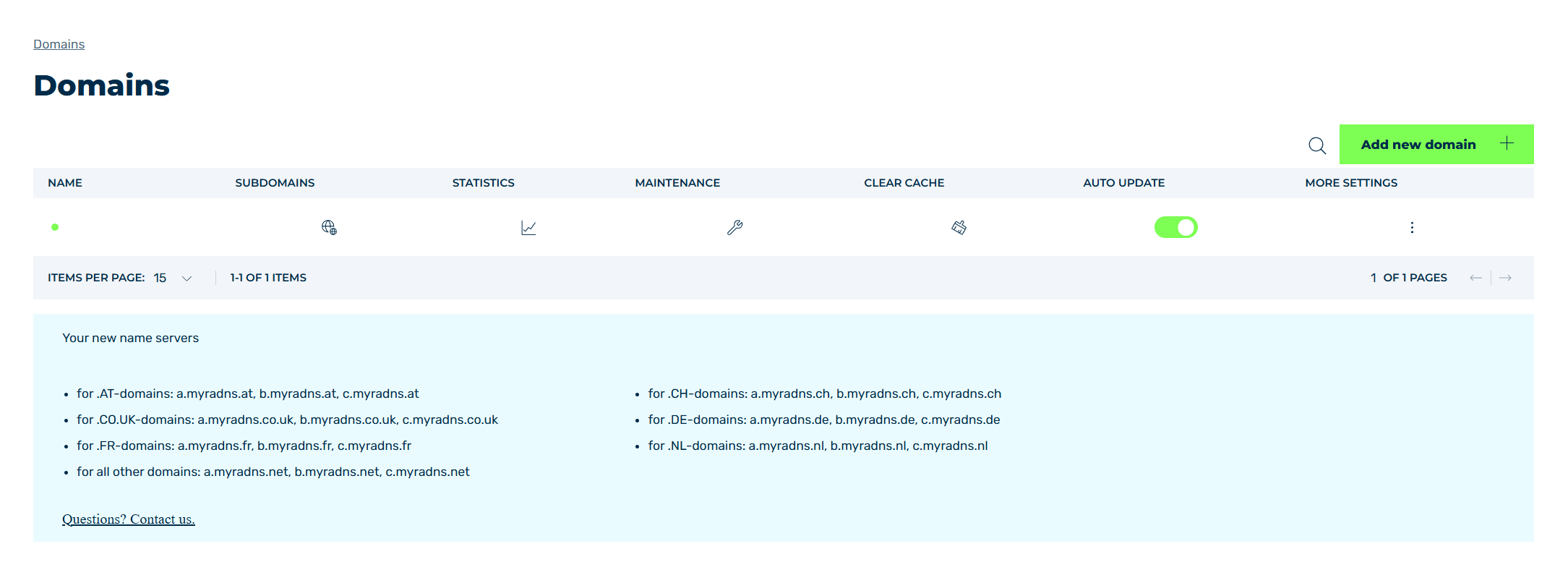
Domains view
- ► Select the relevant domain and click on the
 icon in the SUBDOMAINS column.
 - ↳ The Subdomain settings for <domain name> view opens.
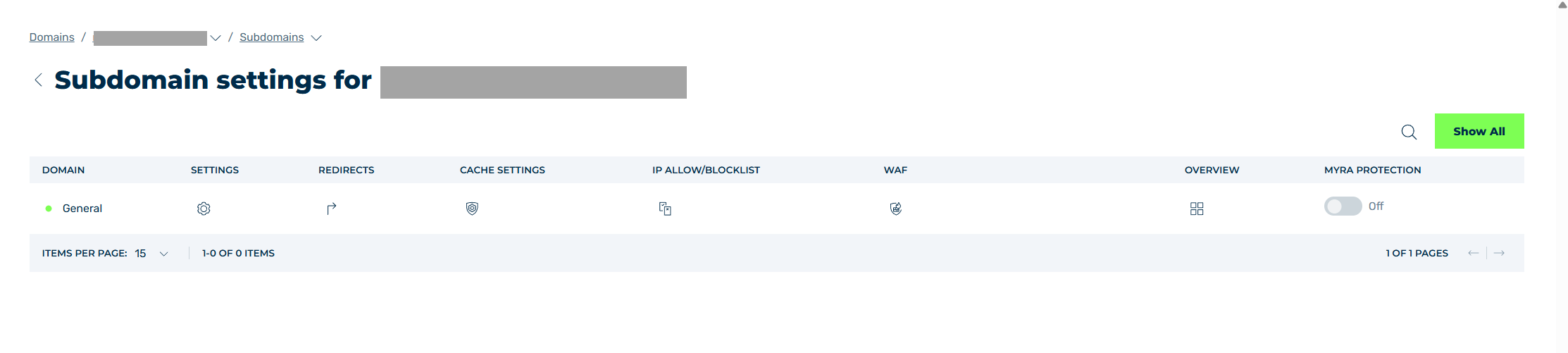
Subdomain settings view
- ► Click on the
 icon in the WAF column.
 - ↳ The WAF Rules for <subdomain name> view opens.
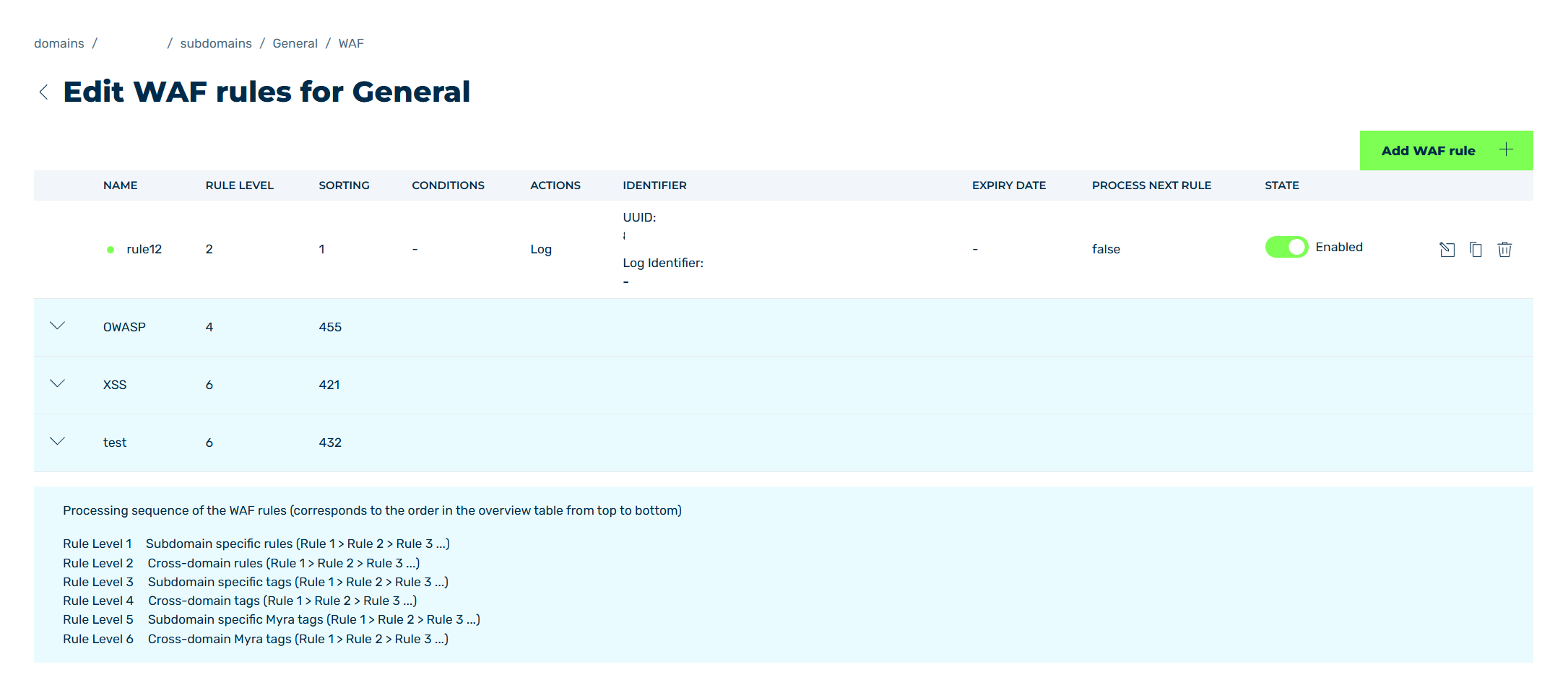
WAF rules for <subdomain name> view
- ► Click on the Add WAF rule button.
- ↳ The New WAF rule for <Subdomain name> view opens.
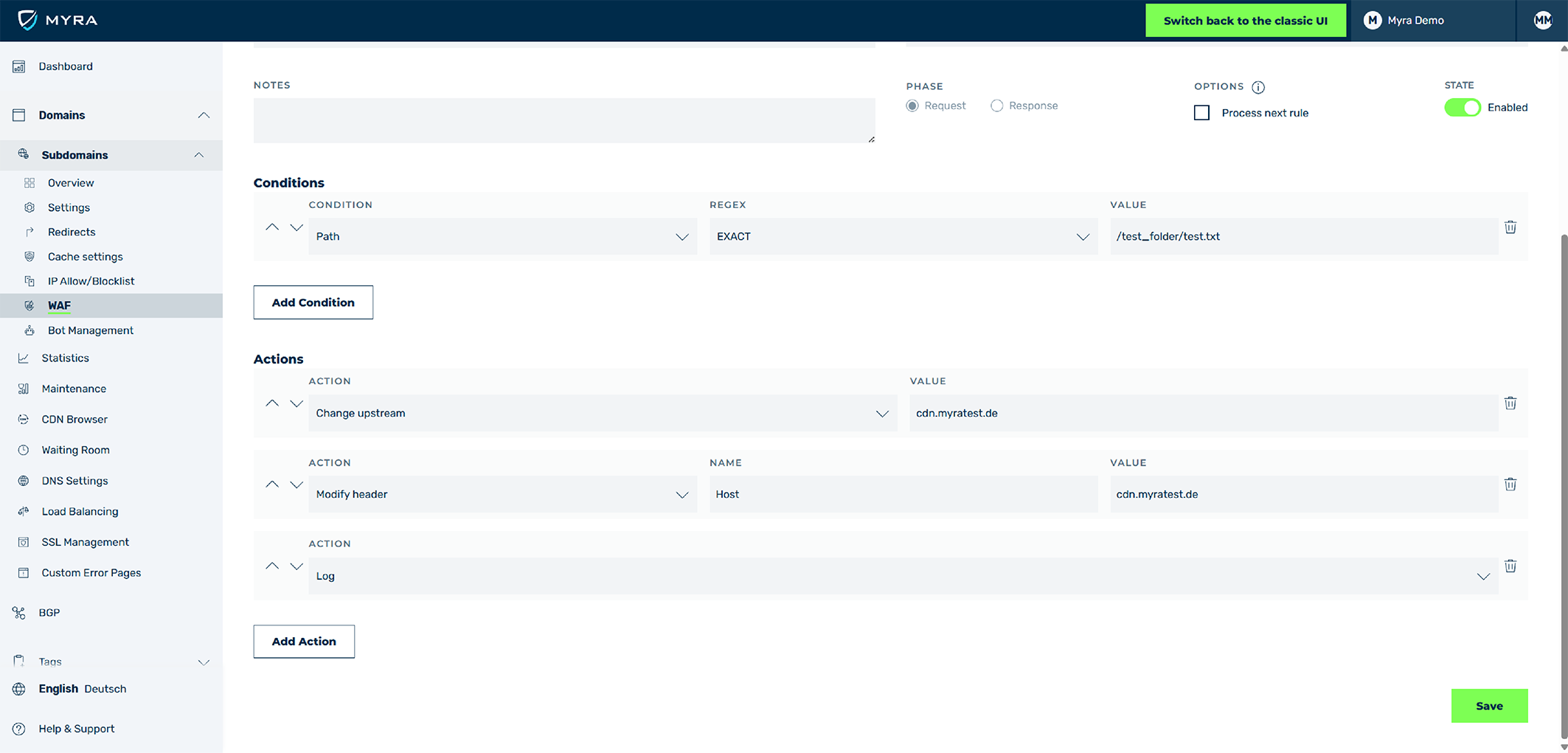
Creating WAF rule to change the upstream
-
► Fill in the fields for the new WAF rule as follows:
- NAME: Enter a unique name.
- LOG ID: Enter a unique identifier.
- EXPIRY DATE: Only fill out if the rule is to be automatically deactivated later.
- SORTING: Select a value that is lower than the first WAF rule that applies. The new WAF rule should take priority over all other rules.
- NOTES: Enter a unique identifier.
- PHASE: Enable the checkbox next to the Request field.
-
► Under the Conditions field, click on the Add Condition button.
- ► Assign the following values for the new condition:
- CONDITION: Select the Path entry from the drop-down list.
- REGEX: Select the EXACT entry from the drop-down list.
- VALUE: Enter the path to the static content.
Note
The entry under VALUE should only contain the specific path to the static content without mentioning the domain. The WAF only checks the paths that follow the domain address.
- ► Under the Actions field, click on the Add Action button.
-
► Assign the following values for the new action:
- ACTION: Select the Change upstream entry from the drop-down list.
- VALUE: Enter the name of the CDN server, for example
cdn.myratest.de.
-
► Click on the Add cache rule button again.
- ► Assign the following values for the new action:
- ACTION: Select the Modify header entry from the drop-down list.
- NAME: Enter the text Host.
- VALUE: Enter the name of the CDN server, for example
cdn.myratest.de.
Note
Changing the host header to the address of the object storage is necessary because the visitor's request contains the original domain, which allows better processing of the request after it is forwarded to the object storage.
- ► Click on the Add cache rule button again.
- ► Assign the following values for the new action:
- ↳ ACTION: Select the Log entry from the drop-down list.
Note
The Log action is used for control purposes to ensure that the forwarding of static content is working successfully.
- ► Click on the Save button.
- ➔ The WAF rules for <subdomain name> view opens and the new WAF rule appears in the list of WAF rules.