SSL/TLS Certificate Details
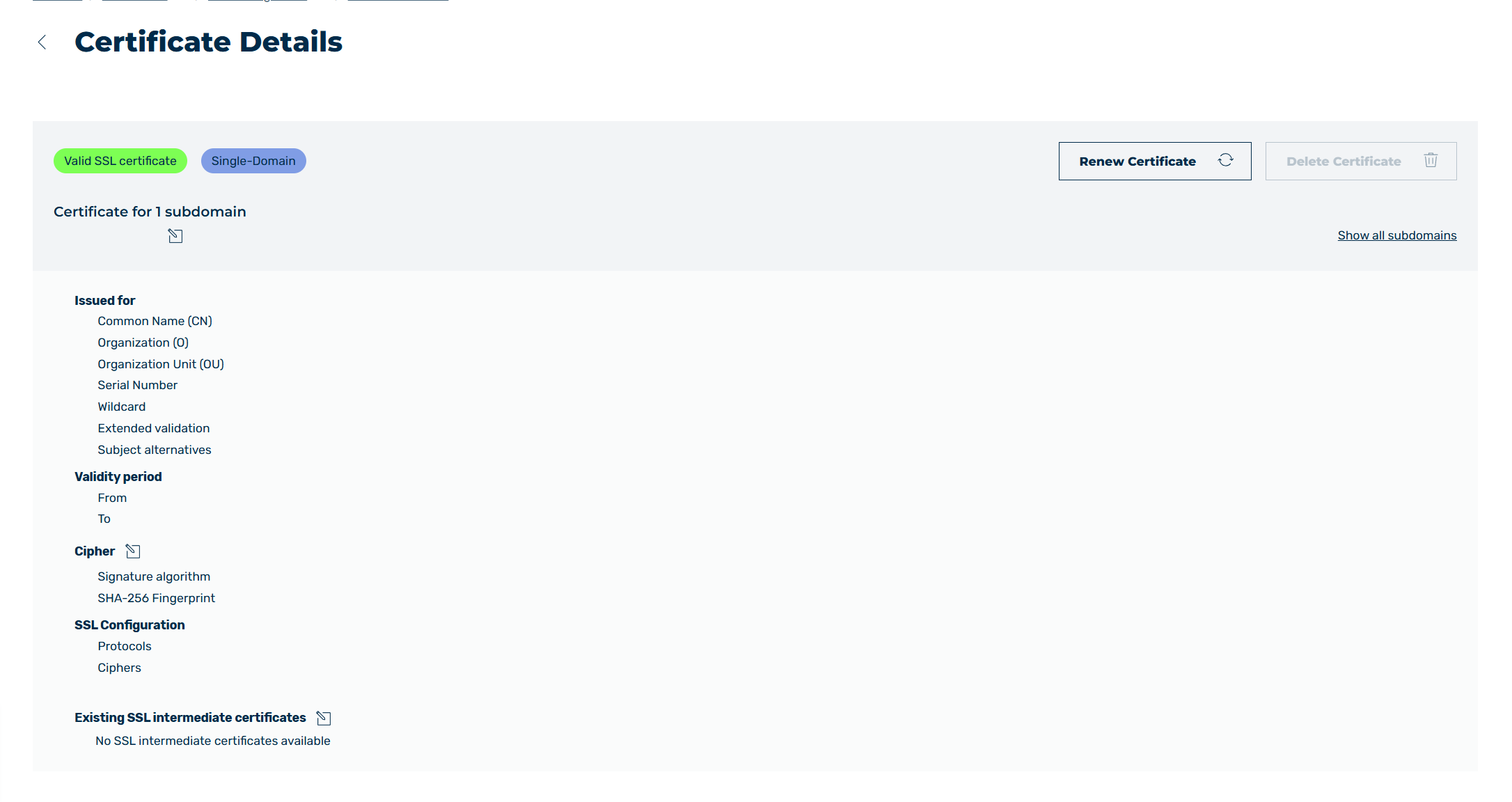
SSL/TLS Certificate Details view
The certificate information for the selected SSL/TLS certificate can be viewed in the SSL/TLS Certificate Details view. You can also update the SSL/TLS certificate, change subdomains, or add SSL/TLS intermediate certificates in the view.
To open the SSL/TLS Certificate Details view, click on the corresponding SSL/TLS certificate in the SSL/TLS Certificate Management view.
The following information is available:
| Name |
Definition |
| Valid SSL/TLS Certificate |
This field indicates whether the SSL/TLS certificate is valid.NoteThe Valid SSL/TLS certificate field is shown only if you have added your own SSL/TLS certificate. |
| Managed by Myra |
The field indicates whether the SSL/TLS certificate is managed by Myra.NoteThe Managed by Myra field is only shown if you created an SSL/TLS certificate using the Create certificate button or if you have subscribed to Certificate Management. |
| Single-Domain / Multi-Domain |
This field indicates whether the SSL/TLS certificate covers only one domain or multiple domains |
| Certificate for <Number> Subdomains |
The number and names of the subdomains that the SSL/TLS certificate is valid for. |
| Name |
Definition |
| Issued for |
|
| Common Name (CN) |
The CN name of the SSL/TLS certificate. |
| Organization (O) |
The organisation that issued the SSL/TLS certificate. |
| Organisation Unit (OU) |
A specific department of the organisation. |
| Serial Number |
The unique serial number of the SSL/TLS certificate. |
| Wildcard |
Indicates whether the SSL/TLS certificate is a wildcard certificate that can include all possible subdomains or an SSL/TLS certificate that only includes specific subdomains. |
| Extended Validation |
Indicates whether extended validation is provided to increase security. This includes detailed verification of the applicant by a certification authority, among other things. |
| Subject Alternatives |
Indicates the additional, non-primary domain names that are secured by the SSL/TLS certificate. |
| Name |
Definition |
| Validity period |
|
| From |
The time that the SSL/TLS certificate is valid from. |
| To |
The time that the SSL/TLS certificate is no longer valid after. |
| Name |
Definition |
| Cipher |
|
| Signature algorithm |
The type of encryption of the SSL/TLS certificate. |
| SHA-256 Fingerprint |
The fingerprint of the encryption. |
| Name |
Definition |
| SSL Configuration |
NoteThe area only shows if protocols or ciphers are configured for the SSL/TLS certificate. |
| Protocols |
The protocols that are configured for the SSL/TLS certificate. |
| Ciphers |
The cipher suites that are configured for the SSL/TLS certificate. |
| Name |
Definition |
| Existing SSL/TLS Intermediate Certificates |
|
| Common Name (CN) |
The CN name of the intermediate certificate. |
| Serial Number |
The unique serial number of the intermediate certificate. |
| Issuer |
The issuer of the intermediate certificate. |
| From |
The time that the intermediate certificate is valid from. |
| To |
The time that the intermediate certificate is no longer valid after. |
| Signature algorithm |
The type of encryption of the intermediate certificate. |
| SHA-256 Fingerprint |
The fingerprint of the encryption. |
| Name |
Definition |
| CNAME record for <domain name> |
NoteThe area only shows if the SSL/TLS certificate is managed by Myra and contains subject alternatives. A separate area shows for each domain. |
| <subdomain name> |
The CNAME record that you must add for the subdomain so that the SSL/TLS certificate can be issued and renewed automatically. |
| Name |
Definition |
| Assigned provider |
NoteThe area only shows if the SSL/TLS certificate is managed by Myra and was not issued through Let's Encrypt.NoteIf your provider account cannot be authenticated, the Authentication failed note shows below the area. In this case, select a different provider account or renew your existing provider account so that the SSL/TLS certificates can be renewed automatically. |
| Provider |
The provider that issues the SSL/TLS certificate. |
| Renewal interval (days) |
The interval in days at which the SSL/TLS certificate is renewed.NoteIf no value is set, the Default value shows. |
The following options are available:
| Name |
Definition |
 |
The icon opens different dialogs to edit the individual values of the certificate, which can have the following functions depending on the icon placement:- Under Certificate for<Number> Subdomain, the icon opens the Assign Subdomains dialog for assigning subdomains.
Under Encryption Method, the icon opens the SSL/TLS Configuration dialog for assigning the cipher suite.
Under Existing SSL/TLS Intermediate Certificates, the icon opens the Edit SSL/TLS Intermediate Certificates dialog for uploading intermediate certificates as a file or TXT.NoteIntermediate certificates can only be modified if you have manually uploaded the SSL/TLS certificate. |
Renew Certificate  |
The icon opens the Configure SSL/TLS Certificate dialog for updating the SSL/TLS certificate.
See Section SSL/TLS Certificate Details.NoteSSL/TLS certificates can only be updated if you uploaded the SSL/TLS certificate manually and are therefore managing it yourself. |
Delete certificate  |
This icon opens the Delete certificate dialog, which allows you to delete the SSL/TLS certificate.NoteIf you want to delete an SSL/TLS certificate, you must first remove all subdomains from the SSL/TLS certificate. |
| Show All Subdomains |
The button opens the Subdomains assigned to this certificate dialog with an overview of all the subdomains that are assigned to the certificate. |