WAF rules
Note
The view is only visible if you have purchased this product as part of the Myra App.
For more information, please get in touch with your contact person from the Sales team or our Customer Success Management.
Note
The WAF rules do not take effect until you enable the WAF in the subdomain settings. Open the Subdomain settings view using Subdomain settings for <domain name>→ Settings → Security and set the value under WAF to Yes.
WAF rules view
In the WAF Rules for <subdomain name> view, you can view, edit, or delete WAF rules for each subdomain. In addition, new WAF rules can be added.
Proceed as follows to open the WAF Rules for <subdomain name> view:
- ► Click on the Domains tab in the left navigation bar.
- ↳ The Domains view opens.
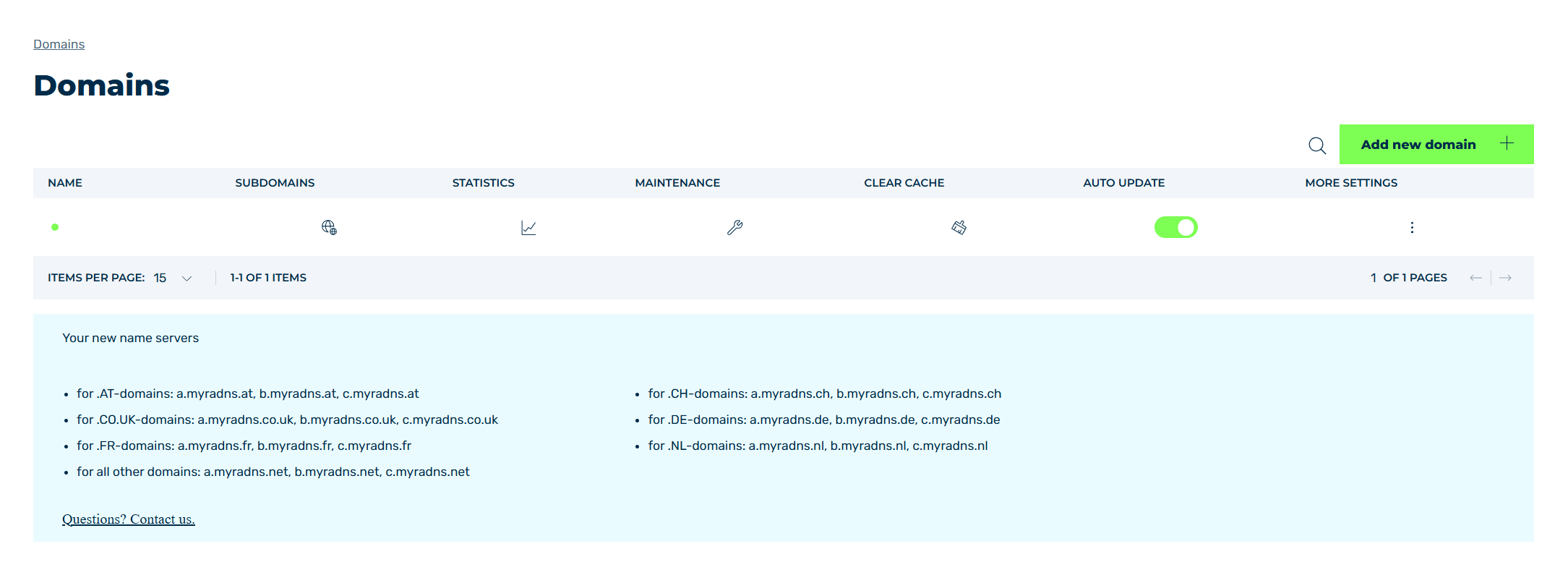
Domains view
- ► Click on the
 icon in the SUBDOMAINS column.
 - ↳ The Subdomain settings for <domain name> view opens.
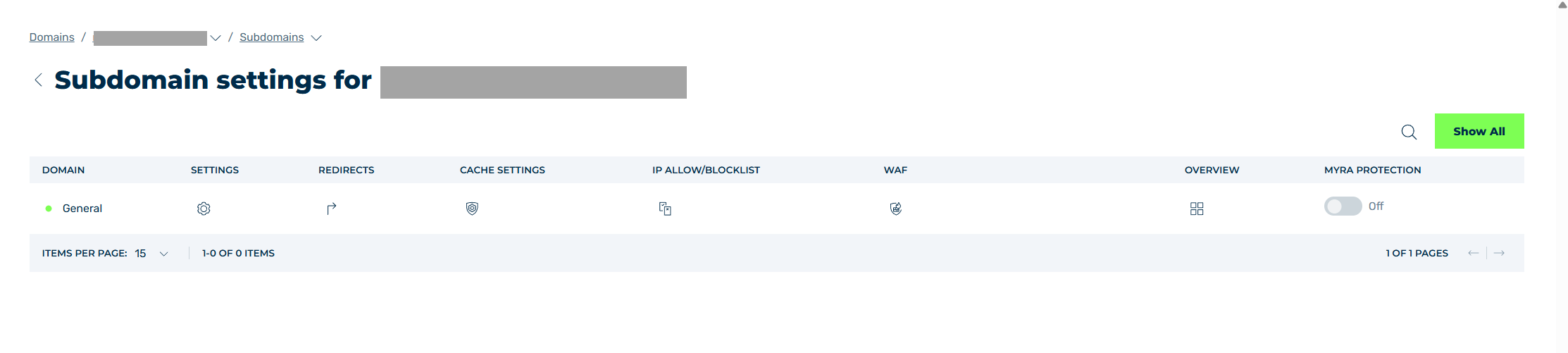
Subdomain settings view
- ► Click on the
 icon in the WAF column.
 - ➔ The Edit WAF Rules for <subdomain name> view opens.
The Add WAF rule button opens the New WAF Rule for <subdomain name> view for adding new WAF rules.
The table of created WAF rules provides an overview of all WAF rules that were created for a subdomain and allows you to edit and delete them. You can also see here whether a WAF rule exists for the subdomain at domain level or whether a tag with WAF rules exists.
The following information is available:
| Name | Definition |
|---|---|
| NAME | The name of the selected WAF rule. |
| RULE LEVEL | Shows the rule level that the WAF rule is processed on.NoteThe assignment of WAF rules and their execution follow a defined processing sequence. The rule levels are described below the table in the Processing sequence of the WAF rules information box. |
| SORTING | The sorting for the added entries.NoteWAF rules are processed according to their position in the sequence. |
| CONDITIONS | The conditions for the selected WAF rule that must be met for the rule to be applied. |
| ACTIONS | The actions for the selected WAF rule that are executed when one of the conditions in the Conditions column is met. |
| IDENTIFIER | The name shown in the log file for the selected WAF rules. |
| EXPIRY DATE | Shows the expiration date of the WAF‑rule (if available). |
| PROCESS NEXT RULE | Indicates through the values true or false whether the rule chain is still queried when a condition of the selected WAF rule is met.NoteSetting the value true is particularly useful when you apply a WAF rule chain for the first time and would like to track which conditions were triggered.NoteThis option can only be enabled if Log has been selected as action, and no other action. Otherwise, you will not be able to save it. |
| STATUS | Enables or disables the selected WAF rule using a switch. |
The following options are available:
| Name | Definition |
|---|---|
 |
The icon opens the Edit WAF rule for <subdomain name> view for editing the selected entry.NoteIn the Edit WAF rule for <subdomain name> view, the request type cannot be changed. |
 |
The icon opens the Copy rule view for creating a copy of an existing rule at domain, subdomain, or tag level.NoteIn the Edit WAF rule for <subdomain name> view, the request type cannot be changed. |
 |
The icon opens the Delete WAF Rule dialog for deleting the selected entry.AttentionWhen an entry is deleted, the entry and all associated settings are permanently deleted. To be able to restore an entry after deletion, you must create a brand-new one and reconfigure it. |
 |
The icon closes the view and opens the Subdomain settings view. |
Below the table, you will also find the Processing sequence of the WAF rules information box. The processing sequence corresponds to the order in the overview table from top to bottom.
The following rule levels are available:
| Name | Definition |
|---|---|
| Rule Level 1 | Subdomain specific rules |
| Rule Level 2 | Cross-domain rules |
| Rule Level 3 | Subdomain specific tags |
| Rule Level 4 | Cross-domain tags |
| Rule Level 5 | Subdomain specific Myra tags |
| Rule Level 6 | Cross-domain Myra tags |
Within a rule level, the WAF rules are processed in the order of their sorting (Rule 1 > Rule 2 > Rule 3 ...).
Note
For more information about configuring the WAF rules, see the WAF Manual.