Add custom error pages
Note
A valid HTML page must always be provided for a custom error page. Entries with missing HTML pages or HTML pages that lack a valid structure cannot be saved.
Note
Custom error pages can be assigned to individual subdomains of the corresponding domain. You can also assign multiple status codes to a single error page at once.
Proceed as follows to add a new custom error page for a domain:
-
► Open the Custom error pages view, see Section Custom Error Pages.
-
► Click on the Create new error page button.
- ↳ The Create new custom error page view opens.
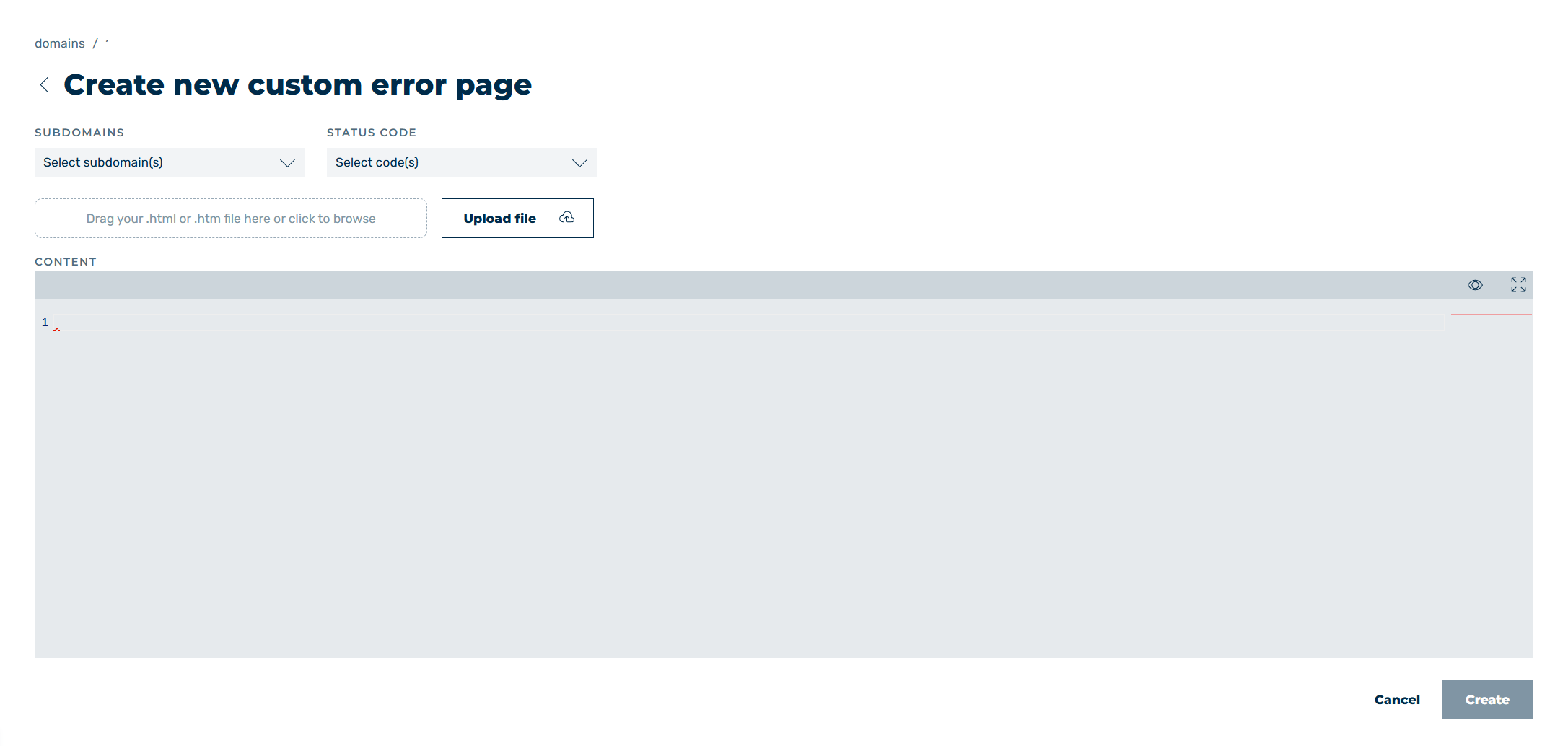
Create new custom error page view
- ► Open the drop-down list under the Subdomains field.
-
► Add subdomains using one of the following options:
- ▷ Click on the checkboxes to the left of the subdomain names to select one or more specific subdomains.
- ▷ Click on the checkbox to the left of All Subdomains to select all available subdomains.
-
► Open the drop-down list under the Status code field.
- ► Select all checkboxes to the left of the status codes for which you want to show an error page.
-
► Add a custom error page using one of the following methods:
-
Uploading an HTML template:
Click on the Upload File button and select the HTML template. Alternatively, drag and drop the HTML template into the corresponding field. -
▷ Copy HTML directly into the Content field:
Copy your HTML code and paste it directly into the text field under Content.
-
-
↳ Once the error page has been inserted, it can be viewed in the text field under Content.
- ▷ Click on the
 icon to open a preview of the error page.
 - ▷ Click on the
 icon to enlarge the text field below the content.
- ▷ Click on the
-
► If necessary, modify the HTML code.
- ► Click on the Create button.
- ➔ The Custom error pages view opens and the custom error page appears in the list of all error pages.