Redirects
Redirects view
In the Redirect for <subdomain name> view, you can view, edit, or delete available redirects. You can also add new redirects.
Using redirects via Myra's CDN reduces the number of requests to your infrastructure and, as a result, your server load. The redirect works with any type of infrastructure.
Proceed as follows to open the Redirects for <subdomain name> view:
- ► Click on the Domains tab in the left navigation bar.
- ↳ The Domains view opens.
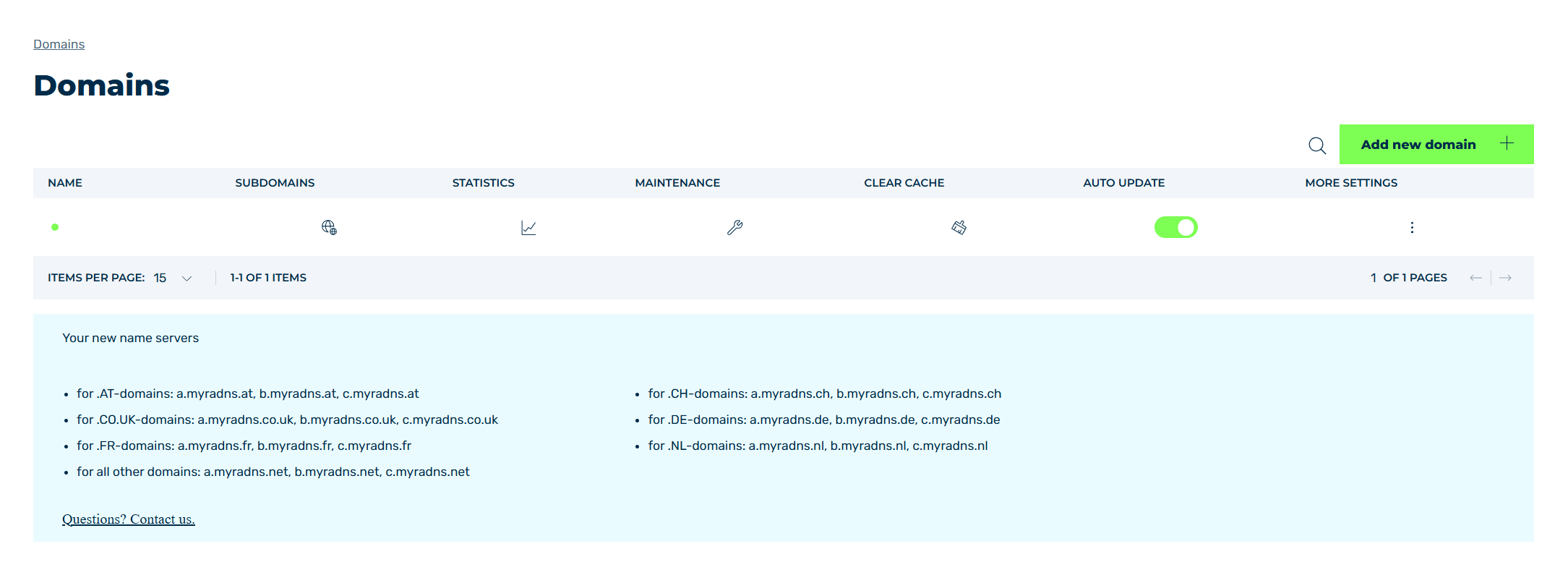
Domains view
- ► Click on the
 icon in the SUBDOMAINS column.
 - ↳ The Subdomain settings for <domain name> view opens.
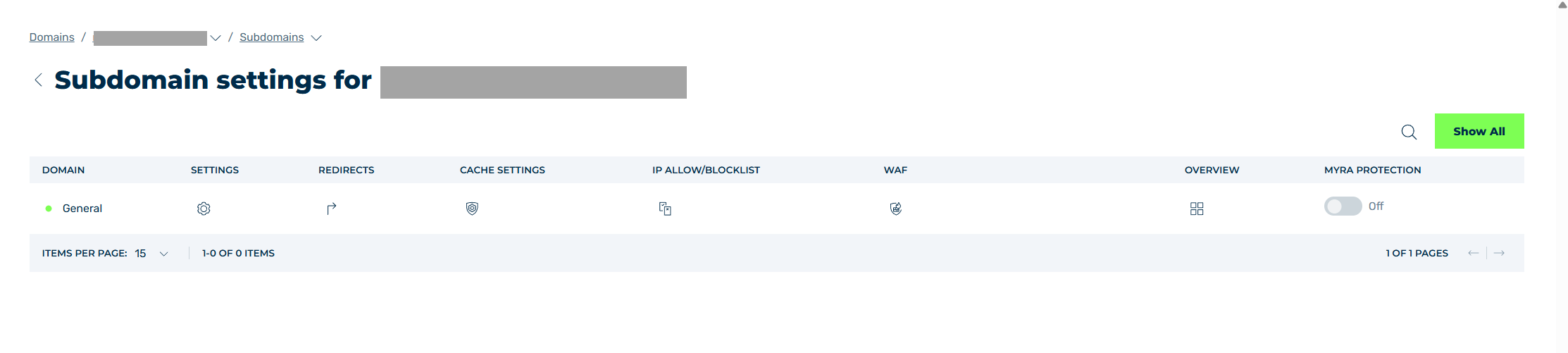
Subdomain settings view
- ► Click on the
 icon in the REDIRECTS column.
 - ➔ The Redirects for <subdomain name> view opens.
The Add redirect button opens the Add redirect dialog for adding a new redirect (see Section Add new redirect / Edit redirect dialog).
The table of redirect entries provides an overview of all redirects that were created for a subdomain and allows you to edit and delete them.
The following information is available:
| Name | Definition |
|---|---|
| SELECT TYPE | The part of the path of a subdomain that is redirected. The following options are available:
.jpg affects all JPG files on your website. |
| SELECT HTTP CODE | The HTTP status code that is passed for the redirect to the target URL. The following options are available:
|
| SOURCE | One or more paths of a domain that are redirected.NoteYou can use regular expressions to identify and specify different paths of a domain. |
| DESTINATION | A URL as the target for redirecting the paths defined in the Source text field. |
| Sort | A number for positioning the entry in the sequence of all entries. |
| STATUS | Indicates whether the entry is enabled. |
The following options are available:
| Name | Definition |
|---|---|
 |
The icon shows the comment assigned to the entry. |
 |
The icon opens the Edit redirectdialog for changing the selected entry. |
 |
The icon opens the Delete redirect dialog for deleting the selected entry.AttentionWhen an entry is deleted, the entry and all associated settings are permanently deleted. To be able to restore an entry after deletion, you must create a brand-new one and reconfigure it. |
 |
The search field filters entries by names. Click on the X to delete the search entry. |
 |
The icon closes the view and opens the Subdomain settings view. |