Create a New Maintenance Page / Edit a Maintenance Page
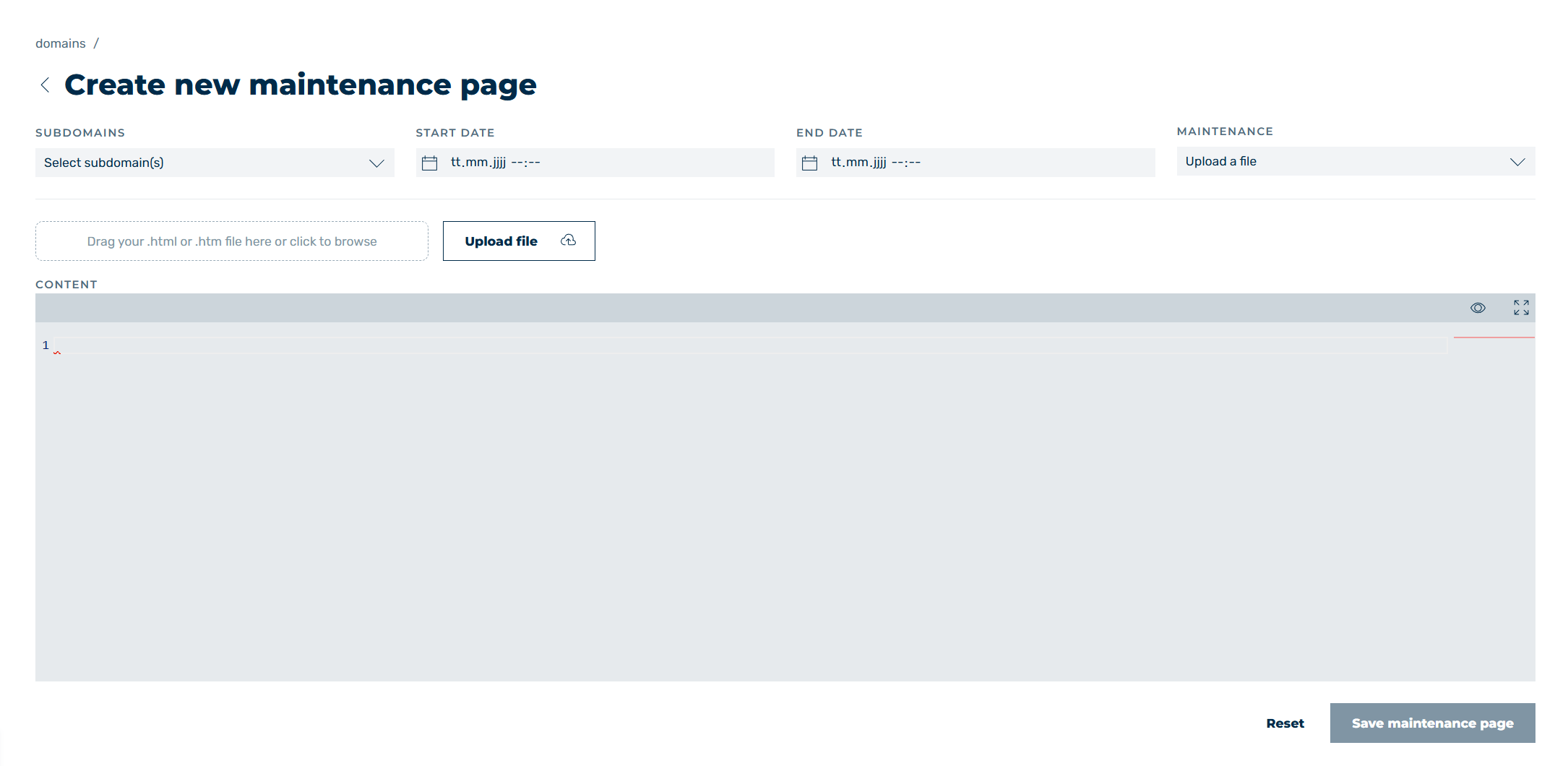
Create new maintenance page view
In the Create new maintenance page and Edit maintenance page views, you can add a new maintenance page or edit an existing maintenance page, depending on the selected option.
The following options are available:
| Name | Definition |
|---|---|
| SUBDOMAINS | Defines the subdomains that the maintenance page should be shown for.NoteAll subdomains get a separate entry after the maintenance page is saved. |
| START DATE | Defines the start date that the maintenance page is active from. |
| END DATE | Defines the end date that the maintenance page is active until. |
| MAINTENANCE | Defines a layout for the maintenance page. The editor shows the HTML code that is shown as a webpage preview when clicking on the  icon. icon.You have the following options for defining the maintenance page at this point:
|
|
The icon shows a preview of the maintenance page for the selected entry. |
 |
The icon maximises or minimises the content window. |
| Reset | The button resets all values to the default or the settings’ most recent state. |
| Save maintenance page | The button saves the settings and creates the new maintenance page. |
| Save change | The button saves the changes to the existing maintenance page. The button is greyed out as long as no changes have been made. |
 |
The icon closes the view and opens the Maintenance Page view. |
Note
If your infrastructure is unavailable due to technical problems or other disruptions, resources that are on this server are not shown either. We therefore recommend including resources (images, JS, CSS, etc.) that are on a different server to the origin server. Alternatively, you can also insert images into the HTML file using Base64 encoding or integrate resources from a Myra CDN subdomain.