Copying Myra Tags
To enable you to protect your web applications as soon as you book WAF, Myra provides you with preconfigured rule sets, known as Myra Tags, for defending against OWASP risks and other threats as templates for your own Tags.
Proceed as follows to use a Myra Tag for your WAF:
- ► Click on the Tags tab in the left navigation bar.
- ↳ The Tags view opens.
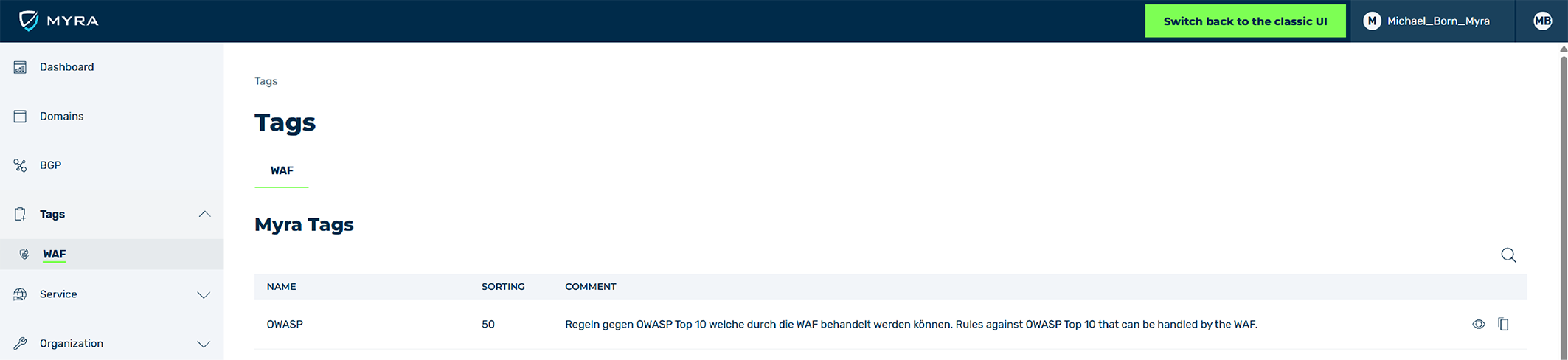
Myra Tags Area
- ► Navigate to the Myra Tags area.
- ► Select the Myra Tag you want to copy and click on the
 icon.
icon. - ↳ The Copy Tag view opens.
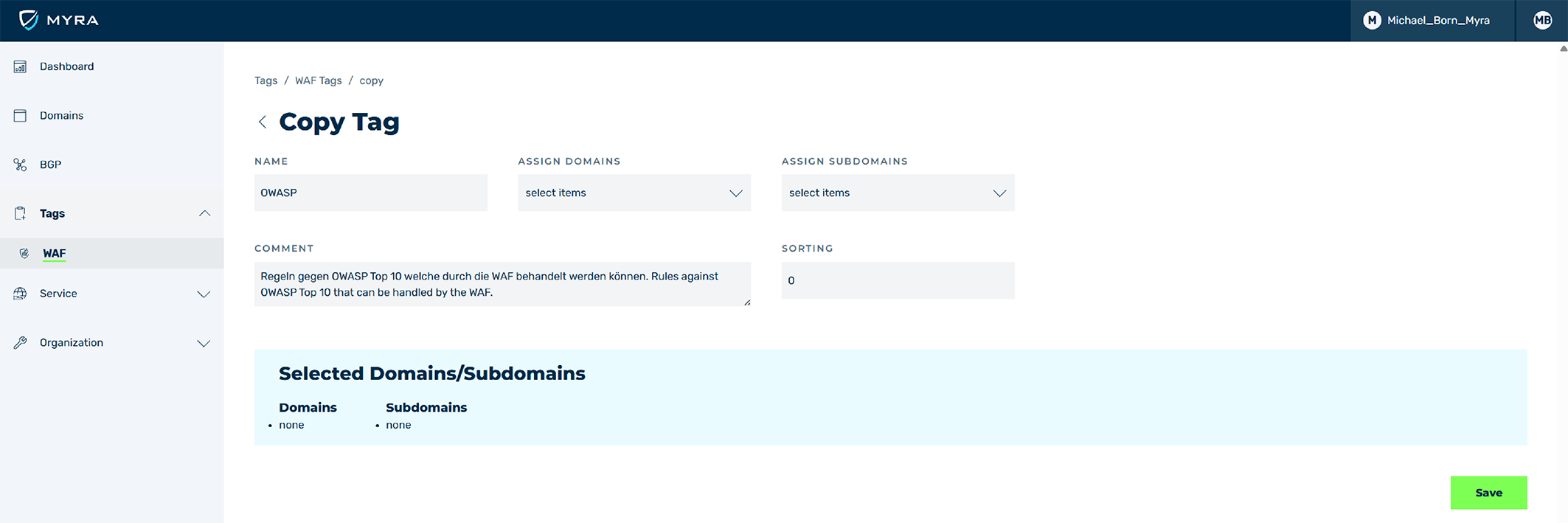
Copying Myra Tag
- ► Change the name of the Tag in the text field under Name.
-
► Assign the domains and subdomains to which the WAF Tag should be applied.
-
▷ Select the required domains from the drop-down list under ASSIGN DOMAINS.
Note
When a domain is assigned, all subdomains are automatically selected as well.
-
▷ Select the required subdomains from the drop-down list under ASSIGN SUBDOMAINS.
-
-
► If necessary, enter an individual comment in the text field under COMMENT.
-
► If necessary, enter a position in the text field under SORTING.
Note
The positioning of a WAF Tag determines the order in which the individual WAF Tags are processed.
When you copy or create a WAF Tag, the next available position is automatically entered.
-
► Check in the Selected Domains/Subdomains information box if all required domains and subdomains have been selected.
- ► Click on the Save button.
- ➔ The Tags view opens and the new WAF tag appears in the Custom Tags area.
Note
All WAF rules in the Myra Tag have the processing chain activated by default under OPTIONS and as an action Log.
After copying, the WAF rule for blocking requests must be manually activated for each WAF rule within the copied Myra Tag.