SSL/TLS Certificate Management
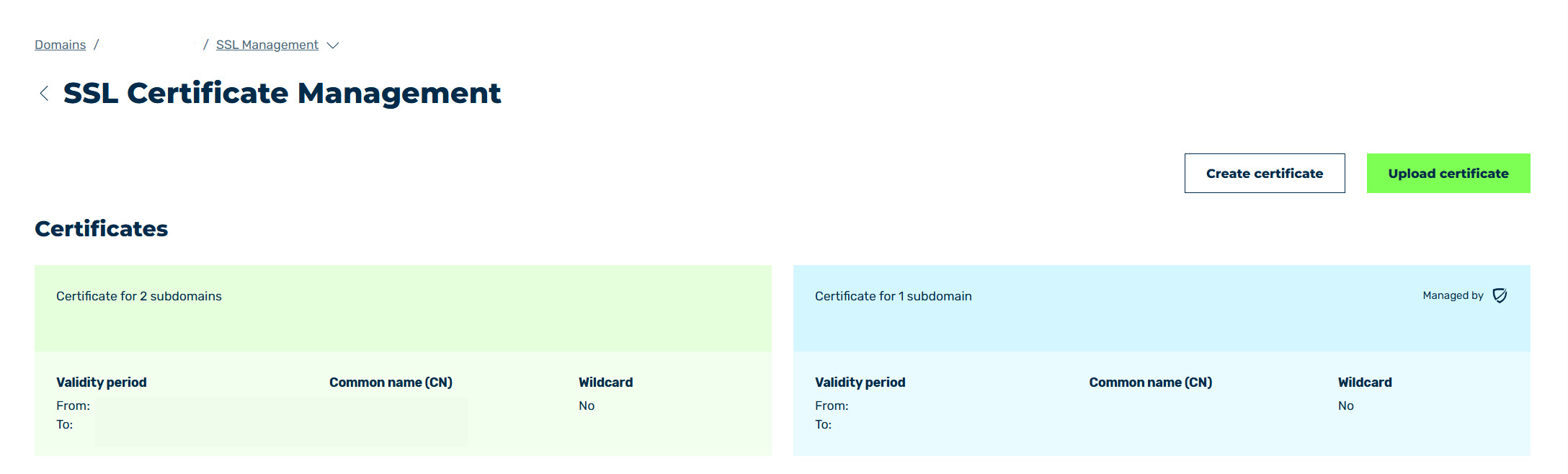
SSL/TLS Certificate Management view
SSL/TLS connections are terminated at Myra to protect your web application from encrypted attacks on port 443 too. Myra’s systems provide the highest possible security for this. Your SSL/TLS certificates are stored in a secured area in Myra’s system. The SSL/TLS certificates are subject to German data protection laws.
In the SSL/TLS Certificate Management view, you can upload and create new SSL/TLS certificates. You can view, edit, or update existing SSL/TLS certificates.
Proceed as follows to open the SSL/TLS Management view:
- ► Click on the Domains tab in the left navigation bar.
- ↳ The Domains view opens.
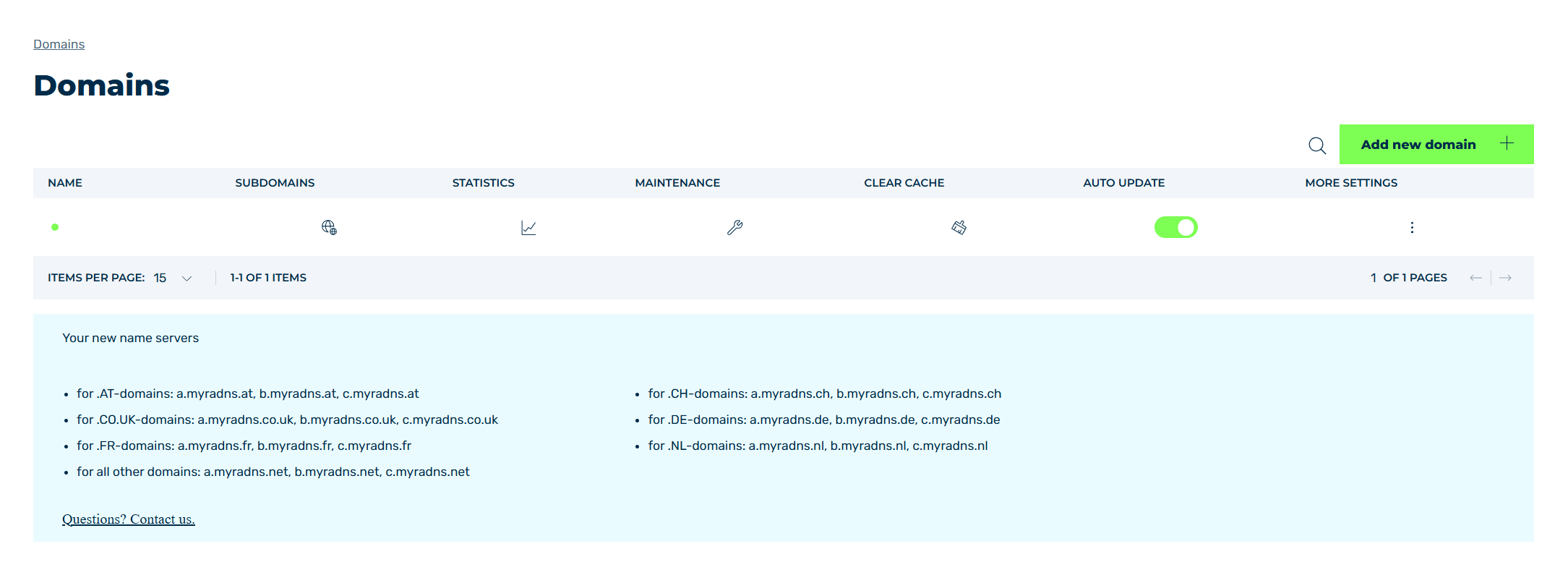
Domains view
- ► Click on the
 icon in the MORE SETTINGS column.
 - ► Click on SSL/TLS Management in the list.
- ➔ The SSL/TLS Management view opens.
The following information is available:
| Name | Definition |
|---|---|
| Certificate for <Number> Subdomains | The number and names of the subdomains that the SSL/TLS certificate is valid for. |
| Validity period | The start and end time for the duration of the SSL/TLS certificate’s validity. |
| Common Name (CN) | The CN name of the SSL/TLS certificate. |
| Wildcard | Indicates whether the SSL/TLS certificate is a wildcard certificate that can include all possible subdomains or an SSL/TLS certificate that only includes specific subdomains. |
Managed by  |
The icon indicates whether the SSL/TLS certificate is managed by Myra.NoteSSL/TLS certificates marked as Managed by are automatically renewed upon expiration. |
The following options are available:
| Name | Definition |
|---|---|
| Upload Certificate | The Upload certificate button for uploading a certificate. See Section Configure SSL/TLS Certificate dialog. |
| Add a new certificate | This button opens the Create SSL/TLS Certificate for <Domain Name> dialog, which allows you to create a new SSL/TLS certificate via Myra.NoteThe button is only available if you have subscribed to Myra Certificate Management.See Section Create an SSL/TLS certificate for <domain name> dialog. |
| Manage providers | The button opens the Manage Providers view, which allows you to manage providers for SSL/TLS certificate generation.NoteThe button is only available if you have subscribed to Myra Certificate Management.See Section Manage providers. |
| SSL/TLS Certificate Details view | Click on an existing SSL/TLS certificate to open the SSL/TLS Certificate Details view, which shows the SSL/TLS certificate details. See Section SSL/TLS Certificate Details. |
 |
The icon closes the view and opens the Domains view. |
In addition to the various details and options, the colour of the SSL/TLS certificates indicates the type of certificate.
- Green SSL/TLS certificates were uploaded manually and are managed by you.
- Blue SSL/TLS certificates were issued by Myra and are managed by Myra.
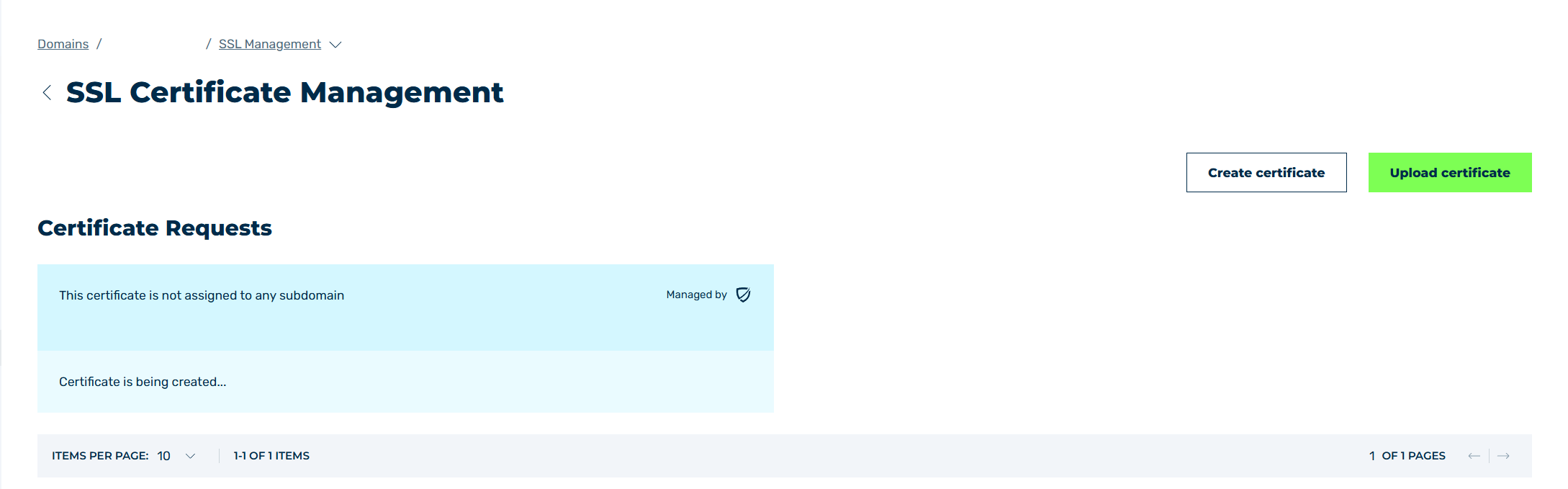
Certificate Requests area
When you create a new SSL/TLS certificate via Myra, the Certificate Requests area will appear alongside your existing active SSL/TLS certificates, showing a list of all SSL/TLS certificates currently being processed.