Custom Error Pages

Custom Error Pages view
Due to Myra’s reverse proxy method, different HTTP status codes may occur during website unavailability compared to during operation without Myra. Therefore, you can configure error pages specific to each status code.
- 400 - Bad Request
- 404 - Not Found
- 405 - Method Not Allowed
- 429 - Too Many Requests
- 500 - Internal Server Error
- 502 - Bad Gateway
- 503 - Service Unavailable
- 504 - Gateway Timeout
- Blocked Request
The specific error pages are shown instead of the standard error message.
This function enables you to provide your visitors with information in your own corporate design during unavailability related to the origin server. Unlike the maintenance page, these error pages do not need to be activated first. As soon as an error page has been uploaded, it is active for the specific error and is shown instead of the HTTP status code.
Proceed as follows to open the Custom error pages view:
- ► Click on the Domains tab in the left navigation bar.
- ↳ The Domains view opens.
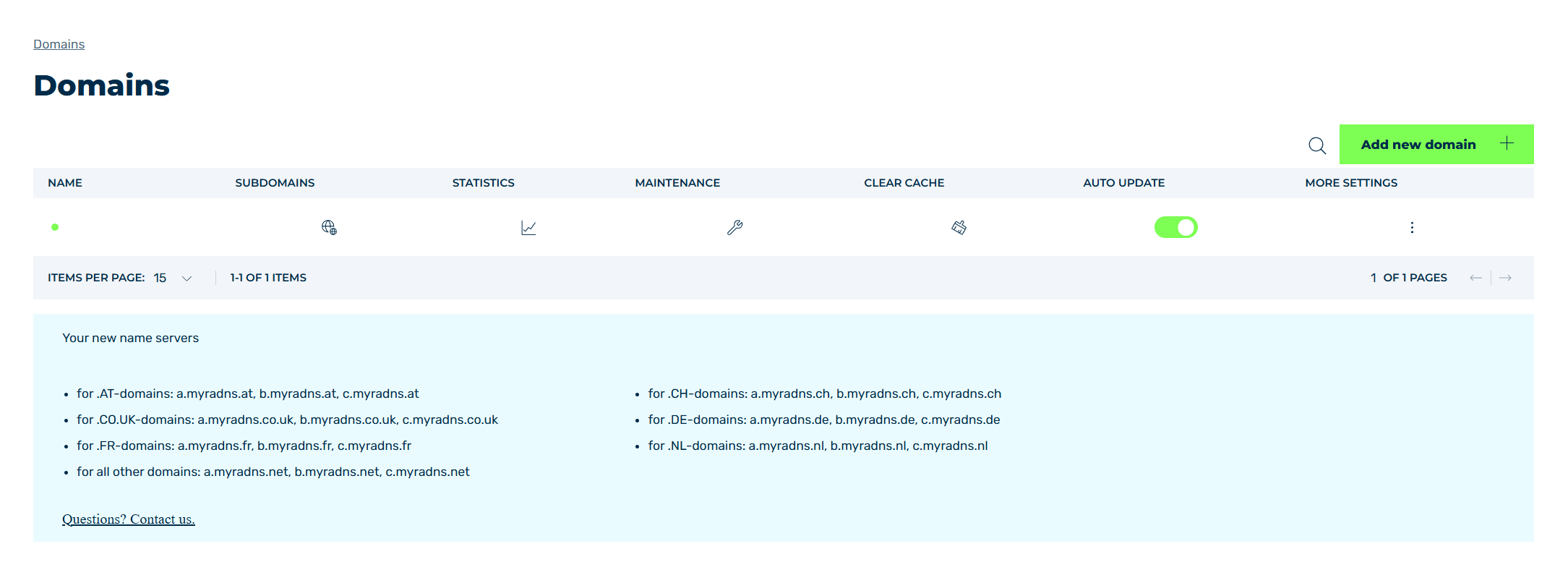
Domains view
- ► Click on the
 icon in the MORE SETTINGS column.
 - ► Click on Custom error pages in the list.
- ➔ The Custom Error Pages view opens.
The Create new error page button opens the Create new custom error page view for adding new error pages.
The table of created error pages provides an overview of all error pages that were created for a domain and allows you to edit and delete them.
The following information is available:
| Name | Definition |
|---|---|
| SUBDOMAIN | The subdomains or All Subdomains that an error page entry was made for |
| CUSTOM ERROR PAGES | Indicates which HTTP error codes have been assigned to a specific error page. Click on an error code to open the Edit <error code> error page view. |
 |
The icon selects an entry from the table. Click on the checkbox in the table header to select all entries. |
When selecting one or all entries using the checkbox, the following options appear above the table header:
| Name | Definition |
|---|---|
| Delete | The button opens the Delete subdomain error pages dialog for deleting the selected entries.AttentionWhen an entry is deleted, the entry and all associated settings are permanently deleted. To be able to restore an entry after deletion, you must create a brand-new one and reconfigure it. |
| Cancel | The button removes the selection for the selected entries. |
 |
The search field filters entries by names. Click on the X to delete the search entry. |