Reviewing of WAF rules
After activating the WAF rules, Myra recommends checking the access logs after about two weeks to see which rules have been triggered and how. This test serves to detect false positives so that the WAF rule can be adjusted accordingly.
Proceed as follows to check the WAF rules via the access logs:
- ► Retrieve the access logs from the Myra log server, see Section Connecting to the Myra log server using SFTP.
- ► Copy the contents of the access logs into an Excel file.
-
► Search for entries with the abbreviation LW (Logged WAF).
Example
XX.XXX.XXX.XX - - [21/Jan/2025:11:51:56 +0100] "GET /blockedforalina/ HTTP/1.1" XXX XXX "-" "Mozilla/5.0 (X11; Ubuntu; Linux x86_64; rv:134.0) Gecko/20100101 Firefox/134.0" “LW,ee21e213fdc44f50bae9bc8b788b7e69=XSS_Path"- Orange corresponds to the abbreviation for Logged WAF.
- Green corresponds to the UUID.
- Red corresponds to the identifier assigned to the WAF rule.
-
► Open a regex editor, such as Regex101.com.
- ► Set Editor to consider multiple lines and upper/lower case.
- ► Copy the string (for example, for the Path condition, the entire path) from the access log as a test string into the editor.
-
► Search for the WAF rule specified in the access log based on the UUID or identifier and open it.
Proceed as follows to open a WAF rule:
- ▷ Click on the Tags tab.
- ▷ Navigate to the Custom Tag area.
-
▷ Select the WAF tag you want to open and click on the
 icon.
icon. -
↳ The WAF rule for tag <Tag name> view opens.
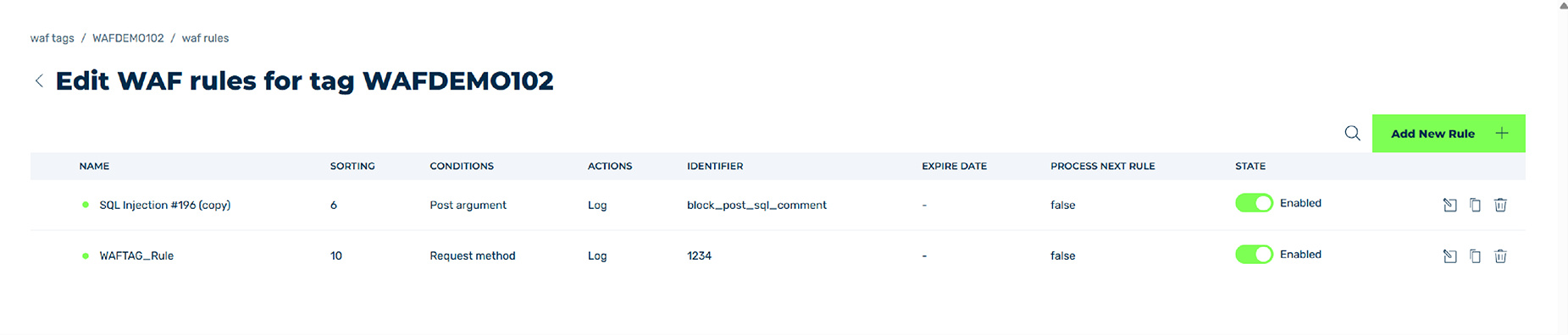
Edit WAF rule for tag view
- <span class="myra-step">▷</span> Select the WAF rule you want to check and click on the  icon.
- <span class="myra-step myra-step--sub">↳</span> The **Edit WAF rule for tag <Tag name>** view opens.
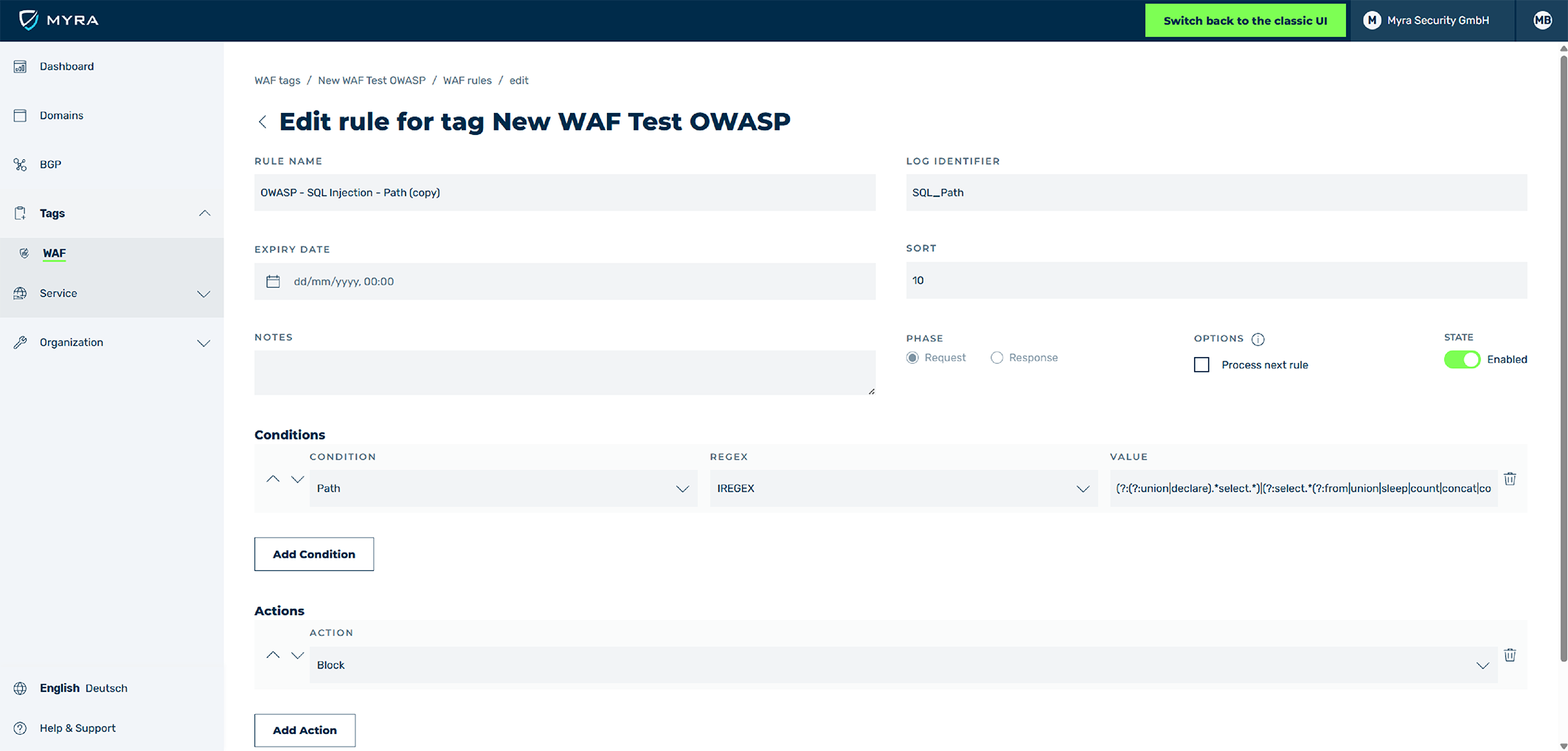
Edit WAF rule for tag view
- <span class="myra-step">▷</span> Navigate to the Conditions area.
- <span class="myra-step">▷</span> Copy the IREGEX string from the field under **Value**.
- ► Copy the IREGEX string from the WAF rule conditions into the Regex Editor in the Regular Expressions field.
-
↳ The Regex filter shows you which parts of the IREGEX string match the test string.
Note
You must decide for yourself whether there is a false positive when checking the WAF rule.
If you need assistance with this, please contact the Myra Support Team.
-
► If necessary, adjust the WAF rule as follows:
- ▷ Select the WAF Tag you want to edit.
- ▷ Select the WAF rule you want to edit.
- ▷ Adjust the conditions.
- ▷ Click on the Save button.
-
► Repeat the process for all entries in the access log.
- ➔ All WAF rules have been checked and there are no more false positives.