Add a certification authority
Proceed as follows to add a certification authority:
- ► Click on the Add provider button.
- ↳ The Add provider dialog opens.
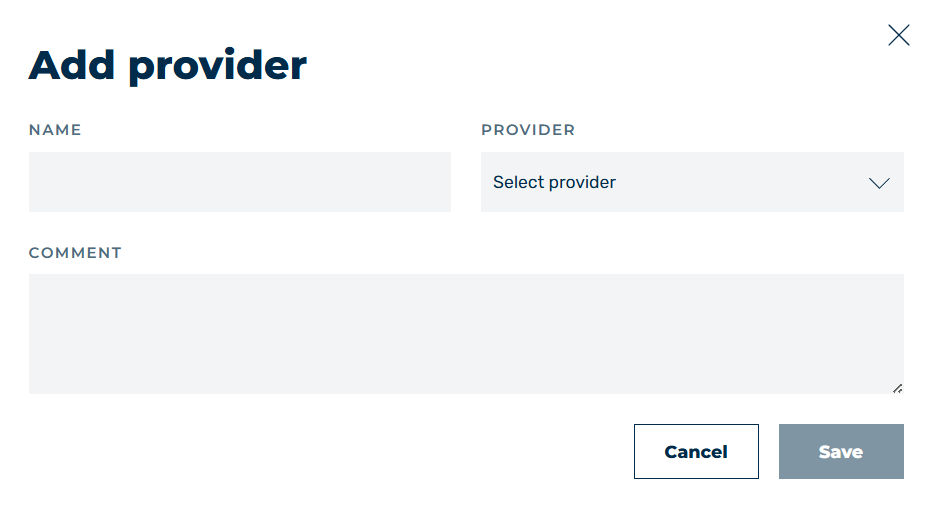
Add provider dialog
- ► Enter a custom name for the entry in the text field under Name.
- ► If necessary, enter an individual description for the record in the text field under COMMENT.
- ► Use the drop-down menu under Provider to select an available certification authority.
Depending on the certification authority, the dialog will change, and you will have the following options:
D-Trust
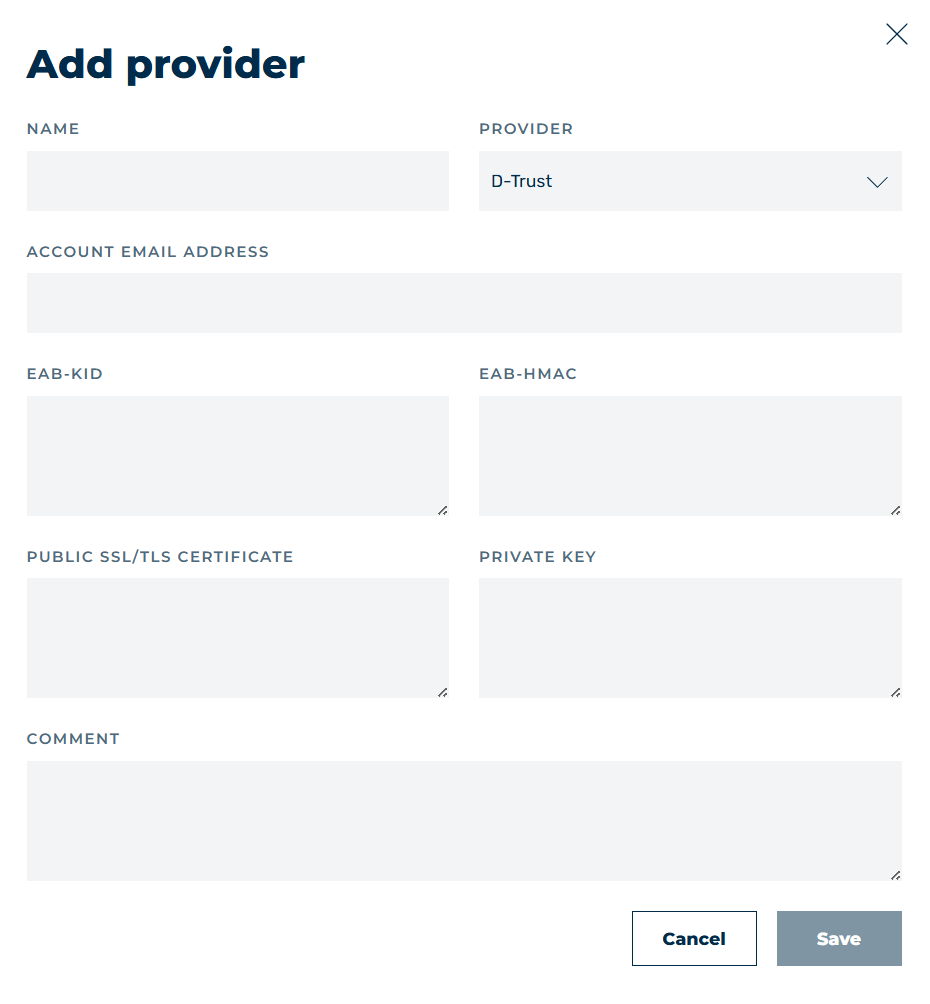
Add provider dialog - D-Trust
- ► In the text field under Account email address enter the email address you used to register with the certification authority.
- ► In the text field under EAB-KID enter your unique identifier for the certification authority.
- ► In the text field under EAB-HMAC enter your private key for the certification authority.
- ► Enter your certificate in the text field under Public SSL/TLS Certificate.
- ► Enter the private key that corresponds to the SSL/TLS certificate in the text field under Private key.
Sectigo
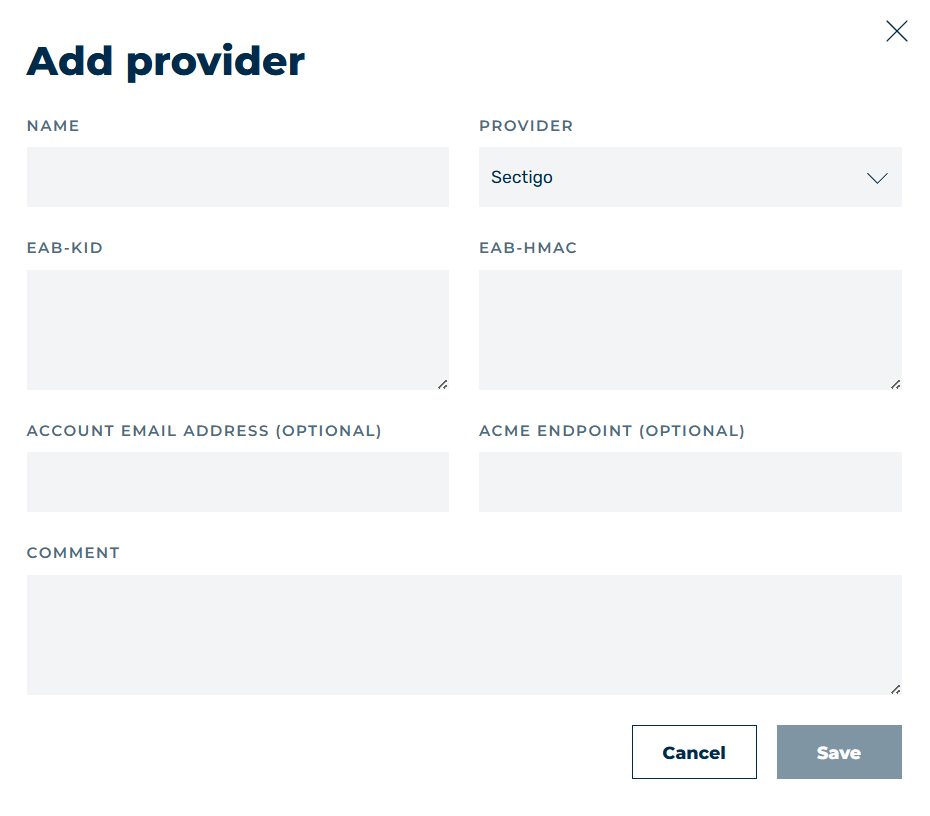
Add provider dialog - Sectigo
- ► In the text field under EAB-KID enter your unique identifier for the certification authority.
- ► In the text field under EAB-HMAC enter your private key for the certification authority.
- ► If necessary, enter in the text field under Account email address (optional) the email address you used to register with the certification authority.
- ► If necessary, enter an alternative endpoint for communication with the certificate authority in the text field under ACME ENDPOINT (OPTIONAL).
Once you have filled in all the fields, proceed as follows:
- ► Check your entries.
- ► Click on the Save button.
- ➔ The dialog closes and the new entry appears in the list of entries.