Changing the user name
Note
You need admin rights to add, edit, or delete an account.
To change a user's name, you have the following options:
-
■ Via the User Management view
-
► Select the user you want to delete.
- ► Click on the
 icon in the Actions column.
 - ↳ The Edit user <Email address of the user> dialog opens.
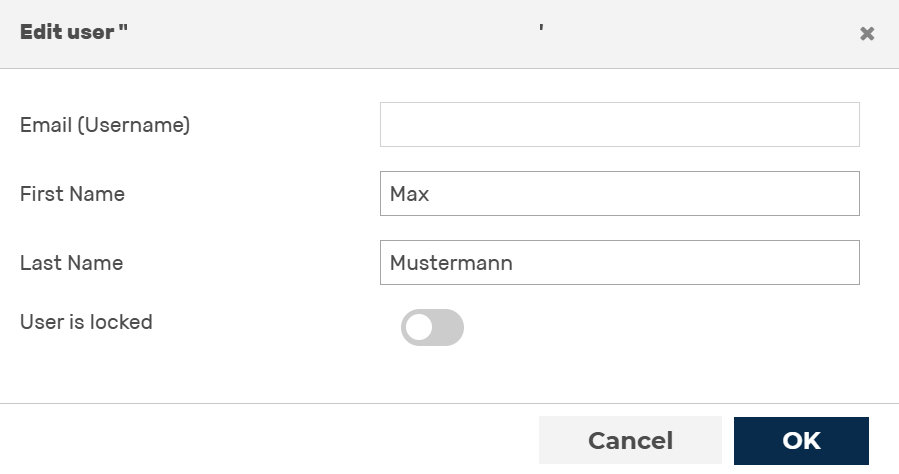
Changing the user name
- ► Make the changes to your first and last names.
- ► Click on the OK button.
-
➔ The dialog closes, and the user appears in the list of users under a new name.
-
■ Via user details for <user name> view
-
► Click on the name of the user.
- ↳ The User details for <user name> view opens.
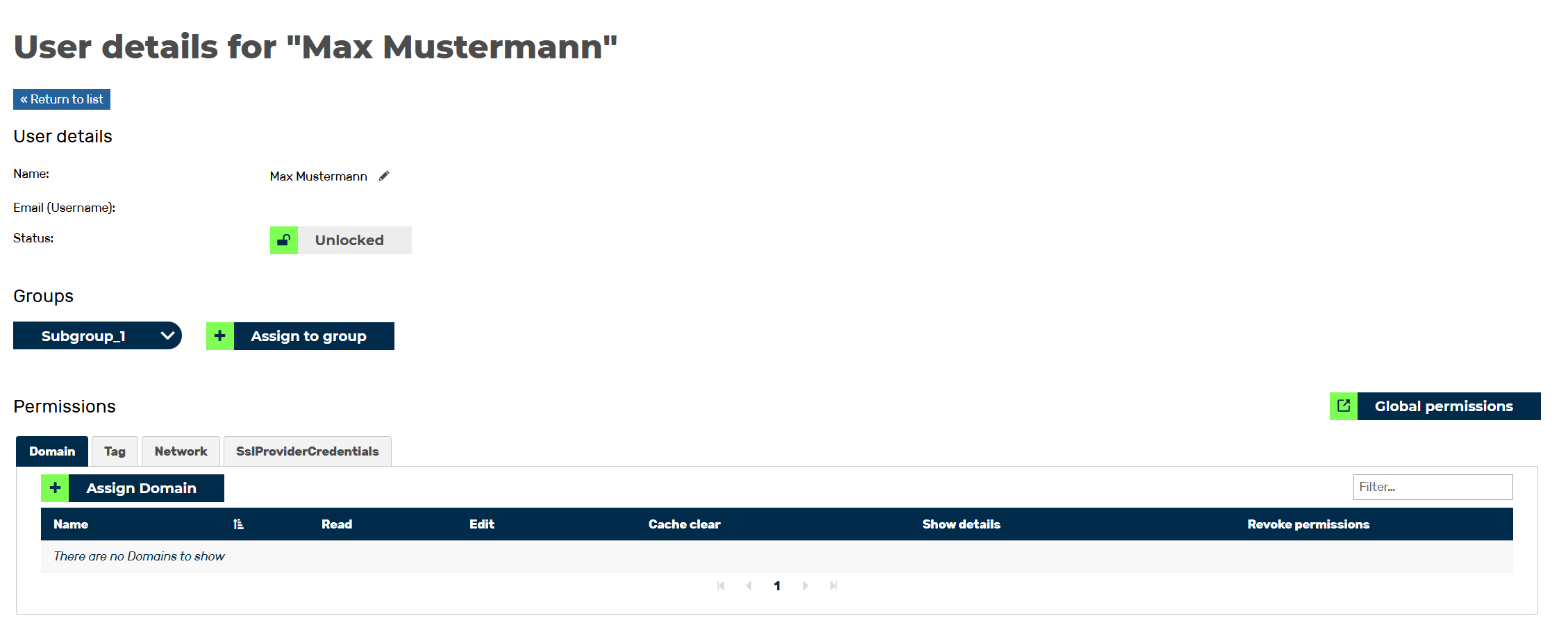
User details for <user name> view
- ► Navigate to the User details area.
- ► Click on the icon next to the name of the user.
- ↳ Two text fields appear.
- ► Make the changes to your first and last names.
- ► To save the changes, click on the
 icon.
icon. - ➔ The text fields close, and the new name appears next to the field Name.