Enabling WAF in the subdomain settings
Proceed as follows to activate WAF for a domain or subdomain:
- ► Click on the Domains tab in the left menu bar.
- ↳ The Domains view opens.
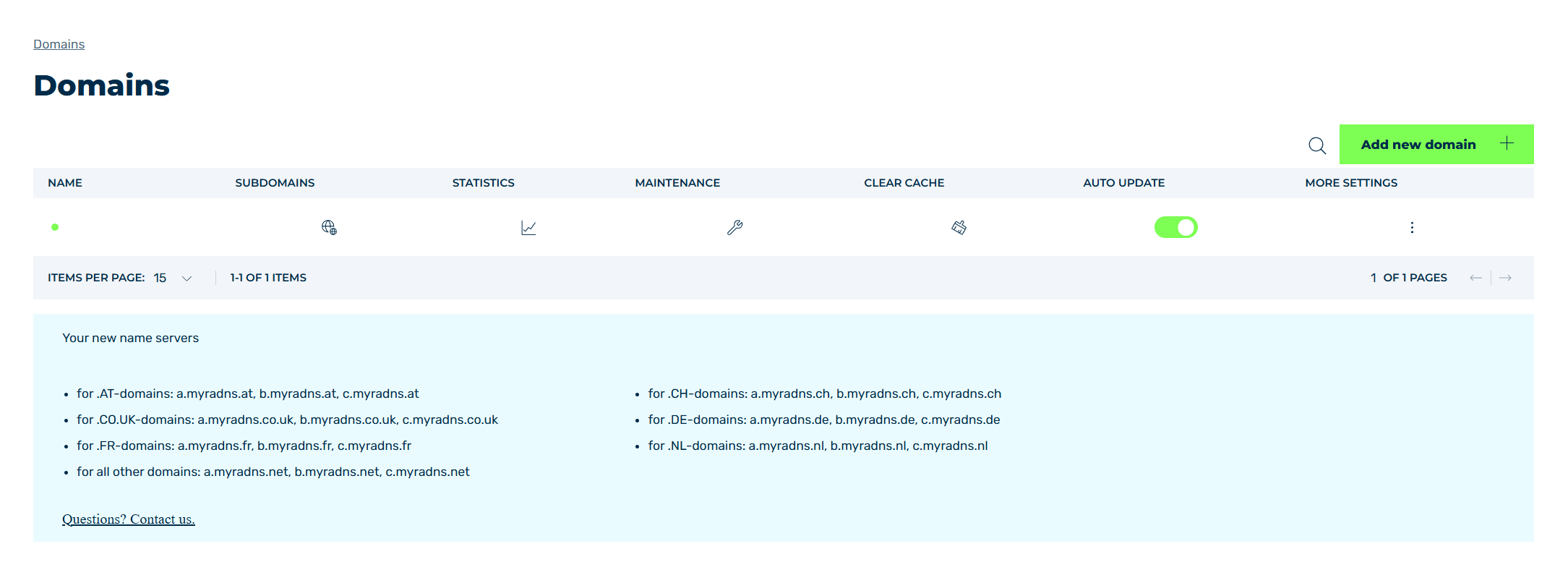
Domains view
- ► Select the relevant domain and click on the
 icon in the SUBDOMAINS column.
 - ↳ The Subdomain settings for <domain name> view opens.
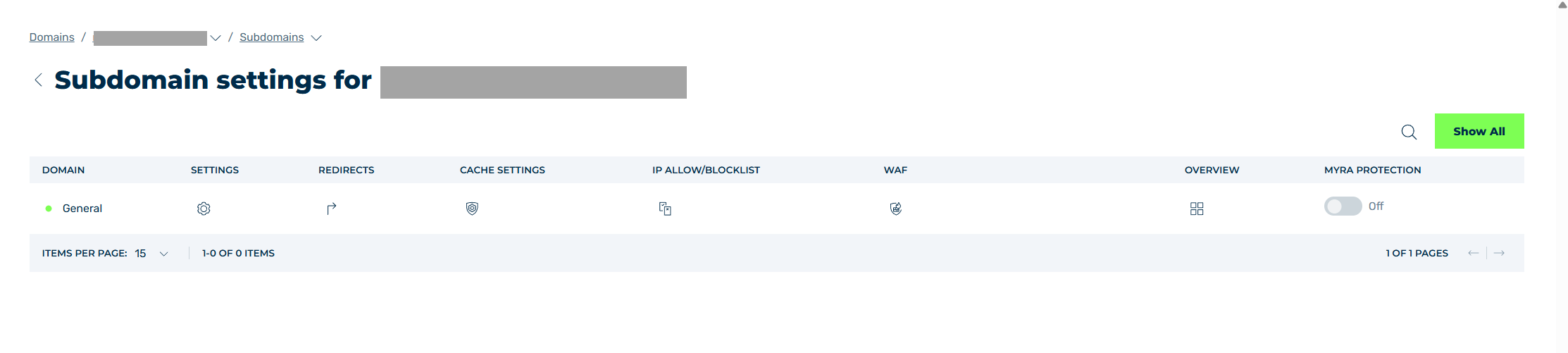
Subdomain settings view
- ► Select either General or a subdomain and click on the
 icon in the SETTINGS.
 - ↳ The Settings view opens.
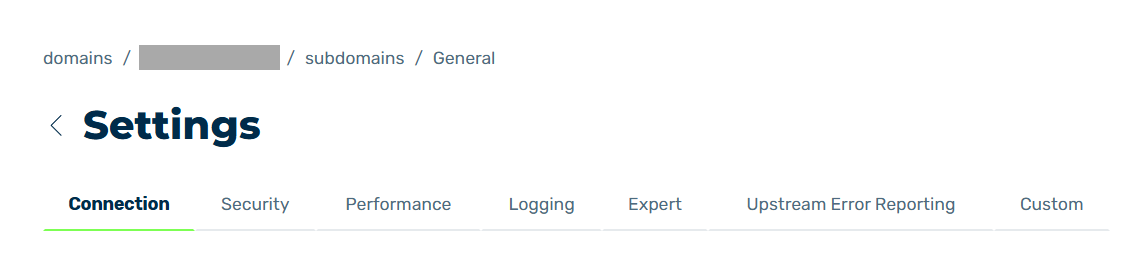
Settings view
- ► Click on the Security tab.
- ↳ The options below the Security tab appear.
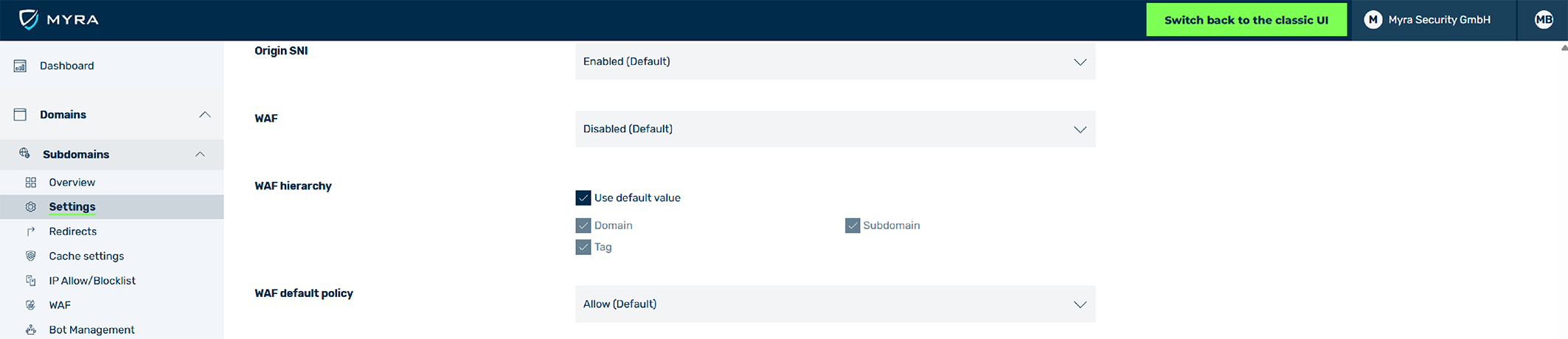
Enabling WAF
- ► Navigate to the WAF settings.
- ► Click on the drop-down list and select Enabled.
- ► Navigate to the WAF hierarchy setting.
- ↳ Once the WAF has been activated, the Use default value/Use inherited value is selected.
-
► Check whether WAF rules should be used at the subdomain, domain, and tag levels.
- If so, you do not need to make any changes.
- If not, uncheck the Use default value/Use inherited value checkbox and check at least one of the three boxes: Domain), Subdomain, or Tag.
-
► Navigate to the WAF default policy setting.
- ► Click on the drop-down list and select one of the following values according to your needs:
- ↳ Allow: If requests cannot be handled due to missing WAF rules, they are always allowed and the next security mechanism of the Myra App handles them.
- ↳ Block: If requests cannot be handled due to missing WAF rules, they are always blocked.
- ► Click on the Save button.
- ➔ A message confirms that the setting has been successfully saved and the WAF is available for the selected domain or subdomain.
Repeat the step until WAF has been enabled for all required domains and subdomains.