Change account
Note
You need admin rights to add, edit, or delete an account.
Proceed as follows to change an account:
- ► Navigate to the List of User accounts area.
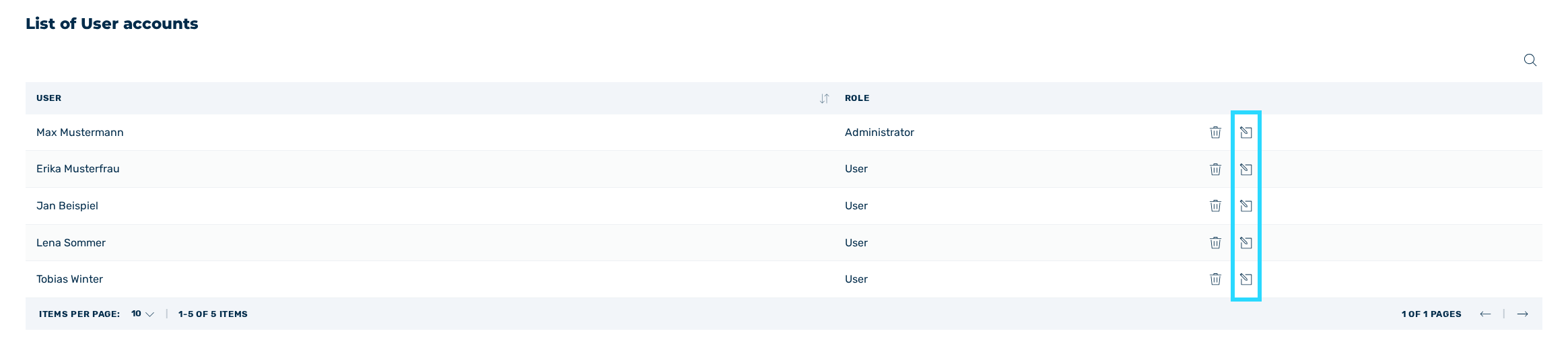
User accounts list area
- ► Click on the icon
 next to the relevant account.
 - ↳ The Update company member dialog opens.
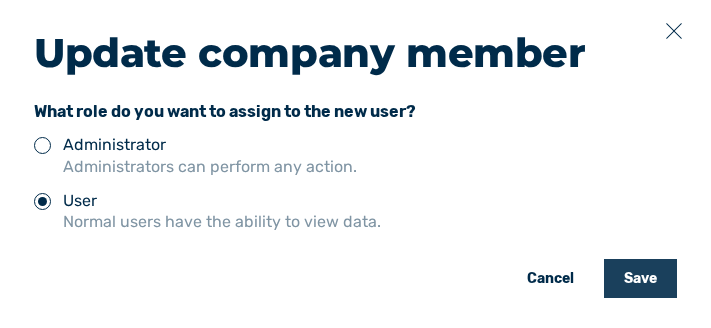
Update company member dialog
- ► If necessary, change the name of the user under Name.
-
► If necessary, change the user's authorization under Role.
You have two permission groups to choose from:
-
↳ Administrator: Users with the role Administrator may use every portal function.
- ↳ User: Users with the role User are restricted and may only view data.
- ► Click on the Save button.
- ➔ A message confirms that the account has been successfully changed.