Export IP filter entries
You can export all IP filter entries you've created in the Myra App as a CSV file or copy them to the clipboard. In all three cases, exporting an entry is done in the same way.
Proceed as follows to export IP filter entries:
- ► Open the IP positive list/negative list for <subdomain name>, see Section IP Allow/Blocklist.
- ► Use the IP Allowlist, IP Blocklist, or Request Limiter for IP Allowlist tabs to select the type of IP filter you want to export.
- ► Click on the Export button.
- ↳ The Export dialog opens.
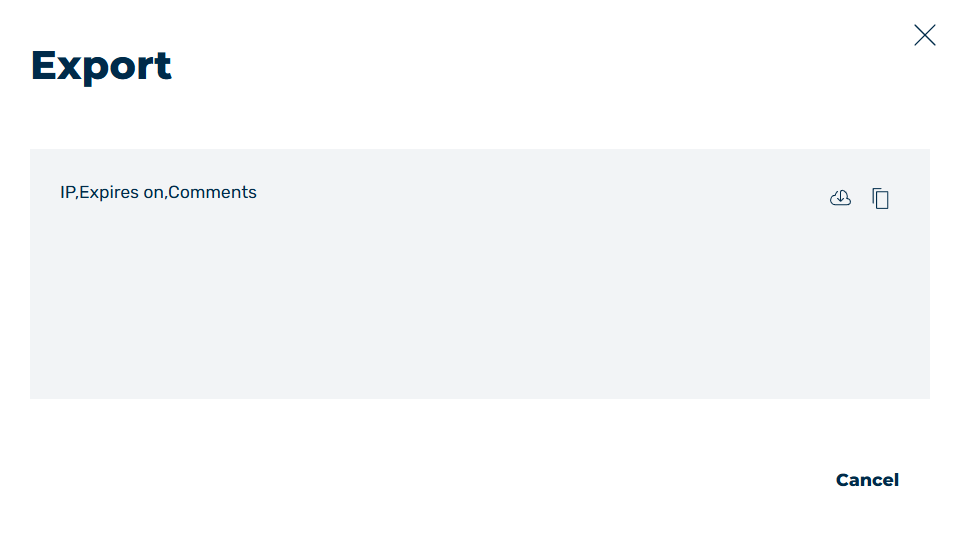
Export IP filter list
You have the following options for exporting entries from the IP filter:
-
■ Export as CSV
-
► Click on the
 icon.
icon. -
➔ A CSV file containing all IP filter entries will be downloaded.
-
■ Copy to clipboard
-
► Click on the
 icon.
icon. - ↳ The icon changes to
 and the entries are copied to the clipboard.
 -
► Click on the X icon or the Cancel button to close the dialog.
-
➔ The dialog closes.