Details tab
Details tab
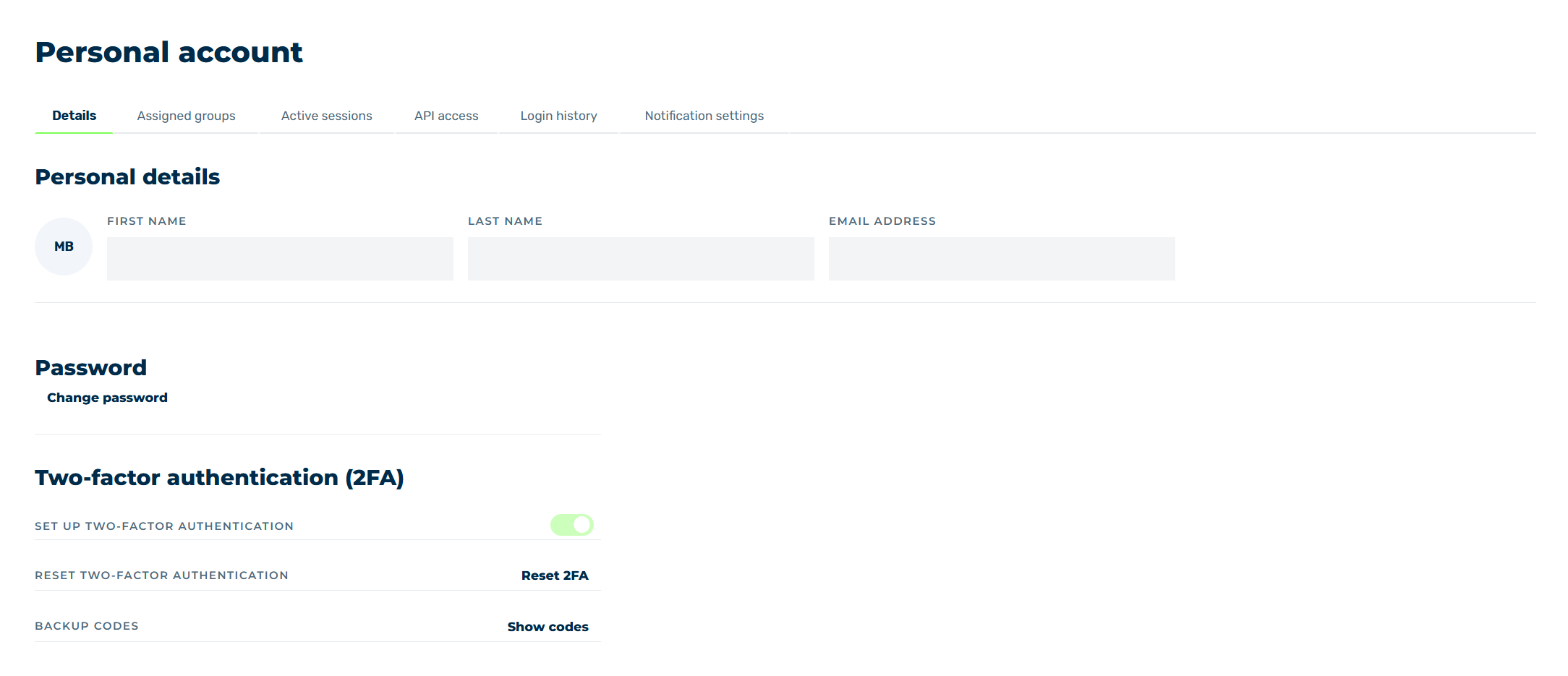
In the Details tab, you can see information about you stored in your account. You have the option of changing your name and password and enabling 2FA.
| Name |
Definition |
| Personal details |
The Personal details area contains the following information:- First name: The user's first name.
NoteThe first name of the user can't be changed in the account settings. • Last name: The user's last name. •NoteThe name of the user can't be changed in the account settings. • Email Address: The account’s registered email address, which is also the login name. •NoteUsers cannot change their email address. |
| Password |
The Change password button in the Password area opens the Change password dialog for changing the password by entering your current password and confirming the new password twice. |
| Two-factor authentication (2FA) |
The Two-factor authentication (2FA) area contains the following information and options:- Set up two-factor authentication: Contains a switch to enable and disable 2FA for the account.
NoteIf two-factor authentication (2FA) has been mandated in the organisation settings, the switch will be greyed out and cannot be changed. • Reset two-factor authentication: The Reset 2FA button in the Reset two-factor authentication area opens the Reset 2FA dialog for resetting 2FA. • Backup codes: The Show codes button in the Backup codes area opens the 2FA backup codes dialog with all the backup codes for authentication in the Myra App if you do not have access to your authenticator app. You can also generate new backup codes in the dialog. |